
What you get
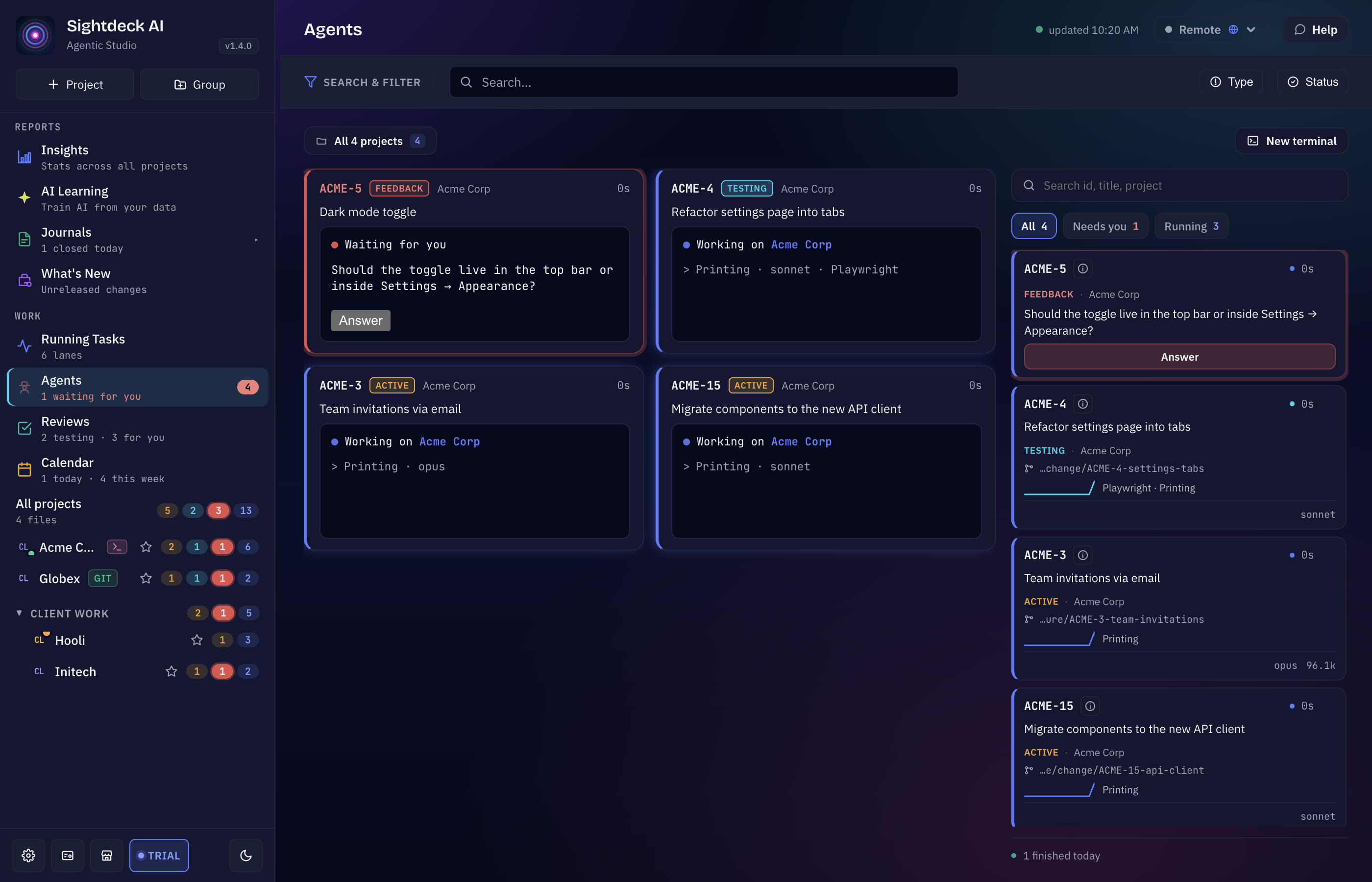
- Every running session as a card: task, status, branch, progress through its steps, and what it changed so far.
- Sessions that wait for an answer stand out, with the question on the card and an Answer button.
- One click opens a session full size, as a real terminal you can type into.
- The Up next queue beside the sessions, with a start button per task and the reason when a task cannot start yet.
- Plain terminals in a project folder, with no task attached, next to your agents.
- Sessions that keep running when Sightdeck restarts or crashes — see the limits below.
Run sessions inside Sightdeck
Whether a project's sessions run inside Sightdeck or in a Terminal window is set per project: Project settings → General → Run agents embedded in Sightdeck. It is on by default, and it also applies to Non-AI commands. The Agents view shows the sessions that run inside Sightdeck; a session in a Terminal window stays there.
A task that runs embedded shows Embedded on its card. In the task's details, the Terminal tab shows the same session while it runs.
Open the view
Click Agents in the Work section of the sidebar. Its line tells you how many sessions are running and how many are waiting for you. With nothing running, the view says "No session is running — Start a task that runs embedded and it appears here, with its output."
The bar at the top lets you narrow and arrange what you see:
- Filter: All, Needs you, Running, Quiet, Shells.
- Sort: Needs you first, Most recently started, Longest running, Quietest first, Project.
- Layout density: Auto (follows the number of sessions), Grid, Wide, List, Compact.
- A project picker, and a search over task id, title and project.
The footer counts what is running, what is waiting for you and what finished today.
What a session card shows
- The task: its id, title and project, and in a project with stages the stage it is in (Stage: Review).
- The branch the task works on.
- The status: the provider it runs on and whether it is Running, Printing or Quiet. A session that has printed nothing for a while is dimmed and says how long it has been silent ("No output for 4 min").
- Progress: one segment per step of its workflow — hover it for "Step 2 of 5 done".
- Changes: lines added and removed and the number of files. For a task on its own branch this is everything it changed since the branch started; for a session without its own branch it is the uncommitted changes only.
- The model and the tokens used so far.
A session that waits for you shows its question instead, and Answer.
Open, answer, interrupt, stop
- Open full size: click a card (or Answer on a waiting one). The session opens as a real terminal; the line above it says where your typing goes. Esc or All sessions takes you back — while the keyboard is inside the terminal, Esc belongs to the session.
- Answer: type your reply straight into the terminal, as you would in a Terminal window.
- Interrupt sends Escape to the session and stops only what it is doing right now; the session stays open.
- Stop ends the session after you confirm. Whatever it is working on right now is lost. An unfinished task goes back to the backlog — or, if it ran from Up Next, back to its place in the queue. When Up Next would start it again right away, the dialog offers to pause Up Next for that project.
Info shows the task's details beside the agents, without leaving the view. Close all ends every session shown on the page, after one confirmation that says how many are still working.
Start queued tasks and plain terminals
The Up next list beside the sessions shows what is queued, in order. A task in Up Next has a start button (Starts this task now). A task that cannot start yet says why: Waiting for another task, waiting for a task in the same Epic, or Not classified yet.
New terminal opens a plain shell in a project's folder, with no task and no agent. It runs exactly the way an agent session is started, so it is the right place to check what a session's environment looks like. Right-click it to rename it; the Shells filter shows only these.
The terminal dock
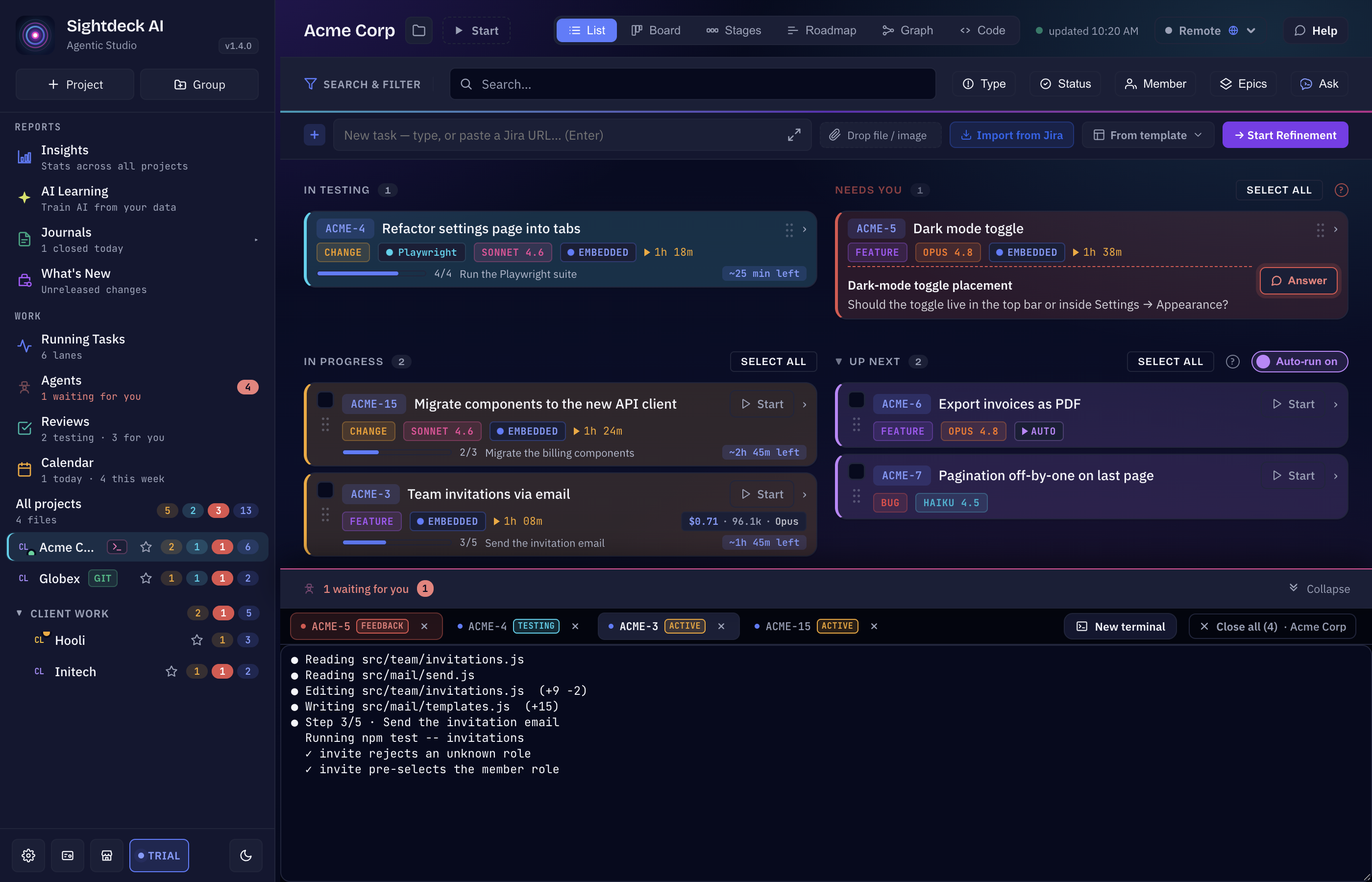
Under each project's view sits a status bar with the project's sessions: "2 agents", "1 waiting for you" or "No agent". Click the bar, or press Ctrl+` (Cmd+` on a Mac), to open or close the dock. The shortcut is ignored while you type inside a terminal, where the key belongs to what runs there.
- One tab per session of this project. The small × on a tab stops that session.
- Drag the top edge to make the dock taller or shorter. The view above keeps its full width.
- New terminal opens a shell in the project's root folder.
- Close all ends every agent session of this project at once. With many tabs, both actions fold into More actions.
When Sightdeck restarts or crashes
The terminals are held by a small session helper that runs next to Sightdeck. Because the helper is its own process, a session keeps working when Sightdeck crashes or restarts, and the next time the app opens it picks the running sessions up again — output included.
When you quit Sightdeck while sessions are running, it asks: Keep running, Stop them or Cancel. Kept sessions keep working in your project folder while Sightdeck is closed.
What this does not cover, honestly:
- A reboot. Nothing survives a restart of the computer.
- The helper is not running. If it could not be started, did not start in time, or a helper from a different Sightdeck version is still running, the view shows Sessions will not survive. Sessions still run, but inside the app, and they are lost on the next restart. The fix is to restart Sightdeck; the helper starts again and new terminals survive the next restart.
- The helper stopped while sessions were running. The view then shows Terminals lost: the session is still working in your project folder and its progress still shows on the task card, but Sightdeck can no longer show its terminal. Let the task finish — or, if you need the terminal, stop the session and start the task again.
Related
- Running tasks — runs across all projects as lanes.
- Needs You — everything that waits for your answer.
- Providers — which agent a session runs on.