What it is
A coding agent normally asks for confirmation before it edits a file or runs a command. Full access turns those questions off, so the agent works through a task without stopping. In Sightdeck AI this is a setting of each provider profile, not of the whole app — the old sidebar toggle is gone.
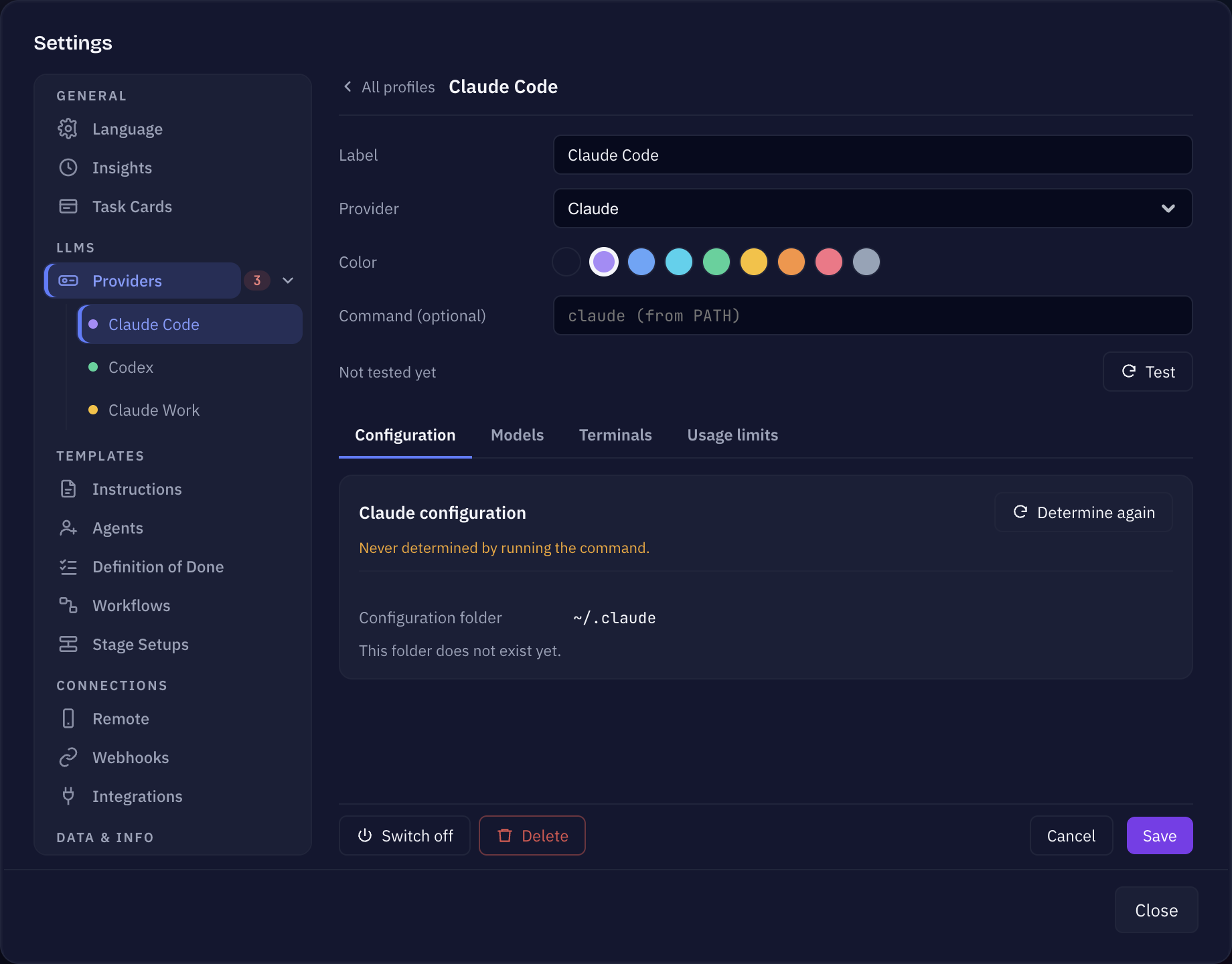
You find it in Settings → Providers → your profile → tab Terminals. The name depends on the agent:
- Claude — Full Access Without Confirmations. Sessions start with
--dangerously-skip-permissions: Claude reads, writes and runs anything in the project without asking first. Off by default. With it off, Claude asks in its session before each step, exactly like a Claude Code session you started yourself. - Codex — Danger Full Access. Sessions start in the
danger-full-accesssandbox with no approval prompts. Off by default — and Codex does not run without it. Codex has no equivalent of Claude's per-step permission prompt, so instead of guessing a weaker setting, Sightdeck refuses to start a Codex session without full access. Switch it on before you start your first Codex task.
It is the one setting in Sightdeck AI worth a conscious yes or no before your first real task.
Why you might want it on
Sightdeck AI is built to run tasks you are not watching: a queue that works itself off, several projects in parallel, an Epic that walks through its subtasks, a workflow that hands a task from stage to stage. A permission prompt stops the session and waits for a human. In a session you are not looking at, the run simply stands still until you come back and answer.
That is the trade-off in one sentence: you give up the per-step veto and get runs that do not stall.
What the agent may do with it on
Be clear about what you are agreeing to:
- The agent reads, creates, changes and deletes files without asking.
- The agent runs shell commands without asking — builds, tests, package installs, git commands.
- It removes the confirmation, not the reach. The session starts in your project folder, but a command it runs has the same rights your own user account has. Nothing technically confines it to that folder.
- Anything that goes wrong goes wrong at full speed — there is no step in between where you could say no.
How to switch it on or off
- Open Settings (the cog at the bottom of the sidebar) → Providers and click the profile.
- Open the Terminals tab.
- Flip Full Access Without Confirmations (Claude) or Danger Full Access (Codex). The choice is saved with the profile and remembered across restarts.
Because it belongs to the profile, you can keep two setups side by side — for example one Claude profile with full access for your own repositories and one without for everything else — and pick per project which one runs. Sessions that are already running keep the setting they were started with; the change applies to the next start.
Runs that nobody is there to confirm
Some runs start without you clicking anything, so there is nobody at the session to answer a prompt:
- the Up Next queue with Auto-run, including the sessions it restarts by itself,
- Schedules — anything a project fires on a timer,
- Launch Actions triggered from outside the app,
- tasks you start or answer from Sightdeck Remote on your phone,
- the next stage of a workflow that starts on its own when the previous stage is done.
These start with full access unless the provider says otherwise. A profile on which you have switched full access off after having it on keeps it off for these runs too. A profile whose switch you have never touched lets them run with full access. So if you do not want unsupervised changes, set the switch explicitly on that profile — or keep Up Next, Schedules and Launch Actions empty.
Background jobs that only write text, such as Refinement, always run without prompts.
Related
- Full access is about tool permissions — files and commands. Which decisions the agent must bring to you is a separate setting per project: the Approval Gate.
- What the app itself asks macOS for — controlling Terminal, notifications, folder access — is covered on Permissions & privacy.