
What you get
- Big tasks become Epics in one click — add a subtask and the parent starts tracking it.
- Start the Epic and every open subtask runs one after another in a single lane, in the order you arranged them.
- Start a single subtask on its own and it runs in parallel to anything else, in its own lane.
- A progress bar on the Epic shows how many of its subtasks are done — on the card, in the task's details and on the Roadmap — so completion is visible at a glance.
- While any subtask is still running, the parent locks so you can't accidentally start or delete it mid-run. Once every subtask is done, the Epic says All subtasks done.
How you use it
- Add a subtask. Hover a task row in a single-project view, click the + next to Start, type a short title and hit Enter. The subtask lands in
backlog, linked to the parent. - Reorder. Click the
Epic · Nchip to expand the parent, then drag subtasks into the order you want. That order is the one the Epic uses. - Start the Epic. Click Start Epic on the parent to run the subtasks back-to-back in one lane.
- Or start one subtask alone to give it its own lane. The parent locks the moment a subtask starts.
- Close the Epic. When every subtask is done, open the parent and set it to
done— Sightdeck AI never closes it for you.
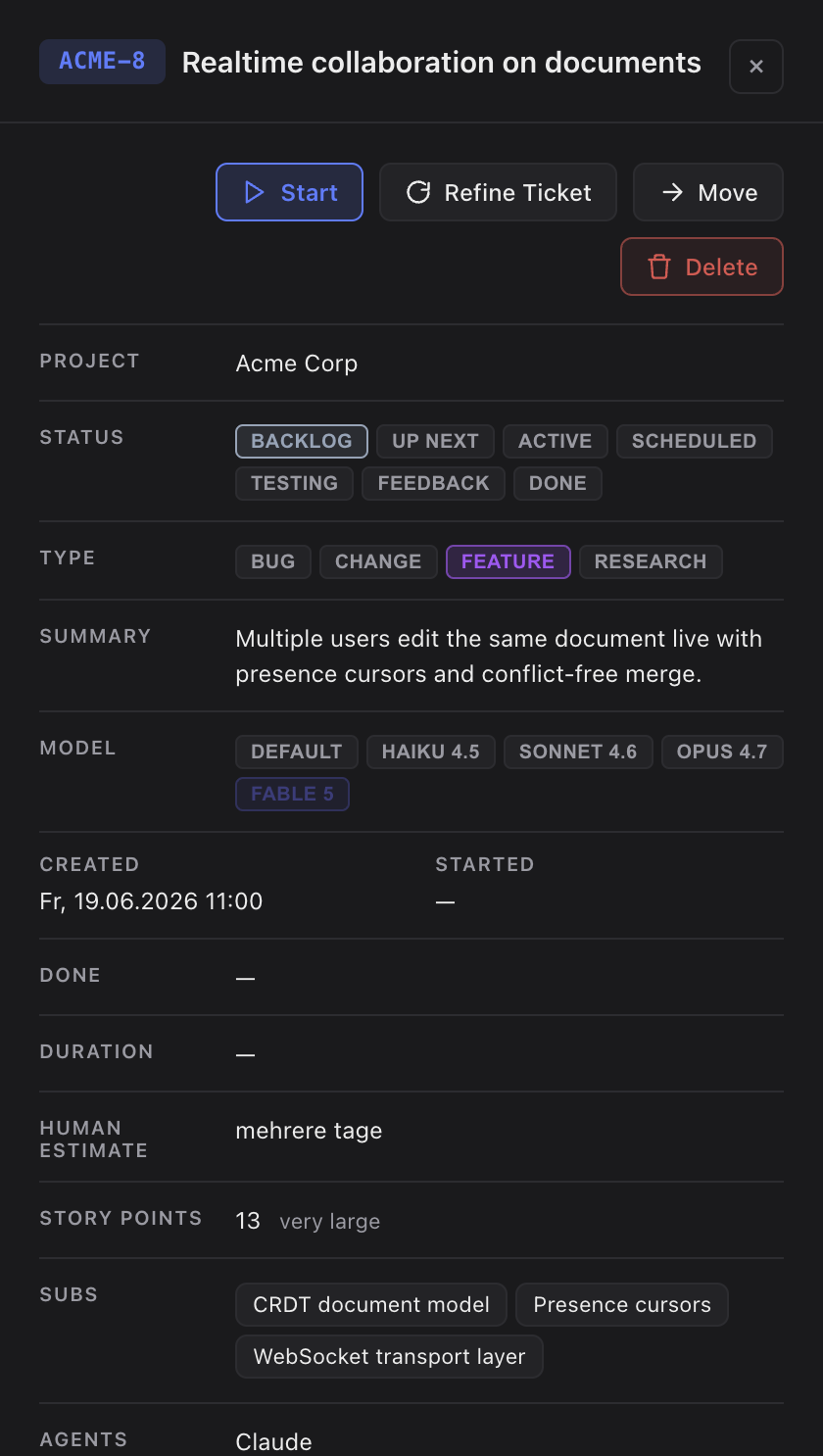
Moving tasks into and out of an Epic
- Move into Epic — right-click a task (or a selection) and pick the Epic it belongs to. An Epic stays one level deep, so an Epic itself cannot become a subtask, and a subtask belongs to an Epic in the same project.
- Remove from Epic — right-click a subtask to take it out of its Epic again. It stays in the project as an ordinary task.
- You can do both from a task's details too, in the Parent field on its Overview tab.
- Merge into Epic — select several tasks on the board and pick Merge into Epic in the selection bar. Sightdeck creates a new Epic, moves the tasks into it as subtasks, and writes its title, summary and concept afterwards. A selected task that already belongs to another Epic moves into the new one; selected Epics stay out.
Seeing where an Epic stands
- An Epic in the backlog shows which subtask is running right now and which one runs next in its run.
- If a queued run never started, the Epic warns you (queued subtasks, nothing started) instead of looking like it is waiting its turn.
- A subtask card names its Epic under the title, so you can tell which Epic it belongs to without opening it.
- A started Epic stays in its own column while its subtasks run.
Hiding Epics for a flat list
Epics group work, but sometimes you want the plain list of what is actually to be done, without parent rows in between. The Epics button in the filter bar above the task list does that — one click hides them, the next brings them back. While it is hiding, the button turns accent-coloured and carries a small hidden badge.
- Every Epic parent disappears; its subtasks stay and are shown like ordinary tasks — in their own status group, no nesting, no
↳ Epiclabel. Tasks without subtasks are untouched. - It applies to List, Board and Roadmap alike, because it sits in the shared filter bar.
- The choice is remembered across restarts and is global, not per project — like the Type and Status filters.
- In a project without a single Epic the button hides itself, and your choice is kept for the next project that has some.
This is purely a view filter: nothing changes in your task file, and a hidden Epic keeps running its subtasks exactly as before.
Good to know
- Subtasks live in the same project as the parent — the + button is hidden in "All projects".
- Deleting an Epic takes its subtasks with it — including when the Epic is part of a multi-selection you delete in one go. If any of the affected tasks might still have an agent session running, the confirmation names them and their status before anything is removed.
- Epics are one level deep: a subtask can't have its own subtasks. Model deeper structure as linked peers in the concept.
- A subtask that is being verified or is waiting for your answer also shows up in the top-level In Testing / Needs You groups, with a label pointing back to its Epic.
- Unclassified subtasks block the Epic start — run refinement first. To break a vague task into subtasks through a guided dialog, use Planning mode.
- When an Epic closes, its changelog line is combined from its subtasks' lines and shown in the Epic's details, ready to copy into your release notes.
Questa pagina ti è stata utile?
Grazie — annotato.