
The three run modes
- Run in parallel — one agent session per task, all at the same time. Best when the tasks are independent.
- Run in order (serial) — each task runs in its own CLI window, one after the other. As soon as one reaches
done, Sightdeck opens the next window automatically. Use when one builds on the previous. - Run with Autopilot — Sightdeck AI checks the tasks for file overlap and picks the safe mode itself: same files run serial, independent files run parallel.
What you get
- Hand half a sprint to agents in one click, instead of opening every task.
- You always see why a mode is recommended — a pill explains the reasoning before you click anything.
- Autopilot removes the decision when you don't want to think about parallel versus serial.
- Cluster suggestions surface ready-to-run bundles you would otherwise assemble by hand.
How you use it
- In the backlog, tick the tasks you want. A run bar appears at the bottom of the window with the count, a recommendation pill and the action buttons.
- Pick a mode: Run in order, Run in parallel or Run with Autopilot.
- Confirm — all tasks move into Running tasks and start.
Moving a selection instead of starting it
The same selection bar can also just move the batch, without launching anything — pick a target status (Backlog, Up Next, Done, and the rest of the lifecycle) and every selected task moves there in one step. Handy for clearing a whole batch of refined tasks into Up Next at once, instead of dragging or right-clicking one card at a time.
How a serial run behaves
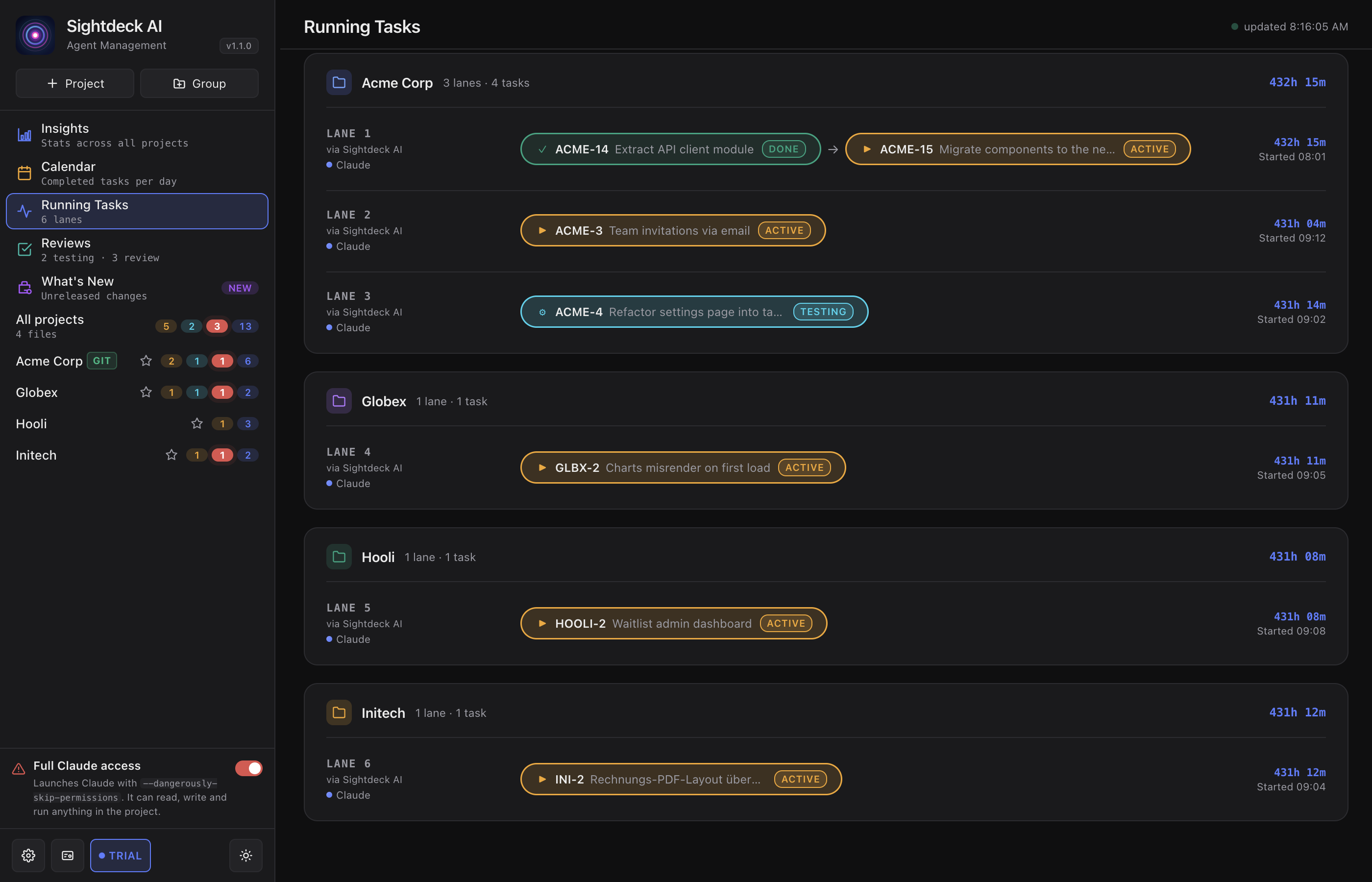
Because Run in order gives every task its own window, each task keeps its own recommended model — a cheap Haiku task and a top-tier Fable task (see the four models) can sit in the same run, and the old "these tasks use different models, continue with the strongest?" prompt is gone. The chain is derived from the task file on every check, so it survives an app restart: close the app mid-run, reopen it, and the run picks up where it left off. Finished windows stay open so you can read back what each task did.
A serial run pauses on purpose when a task needs your feedback or a session died — it waits for you rather than skipping ahead, and resumes the moment the task reaches done. If a window truly can't open (the project folder was moved or deleted), the task shows a red ⚠ Chain stuck badge and Sightdeck retries in the background. The same one-window-per-task behaviour drives Start Epic.
Cluster suggestions
Sightdeck AI groups similar backlog tasks on its own and shows each group as a collapsible band above the list. A band carries a short label, the reason for its suggested mode, and the tasks it covers.
Hit ▶ Run on the band to fire the bulk start directly — pre-selected and pre-moded, no manual work. Dissolve hides a suggestion for the current session.
Moving a batch to another status
The multi-select bar does not only start tasks. With several tasks selected you can move every one of them to another status in one step — a whole batch of backlog tasks into Up Next, for example, instead of dragging them one at a time.