What Sightdeck AI is
Sightdeck AI is a desktop app that organises work for coding agents. You describe what you want, Sightdeck turns it into tasks, starts each one on an agent in your project folder and keeps the board in sync with what that agent is really doing. The agent itself is not part of Sightdeck — you bring your own:
- Providers. A provider is one agent setup: Claude (Claude Code) or Codex, with its command, its configuration folder, its models and its colour. Add as many profiles as you need — a second Claude account, Codex next to Claude — and let every project pick its own default. See Providers.
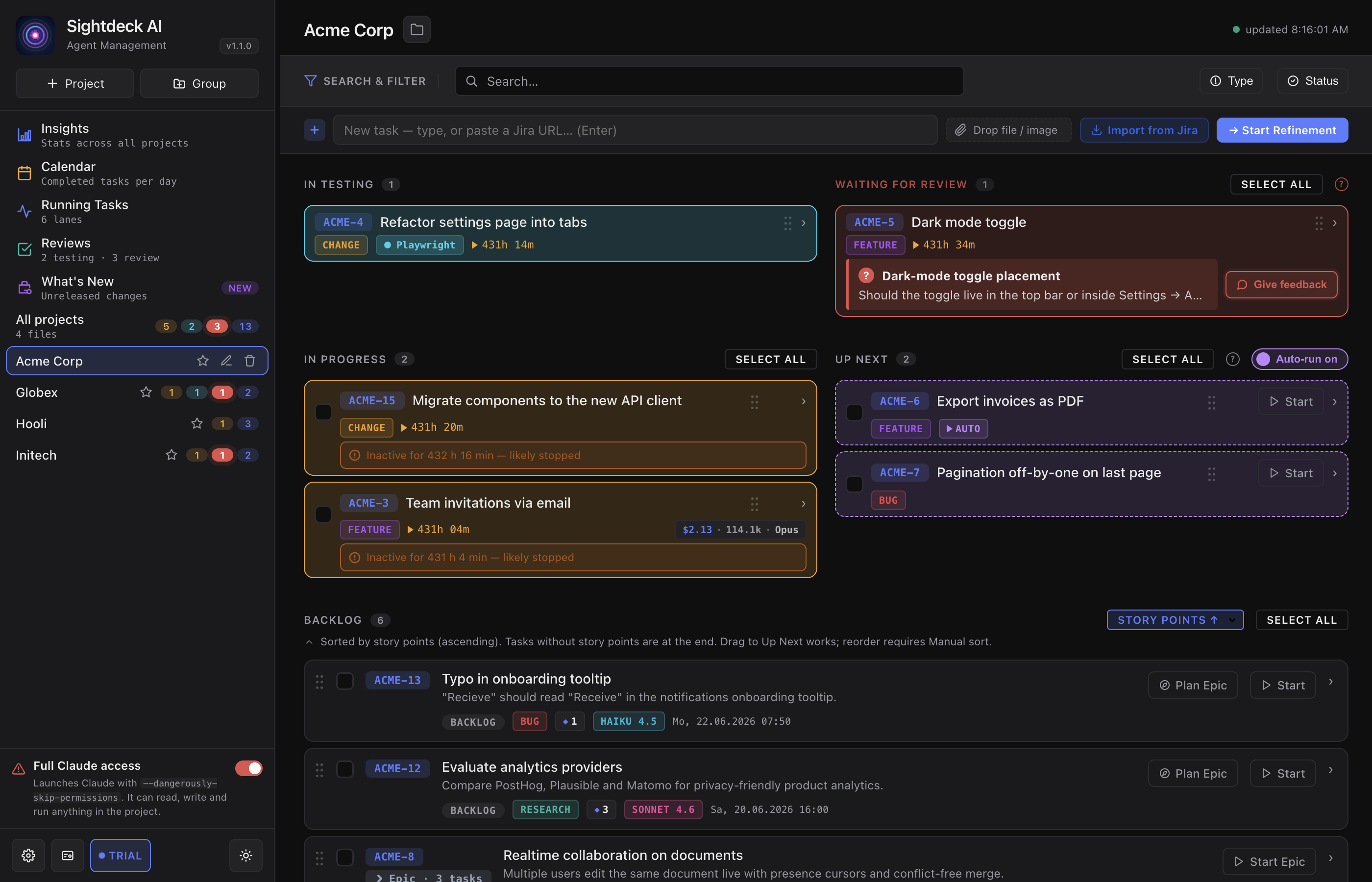
- Board. Backlog, Up Next, In Progress, Needs You, In Testing and Done — every task of every project in one lifecycle. See Status lifecycle.
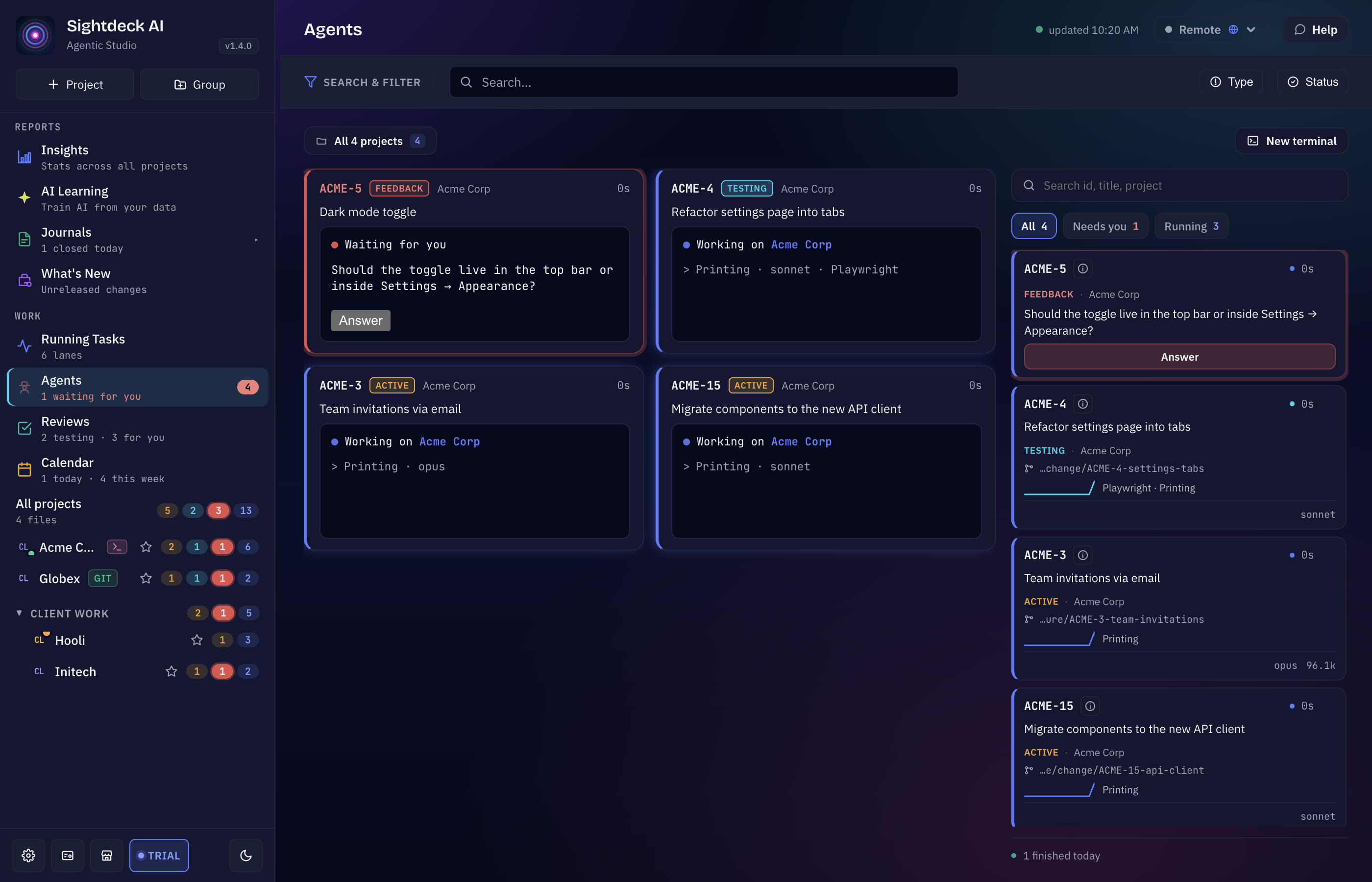
- Agents. Every running session inside the Sightdeck window, with its task, status, branch and changes; answer, stop or open one full size. A terminal dock under each project keeps sessions at hand. See Agents view.
- Stages and Workflows. Run a task through several stages — for example build on one provider, review on another — each following a workflow you draw. See Stages & Workflows.
- Code. Browse and edit your project's files, and review every change an agent made, file by file. See Code view.
- Store. Ready-made workflows, agents, Definition of Done checklists, instruction templates, skills and more — install them into your projects. See Store.
- Insights and AI Learning. What your runs cost and how long tickets really take — and estimates that learn from your own finished tasks. See Insights and AI Learning.
Everything else builds on these: task dependencies, the Profiler for every run, Definition of Done checklists, the Approval Gate, usage limits, and the Help and Ask the project chats.
Start here
If this is your first time with Sightdeck AI, follow Getting Started top to bottom. If you already run it and need a refresher on one feature, use the sidebar.
Pick a topic
The guide is split into five areas. Each tile lands you on the first page of that area — the sidebar then carries you through the rest.
Install and get going
Install the app and your agent, add a provider, install the skill, activate your license, run your first task — the five-minute path from zero to a green tile.
7 pages 设置Configure providers and projects
Providers, the Store, AI Learning, Definition of Done, Instructions, the Approval Gate, Follow-up Tasks, ticket types, Startup Commands, usage limits, schedules, the archive, Sightdeck Remote — everything Sightdeck AI reads from a project and how to configure it.
33 pages WorkflowRun a day's worth of work
Refinement, the status lifecycle, the Agents view, Stages & Workflows, the Code view, task dependencies, the Profiler, Up Next, Epics & subtasks, reviews, token costs — the day-to-day moves.
27 pages 集成Connect Git, Jira, GitHub, webhooks
Git branches and worktrees per task, Jira tickets, GitHub issue import, webhooks, import & export, Launch Actions.
9 pages 教程Follow a how-to, step by step
Short walkthroughs that stitch several features into one journey — add a second provider, review on a second provider, plan with dependencies, install from the Store, run tasks in parallel. Each step links back to the full feature page.
8 pagesHow the guide is organised
- Every page follows the same shape: What it is, What you get, How you use it. Short, no padding.
- Where Claude Code and Codex behave differently, the page says so. Everywhere else, "the agent" means whichever provider runs the task.
- The sidebar on the left lists every page in stable order. The same order drives the prev / next buttons at the bottom of each page.
- Code, file paths and configuration values appear in
monospaceso they're copy-pasteable.
Found a stale page or a broken link? Tell us via the contact page with the URL — guide pages move as features evolve, and we want them flagged early.