What you get
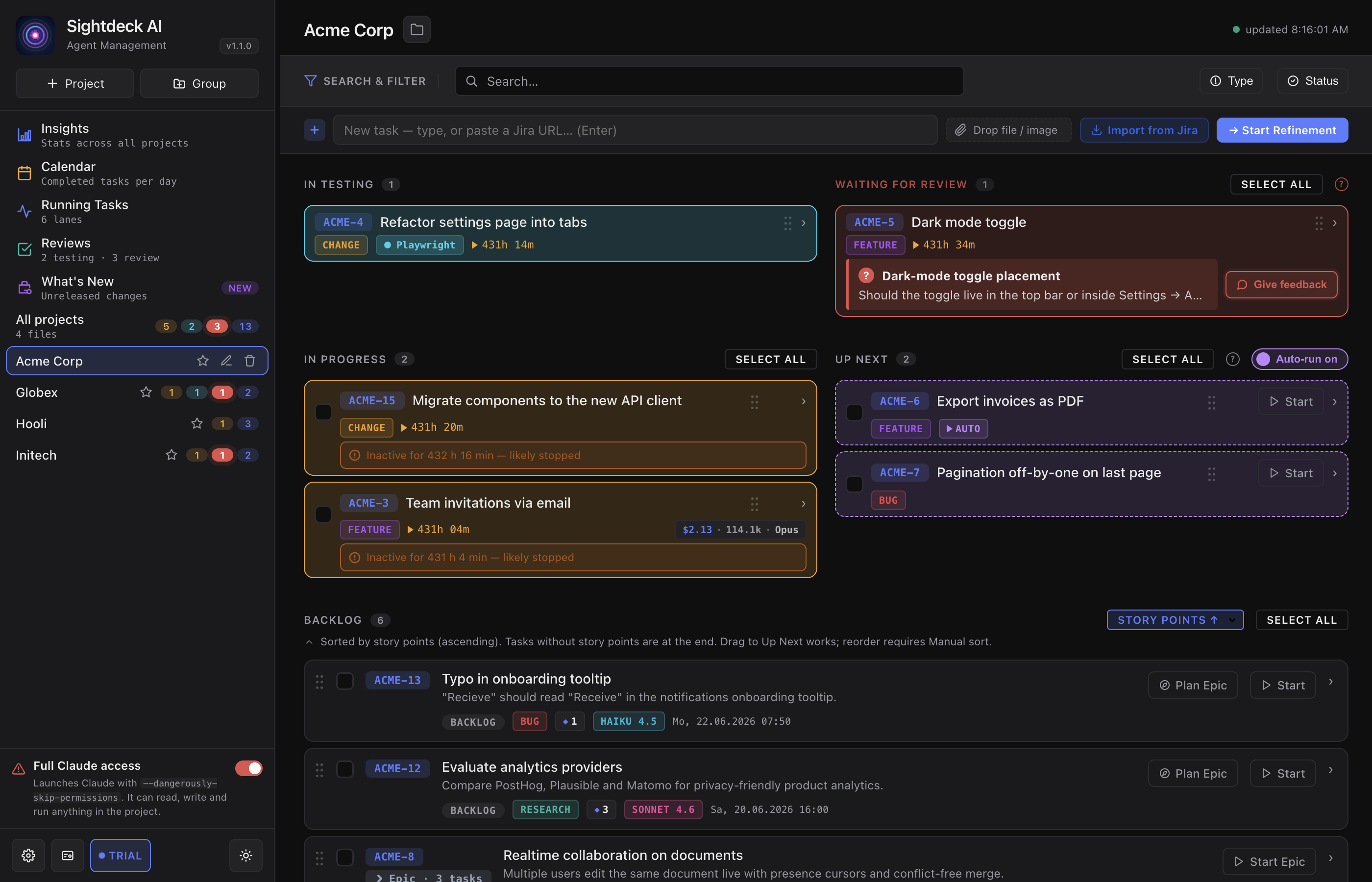
- No agent stalls unnoticed in front of a "Should I do A or B?" prompt — you see at a glance which run needs you and which keep working.
- The open question sits right on the card, so you don't have to dig through the session to find it.
- Long questions stay readable: a short topic line shows bold, with the full text one click away.
How you use it
- Let your agents run. Red, pulsing cards appear in the Needs You column as soon as anyone is waiting.
- Read the question on the card, or click it for the full text.
- Answer in the session itself — in the Agents view, on the task's Terminal tab, or in its Terminal window — or click Answer in the task's details.
- As soon as you reply, the task flips back to In Progress on its own and the column clears.
Queued tasks do not stop to ask
Not every open point should wait for you. Tasks started from the Up Next queue run through without stopping to ask: the agent decides open points itself and records every decision on the task, so you can read afterwards what it chose and why. Which kinds of decisions must come to you, and whether the queue should wait for them, is set per project in the Approval Gate.
When you are not looking at the app
A red pulsing card only helps if Sightdeck AI is on screen. The moment a task starts waiting for you, it also:
- fires a system notification naming the task and what it is asking about — so a blocked run is not invisible behind your editor;
- marks the dock icon with a badge, which stays until nothing is waiting any more.
Both keep working when you close the last window and leave Sightdeck AI sitting in the dock — as do the done-notifications, the done webhook and the Jira status sync. Clicking the notification brings the window back.
When the agent answers you
The same panel works the other way round for research tasks. If you gave the agent a question to investigate rather than code to write, open the task and its answer is the first thing you see — a highlighted Answer block at the top of the Overview tab, open by default once the answer is written.
You don't have to expand the concept and hunt for the result; the full reasoning stays one section below if you want it. While the agent is still working, the block shows a short pending note instead of empty content. To gather answered questions and pending reviews across all projects in one place, use the Reviews view.
Which view should I check?
Five places in Sightdeck AI show work that is waiting or running, and they do not show the same thing. Each one is built for a different question:
- Needs You (this column, on the board) — "is anything waiting in what I am looking at?" It follows your current project selection: one project, or all of them if you have All projects open. It shows only tasks waiting for an answer.
- Agents (sidebar) — "which session is waiting, and what does it say?" Every session running inside Sightdeck, with the ones waiting for you marked. You answer by typing straight into the session.
- Reviews (sidebar) — "is anything waiting anywhere?" Always every project, whatever is selected on the board. Wider than Needs You: waiting questions, tasks currently in testing, and answers to research questions you have not read yet — the three things that want your eyes, in one list.
- Running Tasks (sidebar) — "what is actually running, and where?" Always every project, grouped into the lanes the runs actually use. It is about runs, not about you: a run appears here while it is active, testing, queued behind another task or waiting for you, and disappears when the whole lane is finished. Tasks that are not part of a run at all never show up.
- Sightdeck Remote (phone) — "is anything waiting while I am away from the Mac?" Its Needs you section shows the same waiting tasks as the board column, for the project picked in the bar at the top or for all of them, and lets you answer from the phone. What is running, queued, in the backlog and done today sits below it on the same page.
One difference worth knowing: a waiting task always appears in Needs You, in Reviews and on the phone, but it only appears in Running Tasks if it belongs to a run. A task that never got a lane — for example one started outside Sightdeck AI — is missing there and nowhere else.