
What you get
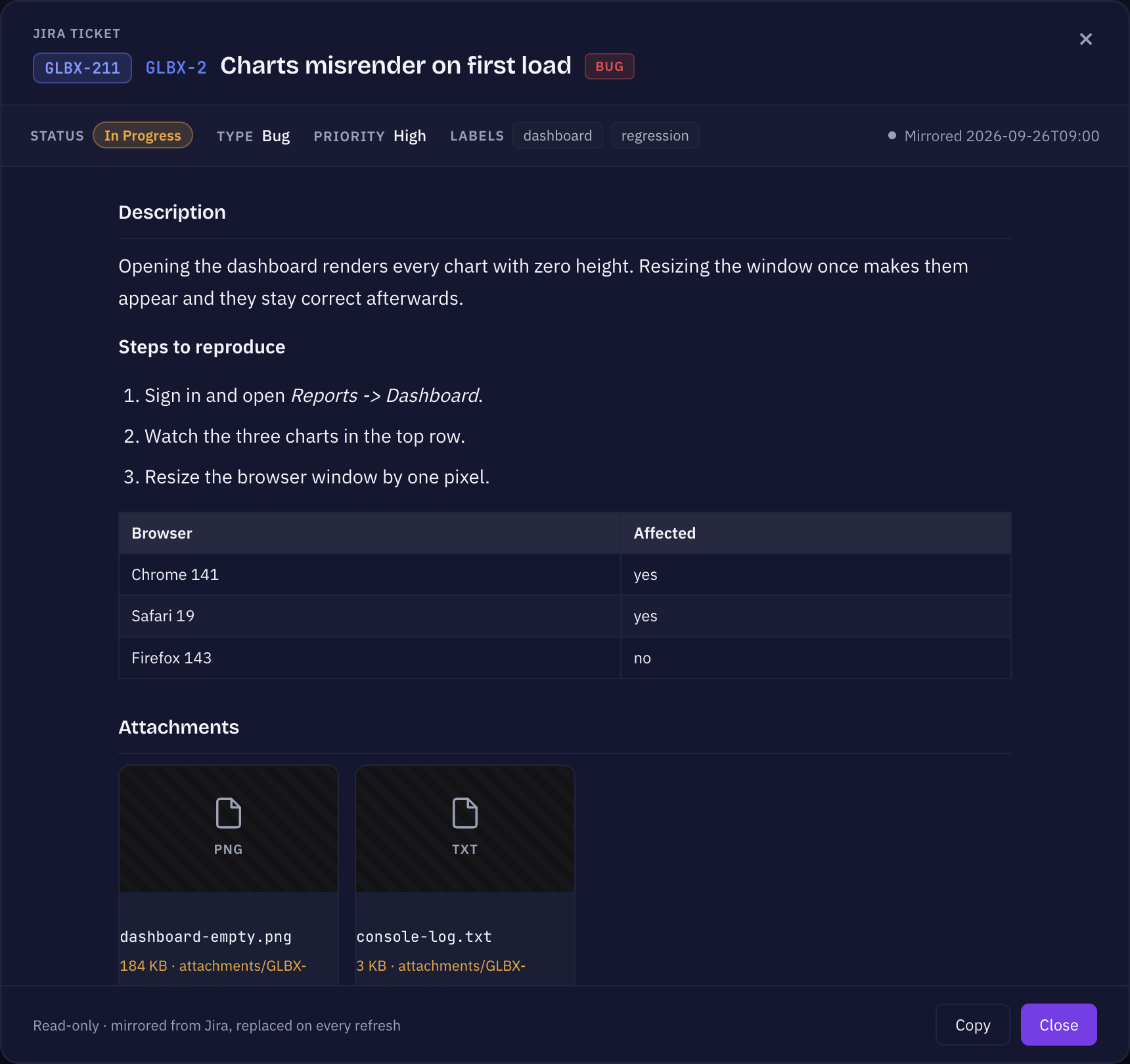
- The ticket key, the Sightdeck task id and the title in one header, so it is obvious which task you are reading.
- A meta strip with status, type, priority and labels, plus when the ticket was last mirrored.
- The description as formatted text — headings, lists, tables, code blocks and images — instead of raw wiki markup.
- Attachments as preview tiles: screenshots appear as images and open full size on click.
- Linked issues with the kind of link, and the comment history in reading order.
How you open it
- Select a task that came from a ticket.
- In the task's details, press the Jira ticket action in the action row at the top.
Copy puts the whole ticket on the clipboard as text — useful when you want to paste it into a chat or a concept.
The mirror, and why your plan is safe
The ticket is stored as its own file next to the task's concept and is replaced whole on every refresh. That separation is the point: the ticket is what Jira says, the concept is the plan you or the agent built. A re-import brings the ticket up to date and never touches the plan.
Because the file is replaced, the window is read-only — there is nothing to edit here that would survive. Edit the ticket in Jira, or the plan in the concept.
Staying current
Starting a task re-fetches its ticket first, so a session always works from the ticket as it stands. Resuming a task, or starting several at once, keeps the ticket each one already has. If a ticket changed since the last sync, the task's ticket pill says so directly — you see it on the card, without opening anything.
How tickets get in is on the Jira import wizard page; the connection and the status sync are on Jira integration.