Nothing starts — "No provider"
Sightdeck AI runs nothing on its own: every task needs a provider. The sidebar shows No provider — Nothing can run until you add one — or a project shows No default provider — pick one in Project settings → General.
- Open Settings → Providers and click Add profile. Pick Claude or Codex (beta), then click Test.
- Open the project's settings → General and pick the Default provider.
- If the profile exists but is marked Off, switch it on again on its page — a switched-off profile is hidden from every select.
Claude Code or Codex not found
The provider page shows Not available, the setup step for Claude reads Not detected on your PATH, or a start fails with … is not available … nothing was started. Sightdeck cannot find the command that starts the agent.
- Open a terminal and run
claude --versionorcodex --version. If that fails too, install the agent first — Sightdeck does not install it for you. - If it works in your terminal but not in Sightdeck, open the profile in Settings → Providers and enter the full path of the command under Command (optional), for example the output of
which codex. - Click Test. When it reads Available, start the task again.
Not signed in — Claude Code
If a task fails right after launch with "Failed to authenticate: OAuth session expired and could not be refreshed" or similar, your Claude login has expired. This is a Claude Code sign-in issue, not a Sightdeck AI or license problem — Sightdeck passes no credentials, the agent uses its own sign-in.
- Open a terminal (any folder is fine) and run
claude. - Complete the login when Claude prompts you — follow the browser sign-in it opens. If it does not prompt, type
/logininside Claude and finish the flow. - If your profile uses its own command or configuration folder (for example a second account), sign in through that command, so the login lands in the folder the profile reads.
- Start the task again in Sightdeck AI.
Not signed in — Codex
Codex keeps its sign-in in its own configuration folder (~/.codex by default). If a Codex session stops right away with a sign-in error:
- Open a terminal and run
codex, then sign in when it asks you to. - If the profile uses its own command, sign in through that command.
- Start the task again.
A Codex task refuses to start — "runs only with full access"
Codex has no step-by-step permission prompt like Claude's, so Sightdeck will not start a Codex session without full access instead of guessing a weaker setting.
- Open Settings → Providers → your Codex profile → Terminals.
- Switch on Danger Full Access — after reading what it allows on Full access.
- Start the task again.
Usage limit reached
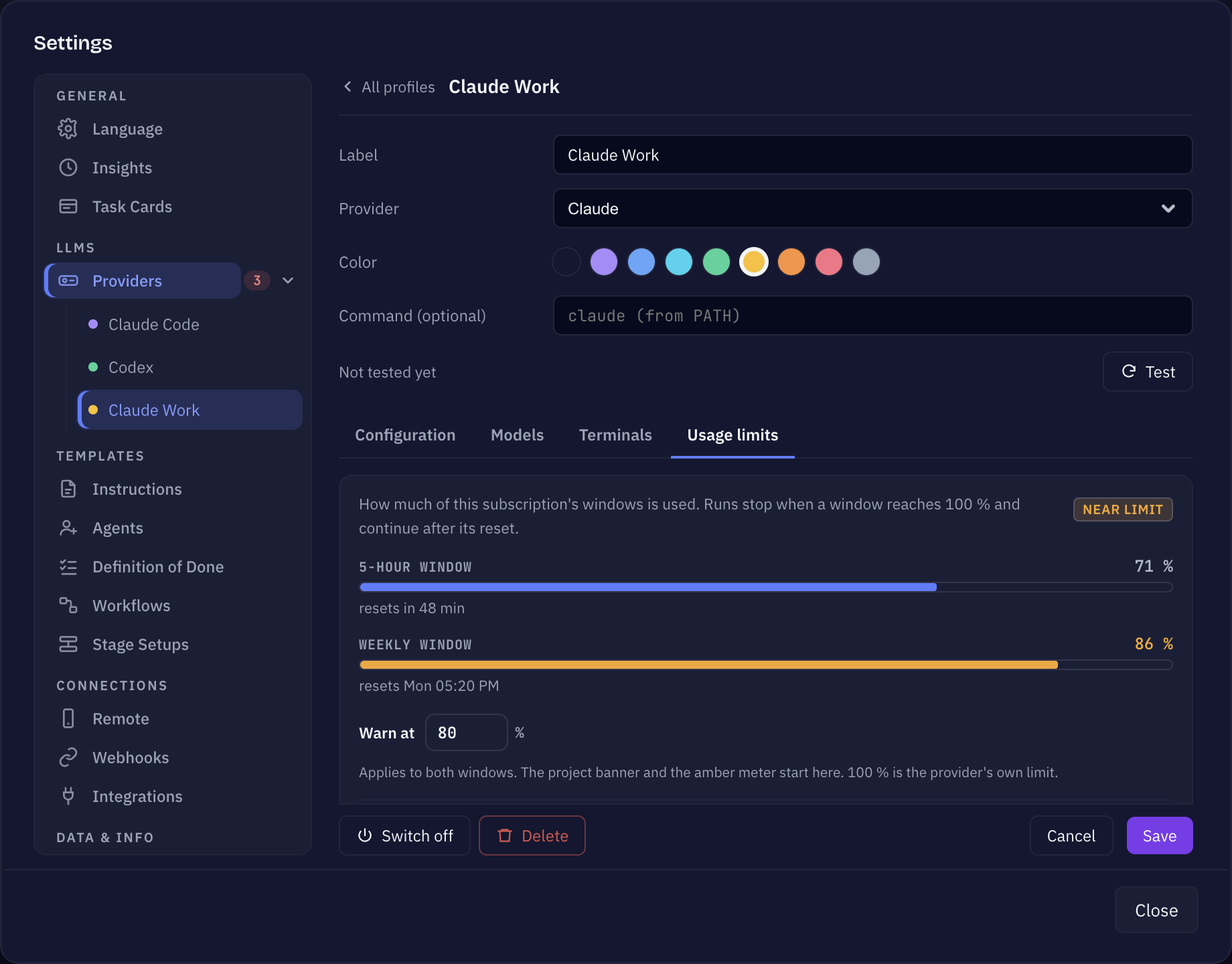
A banner says "… has hit its 5-hour limit" or "… weekly limit", and Runs on this provider stop until the reset time. Claude subscriptions have a 5-hour and a weekly window; Sightdeck shows both on the provider's Usage limits tab.
- Wait for the reset — the banner tells you when. Runs continue after it.
- Or click Change provider in the banner and move the project to another profile, for example a second account or Codex.
- When the weekly limit is reached, Sightdeck switches Auto-run off in the projects on that provider, so a queue does not keep running into the wall. Switch it back on when you are ready.
- No numbers at all? No usage limit data yet — they appear after the first run, and only Pro and Max subscriptions report them. If macOS asked for keychain access to Claude Code-credentials and you declined, allow it to see the meters.
More on the meters and the warning threshold: Usage limits.
Sessions after a restart — "Sessions will not survive" or "Terminals lost"
Sessions that run embedded in Sightdeck are kept by a small session helper, so they keep running when Sightdeck restarts or crashes and show up again in Agents.
- Sessions will not survive means the helper is not running: terminals started now are lost on the next restart. Restart Sightdeck — the helper starts again and new terminals survive the next restart.
- Terminals lost means a session is still running, but Sightdeck can no longer show its terminal. The work continues in your project folder and its progress still shows on the task card. Let it finish — or, if you need the terminal, stop the session and start the task again.
Skill not triggering — the agent works, but the board does not follow
If the agent runs your request but no task appears or moves in Sightdeck AI, the skill is missing or outdated for the provider the project runs on. The skill is installed per provider folder.
- Open Settings → Providers, open the profile the project uses and look at the Configuration tab. The Sightdeck skill is not in this folder or an outdated version means: click Install skill or Update skill.
- Check which profile the project really runs on in the project settings → General → Default provider. A second Claude profile with its own configuration folder needs its own install.
- If it still does not appear, update the agent to its latest version, then try again.
Sessions in Terminal windows won't open — Terminal permission denied
This only applies when a project has Run agents embedded in Sightdeck switched off, so sessions open in Terminal windows. macOS requires explicit permission to let one app control another. If you click Start and nothing opens — or you see an "operation not permitted" message — the Automation permission is missing.
- Open System Settings → Privacy & Security → Automation.
- Find Sightdeck AI in the list and make sure the toggle next to Terminal is on.
- If Sightdeck AI is not in the list at all, start a task again. macOS shows the permission prompt — click OK.
Or switch Run agents embedded in Sightdeck back on in the project's General settings — embedded sessions need no Terminal permission.
The board does not update — Files & Folders permission
If the board looks stale — cards do not move to In Progress or Done even though the agent has finished — Sightdeck AI may not be able to watch the task files for changes. This usually happens when your project folder is inside ~/Documents, ~/Downloads or ~/Desktop.
- Open System Settings → Privacy & Security → Files & Folders.
- Find Sightdeck AI and check that the relevant folder is toggled on.
- If nothing is listed, restart Sightdeck AI. macOS prompts the first time the app tries to watch a file in a protected location.
App won't open after install
macOS blocks apps downloaded from the internet until you explicitly allow them.
- Open System Settings → Privacy & Security and scroll to the bottom of the page.
- You should see a message that Sightdeck AI was blocked. Click Open Anyway.
- macOS asks one more time — click Open in that dialog.
If there is no "Open Anyway" button, right-click the app in Finder and choose Open from the context menu instead of double-clicking.
License not accepted
The key is checked on your Mac, so no internet connection is needed. If you see Invalid license:
- Make sure you pasted the full key with no leading or trailing spaces. Copy it directly from your purchase email or the thank-you page.
- If you bought a license and have not received an email after a few minutes, check your spam folder. The key is also on the thank-you page in your browser right after checkout.
If none of these steps resolve the issue, reach out via the contact page with your order email address and we will sort it out.
Task stuck in the In Testing column
A task stays in In Testing when the agent is still running tests, or when the tests stopped without telling the app they finished. Both are recoverable.
- Open the task's session in Agents. If tests are still running, wait for them to finish.
- If the session has ended but the task still sits in In Testing, right-click the card or open the detail panel and set its status back to Active.
- If it stays stuck, read the task's Activity in the detail panel, look for a test-runner error, fix it, and start the task again.
Notifications — done banner not appearing
The banner when a task completes is optional and depends on macOS notification permission. If you never saw the prompt, or dismissed it and want it back:
- Open System Settings → Notifications.
- Find Sightdeck AI and set it to Allow Notifications.
Declining this permission has no effect on task launching or board updates — only the done banner is affected.
Still stuck?
Ask the Help chat in the app header — it answers from this documentation and shows its sources. If that does not solve it, use the contact page. Include the app version, your macOS version, which provider the task ran on, and a short description of what you did and what happened.