Add your first project
- Drop a project folder onto the window, or click Open Project on the welcome screen. Once you have projects, the Project button in the sidebar opens Add project with more choices.
- Pick the folder of any Git repository you work in. Sightdeck AI starts watching it for task changes and updates the board live.
- The prefix (e.g.
SD,MO,WB) is read from an existing task file if there is one, otherwise derived from the folder name. - In Add project you also choose the Task storage: In the project (shared via git, so anyone who clones the repository gets the tasks), On this computer (nothing is added to the repository) or Somewhere else….
The project now appears in the sidebar. Add as many as you want — they all stream into the same dashboard.
Check which provider it runs on
Every project has its own Default provider. A new project starts on the first provider that is switched on in Settings → Providers, and the sidebar shows it next to the project.
- Open the project's settings and go to General.
- Under Default provider, pick the profile this project should run on. Everything in the project that does not pick its own provider uses it.
- In the same place, under Agent behavior, Run agents embedded in Sightdeck is on by default: sessions run inside the Sightdeck window instead of a Terminal window.
A single task can still run on another provider, and Stages can put each step on its own provider. To set up a second one, follow Add a second provider.
Drop your first idea
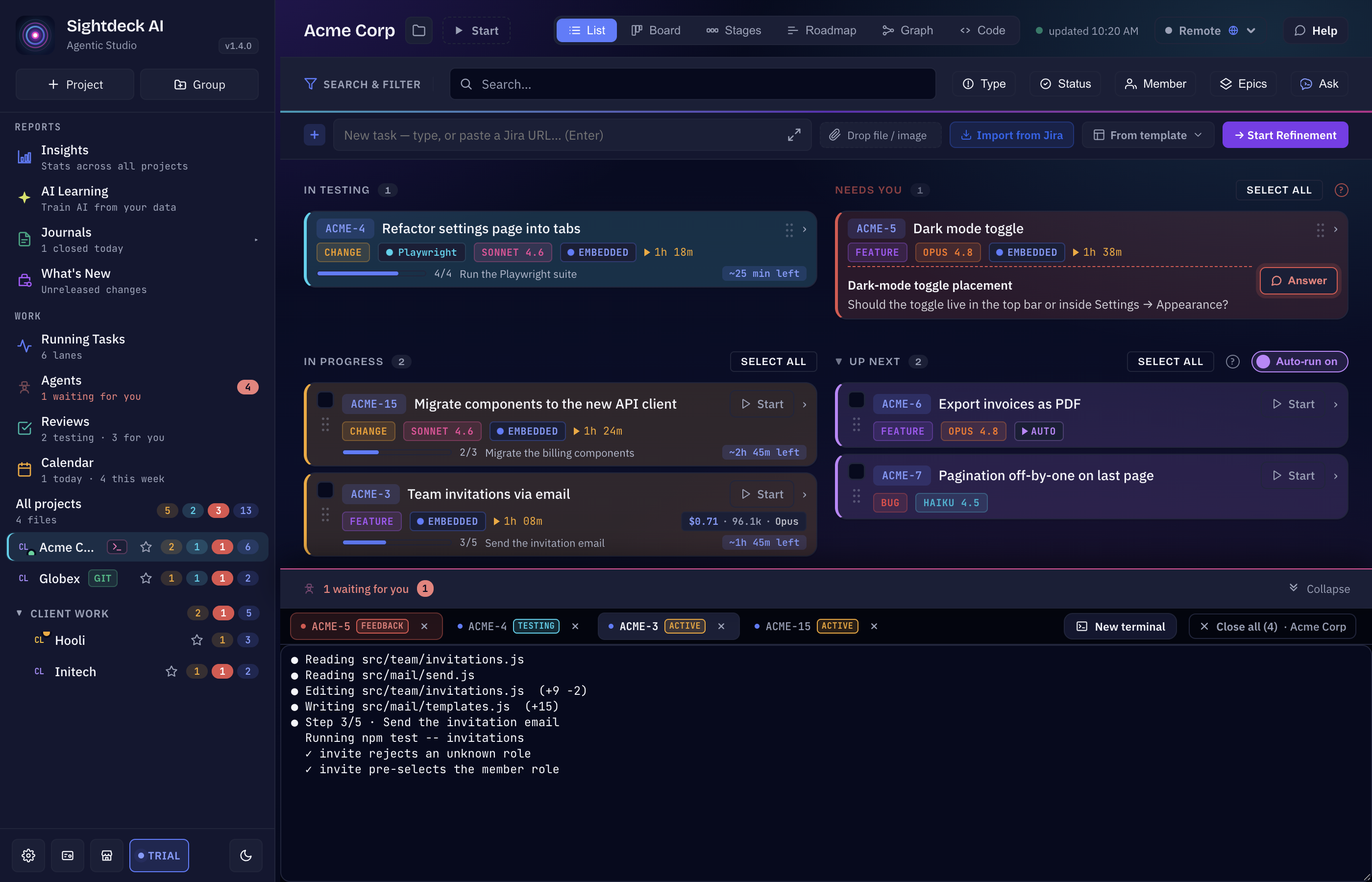
- At the top of the backlog, click the field that reads New task — type, or paste a Jira URL… (Enter).
- Type the request — a sentence, a paragraph, even a pasted chat message. Hit Enter.
- Sightdeck AI puts the task in Backlog immediately and sends it to Refinement in the background. Independent topics become separate tasks; pieces that only make sense together are grouped into an Epic — one parent task holding the smaller subtasks it is split into, so the whole piece of work stays together while each part runs on its own.
- While Refinement runs, the card carries a Refining… pill. When it settles, title, summary, Type, estimate and Story Points are filled in. Click the card to edit anything.
Start the task
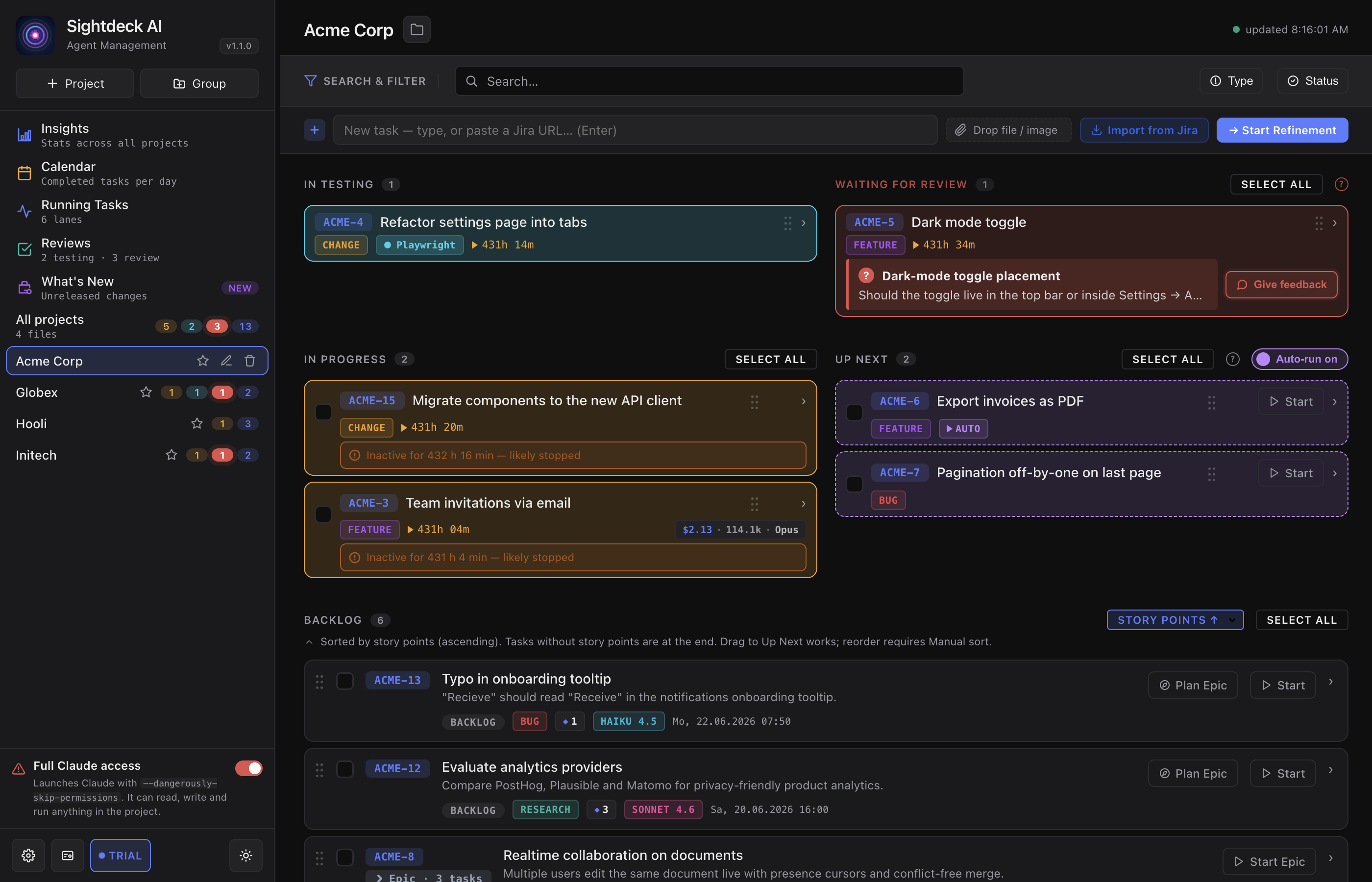
- Hover the task. Click the small ▶ Start button on the right.
- A fresh session of the project's provider opens in the project's folder, the task is handed over, and the card moves to In Progress.
- Follow it in the Agents view, in the terminal dock under the project (Cmd/Ctrl + `), or in Running Tasks, where the task has its own lane.
- If the agent needs an answer, the task shows up under Needs You; answer it right in the session.
- When the agent finishes, the lane turns green and the task lands in Done.
Whether the agent asks you before it edits files or runs commands depends on one switch per provider. For Claude, Full Access Without Confirmations is off by default, so Claude asks in its session before each step. Codex only runs with Danger Full Access switched on. Before you point either at something you cannot restore, read Full access — it takes a minute and it is the one setting worth deciding consciously.
Good to know
- The Backlog, Up Next and Done headings can be collapsed once they grow long — the header, its count and its filters stay put, only the list underneath hides. The choice is remembered on your machine.
- A task's number is never reused, even after it is deleted — so an old concept file can never end up attached to the wrong task later on.
- Sessions that run inside Sightdeck keep running when the app restarts or crashes; you find them again in Agents.
- A project that has been running for a long time moves its oldest finished tasks into a separate Archive so the board stays fast. They stay searchable and restore with one click.