
What it is
A schedule is a small rule inside a project: this target, at this time, on this recurrence. The target is one of three things — an existing task, a Task Template, or a Launch Action. The recurrence is once, daily, weekdays (Mon–Fri), weekly on a chosen day, or every X minutes (5 to 1440, counted from the last run).
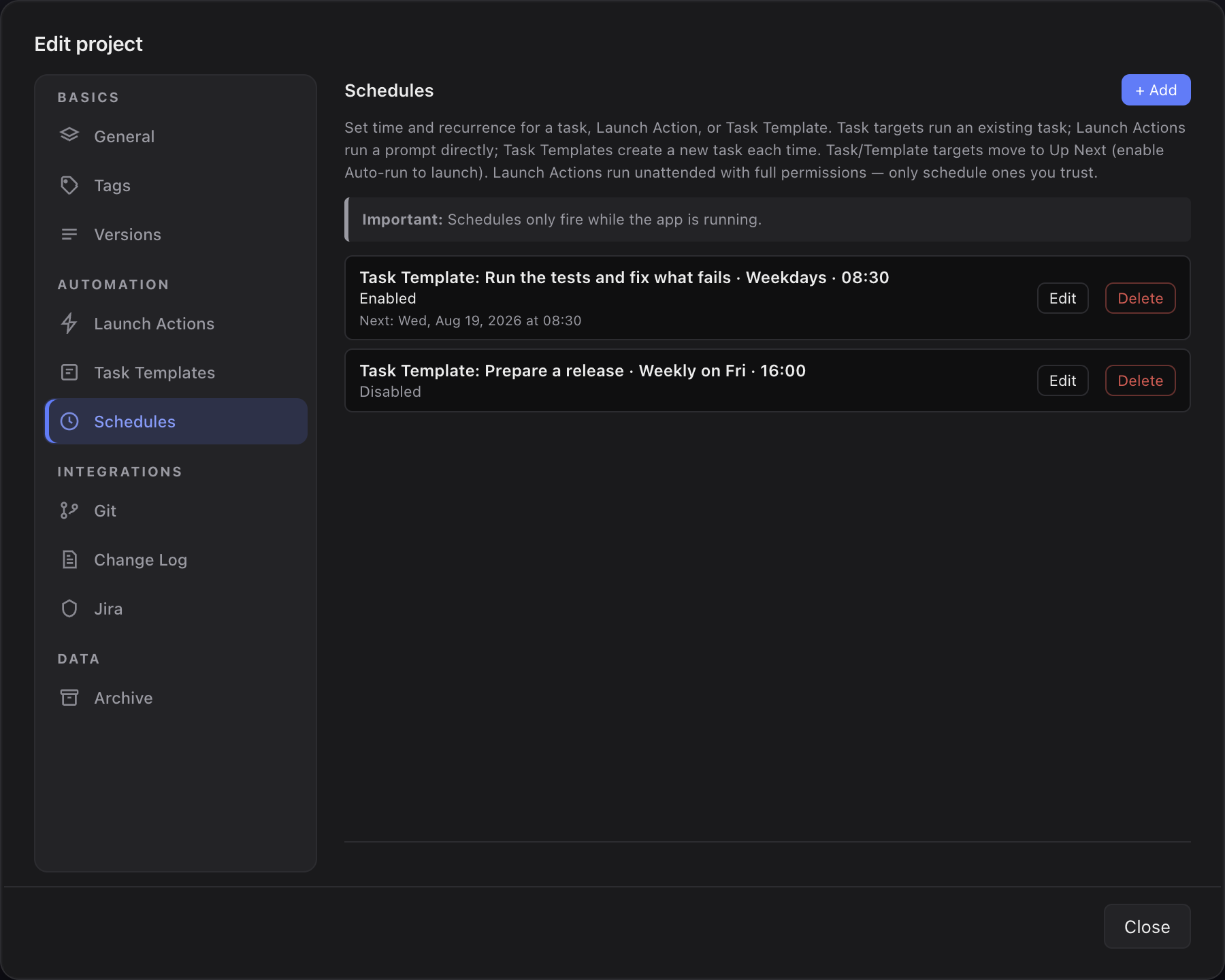
This is the local answer to cloud-hosted routines: recurring agent work without starting it by hand, and without your repository leaving the machine.
What you get
- One place per project for everything that should start on its own, instead of a note-to-self to run it Monday morning.
- Recurring work that leaves a record: a Task Template target creates a new task on every fire, so a weekly pass shows up as a weekly row rather than one task edited over and over.
- Pause without deleting — uncheck Enabled and switch it back on later.
- A schedule pointing at something that no longer exists says so (Broken — Launch Action was deleted) instead of failing silently at 3am.
How you use it
- Open Project Settings → Schedules and click + Add.
- Pick a target type — Task (enter its id, for example
WEB-42), Launch Action, or Task Template. - Pick a recurrence — Once (plus a date), Daily, Weekdays or Weekly (plus a weekday) — and a time. Or pick Every X minutes and enter the minutes instead of a time.
- Leave Enabled checked and click Save.
- Each schedule shows as one row with its target, recurrence and state, plus Edit and Delete.
For a schedule that belongs to one specific task you do not need the settings dialog at all: the Setup tab of the task's details has a Schedule row. It lists every schedule pointing at this task (Daily at 09:30, Weekly on Wed at 18:00), and + Schedule this task opens the editor already targeting it. Schedules for a Launch Action or a Task Template belong to no single task and live in the settings tab only.
What actually happens when one fires
A schedule with a task or Task Template target does not start an agent directly — it puts the task into Up Next, and the Up-Next scheduler launches it from there.
A Launch Action target is different: it starts an agent session straight away, exactly as clicking its link does, and never touches Up Next.
- A Once schedule disables itself right after it fires — no cleanup needed.
- Missed the window because the app was closed? A Once schedule still fires on the next check. A recurring one skips that day rather than running hours late.
- A task that is already running, being verified, waiting for you or queued in a lane is never pulled into the queue — the schedule simply retries later instead of interrupting work in progress.
Limits worth knowing before you rely on one
- Sightdeck AI has to be running. Schedules are checked by the app itself — there is no cloud fallback. A closed laptop runs nothing.
- A scheduled run is unattended, so it runs with full access — the same as a queued Up Next task — unless the provider's own full-access switch on its Terminals tab says otherwise. See Full access for what that means, and treat a project's task file as something that can start work on your machine.
- Launch Action building blocks come out empty. Parameters that read Current URL or Selected text need a click and a page; a timer has neither. The editor warns you which parameters are affected as soon as you pick such an action, and the session runs on the stored prompt alone.