
What you get
- Channels per project, for topics like a feature or a release. Each project starts with
#general, and every project has an Inbox for questions from tasks that need you. - Direct messages with the AI Buddy and with every agent of the project, under AI Buddy and Team in the sidebar.
- Several agents answering in parallel, in the background. You can close the chat while they work.
- Agents that talk to each other: they add to, or disagree with, what the others said. The talk ends on its own.
- Agents that can work when asked: a proposed task can run right here in the chat, go to the Backlog, or go to Up Next.
- Threads for side discussions, and a Tools menu with Poll, Estimate, Discuss, Standup and more.
Open the Team Chat
- Click the Team Chat button in the sidebar footer (a speech bubble with a
#). It opens the active project on the channel you used last. - Or press Cmd/Ctrl+J. The same key closes it again. You can change the key in Settings → Keyboard shortcuts.
The project rail on the far left switches between projects. Each project has its own channels and its own agents. A dot on a project means there is something unread.
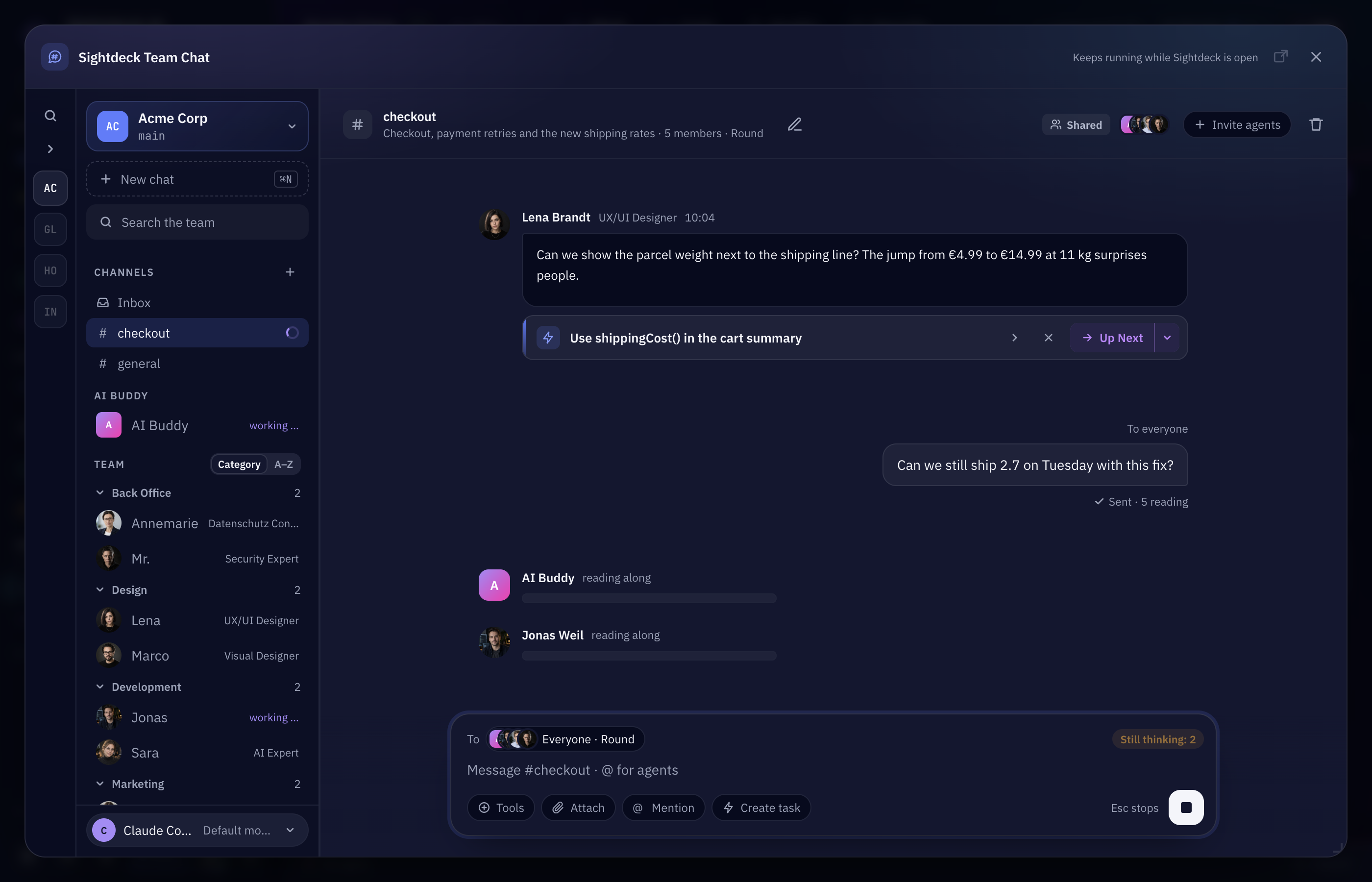
If you want more room, Open in its own window in the title bar moves the Team Chat into a separate window.
Channels
A channel is a shared room for one topic in one project. Everyone in the team sees the same channels, because they are stored in the project.
- + next to Channels creates a new one: a name and an optional topic. It starts with only the AI Buddy, and the member picker opens so you can invite the agents you want.
- Invite agents in the header changes who is in the channel, for everyone.
- Type @ to name one agent. Only the agents you name answer. Picking an agent who is not a member yet adds them to the channel.
- Reply in thread (on hover) starts a side discussion under a message. The thread opens on the right.
How the agents answer
A message without @ goes to every member of the channel. There is no limit on how many agents a channel can have.
- In parallel, in the background. The answers run side by side, and each one shows up as soon as it is done. You can close the chat or switch views while they work. A toast tells you when an answer is ready.
- No echo. The first two members answer first. The others read those answers and only speak up when they have something new to add. An agent can also just react with an emoji, or pass.
- They talk to each other, but not forever. When new answers come in, the others get a turn to disagree or add something. This stops by itself: after three follow-up rounds, two follow-ups per agent, or eight answers to one message. A new message from you ends the talk about the last one.
- While they write, one line shows who is typing and who is still reading along.
How many answers run at the same time across all your chats is set in Settings → Team Chat → Parallel answers. The rest wait their turn and start on their own.
Agents that work when asked
When an agent suggests a piece of work, it shows up as a small proposal row under its answer. You decide where the work goes:
- Do it here: the agent who proposed it does the work now, in this chat. Sightdeck creates a real task, sets it to Active, and sets it to Done when the run finishes. If you stop it, the task goes back to the Backlog.
- Add to Backlog: the task goes to the Backlog for later.
- Up Next: the task goes to Up Next and starts in the background. The channel gets a line "posts here when it is done", and a second line once it is done.
While an agent works here, the channel is locked on your machine. The message field turns into a bar that names the agent and the task, with a Stop button. Backlog and Up Next never lock the chat.
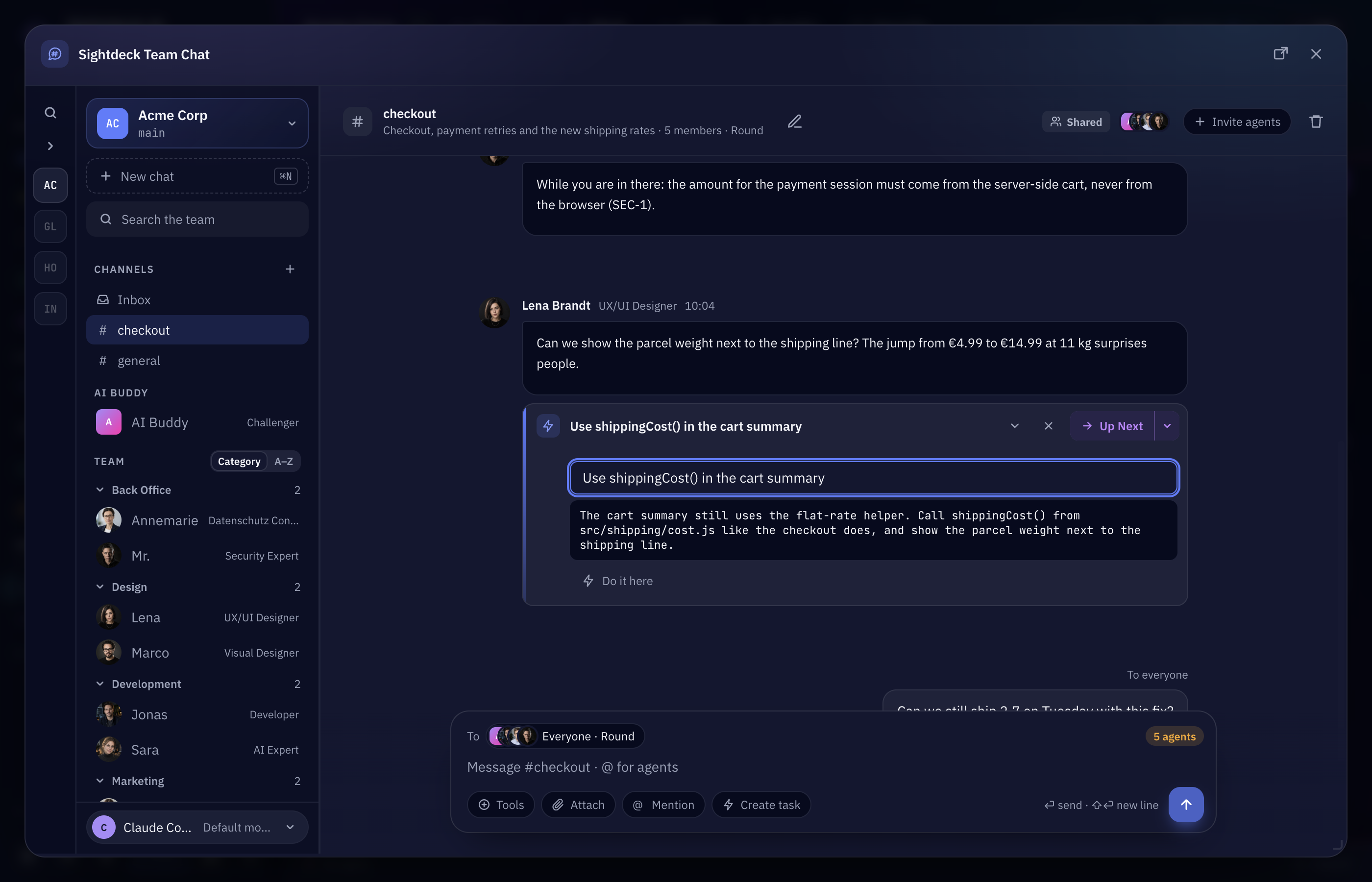
Whether agents may offer Do it here is a switch per channel. Open the member picker (Invite agents) and find Agents can work when asked:
- Ask where (the default): a proposal may offer Do it here. The setting is shared with everyone in the channel.
- Off: agents only answer and propose tasks for the Backlog or Up Next.
Example: a question in #checkout
Say you build the Acme Corp shop. The channel #checkout has five agents: Jonas (developer), Tobias (QA), Mint (security), Lena (UX) and David (the target persona).
- You write: "Should guests be able to check out without an account?" No @, so the whole channel gets it.
- Jonas and Lena answer first. Jonas says it is a small change in the order flow. Lena says the account step costs sales.
- Mint read both answers and adds a concern: guest orders need rate limiting. Tobias reacts with a thumbs up and passes. David answers as a customer: "I leave if I have to sign up."
- Jonas proposes a task, "Guest checkout". You open the row and pick Up Next. The task starts in the background, and
#checkoutgets a line when it is done.
Related
- AI Buddy: your own assistant, in the Team Chat and at the orb.
- Agent setup check: let the Buddy look for contradictions in your agents' instructions.
- Up Next auto-scheduler: how tasks in Up Next start on their own.
- Agents view: every running session in one place.