
What you get
- You see at a glance what is running, what is testing, what is waiting.
- No switching between terminal windows to check status.
- How much time is left — per task and per lane — based on how long similar work really took in the project.
- Bottlenecks pop immediately: too many actives, a blocked run, an agent stuck in testing for hours.
- Parallel runs show up as lanes side by side. Serial chains as tiles connected by
→. The structure is visible without thinking.
This view is about runs, across every project: a task appears here while its run is active, testing, queued behind another task or waiting for an answer, and the lane disappears once the whole run is finished. A task that is not part of a run has no lane and is not shown. For "is anything waiting for me", see Which view should I check?
How you use it
- Open the app, top left click Running Tasks.
- Each active lane shows: project, task title, status pill (active / testing / feedback), run duration.
- Click a tile to open the task's details — a running task opens on its Activity tab.
- As soon as a task is done, it disappears from Running Tasks and lands in the project's done list.
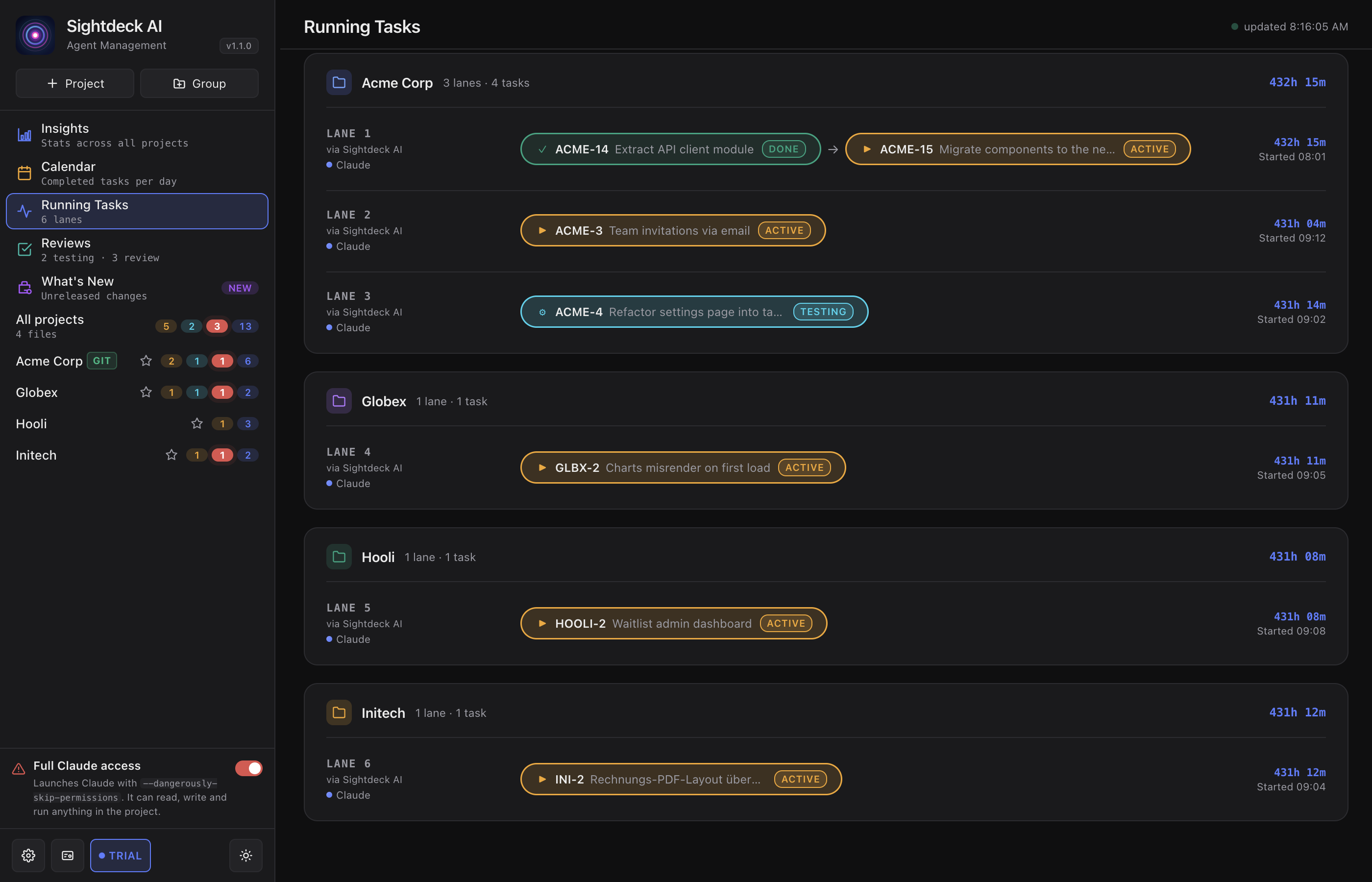
Parallel and serial runs
The lane layout tells you how a run is structured at a glance. Several tasks started together as a parallel run appear as separate lanes side by side, each working on its own. A serial chain — one task after another — shows as tiles in a single lane joined by →; when one tile finishes, the next starts on its own.
A lane stays on screen while any of its tiles is still working, being verified or waiting for your answer. Once every tile is finished, the whole lane clears itself.
What an agent is doing right now
A status pill tells you a task is running. It does not tell you whether anything is actually happening. Running and testing tasks therefore carry a live activity line: the tool the agent last used and the file it touched, with how long ago that was — Edit · src/app/main.js · 12s ago. The Activity tab of the task's details repeats it in a Live activity row.
It is read from the session itself, not from the task status, so it answers "is something happening right now?" rather than "when was the status last written?". Two things are worth knowing:
- When nothing has happened yet — or there is no session to read — there is no line at all. No placeholder, no error state.
- When the last activity gets old enough to count as stalled, the line says · no new activity in italics instead of quietly freezing at a timestamp that still looks fresh.
How much time is left
A running task shows ~25 min left, and a lane shows Lane ~1 h left for everything still open in it. The figure comes from how long work of the same estimate really took in this project, learned from its finished tasks in AI Learning; hover it to see the numbers behind it.
- A task that has already run longer than work of its size usually takes shows how far it is over plan instead of a remaining time.
- While a task waits for your answer, the countdown pauses.
- Until a project has learned enough finished tasks of that size, the task says no learned time rather than guessing. A lane where only some tasks have a learned time shows a lower bound.
Adding work to a run that is already going
A run you started is not closed off. Right-click a task in Backlog or Up Next and pick a lane under Add to running lane — the task is queued behind the lane's current work and starts on its own once the lane gets there.
- The menu lists the still-running lanes of that task's project, with the same Lane N number this view shows, plus the task currently occupying each lane so you can tell two runs apart.
- It works on any running lane: a serial chain, a single running task, or a parallel bundle. In the last two cases the lane becomes a chain — what is already running keeps running, and the appended task waits for all of it.
- Select several tasks first and the whole selection is appended in one go, in the order you selected it. A lane belongs to one project, so a selection spanning two projects only appends the one you right-clicked in.
A queued task says which run it is waiting for: its card carries a → Lane 1 hint next to the status pill, and the tooltip spells it out — which task is running there and how many are ahead of it. The hint disappears the moment the task starts.
When the lane cannot be named — the task is queued under an Epic, or the run it belongs to has already finished — the card falls back to a plain → Queued hint instead of dropping the marker entirely, so a task waiting on a run never looks like a plain backlog row.
Taking a task back out of a run
Queueing takes one click and asks no confirmation, so it is easy to hit the wrong row. Remove from lane is the way back: the task leaves the run and returns to the Backlog with concept and history intact, and the run carries on without it.
- Right-click the waiting card and pick Remove from lane, or hit Remove on its tile here in Running Tasks.
- Only tasks that are still waiting can be taken out. One that already started has its own session and is stopped rather than unqueued; a finished one stays in the run as the record of what happened.
- Select several waiting cards and one click removes all of them.
When a run carries a warning badge
Four badges can show up on a running task, and two of them are red for a reason. Whenever one is on screen, a small key appears above the list and explains exactly the badges you are currently looking at — no hovering them one by one.
- ⚠ Chain stuck (red) — a serial run stopped because its next window could not be opened. Waiting will not fix it; open the task or start it yourself.
- ⚠ Jira sync failed (red) — the last status sync to Jira failed, so Jira still shows the old status.
- Restarted (amber) — the scheduler relaunched this run by itself after the previous session stalled. Nobody watched it; review the diff when it finishes.
- Fresh start (amber) — Resume found no session history and started over, so the agent has no memory of the earlier conversation.
The rule behind the colours: red means a run has stopped, amber means it is going but deserves a second look. With nothing wrong the key is not there at all, and it follows what is on screen — switch to a project where everything is fine and it disappears.