What the skill does
Once installed, the skill takes over task discipline for you. Even a rough prompt like “do X” becomes a clean task, and the agent keeps the status current without you having to ask.
- Install the skill once for each provider profile you use (see below).
- Give the agent a task in your project. The skill creates it and moves it to In Progress.
- While the agent works, the status moves along on its own. A test run moves the task into In Testing, so you see verification happening.
- When the work is finished, the task lands in Done — visible in the app, logged in its history.
Install it per provider profile
Every provider profile can read its own configuration folder — a second Claude account reads a different folder than your first one. So the skill is installed per profile, into exactly the folder that profile reads.
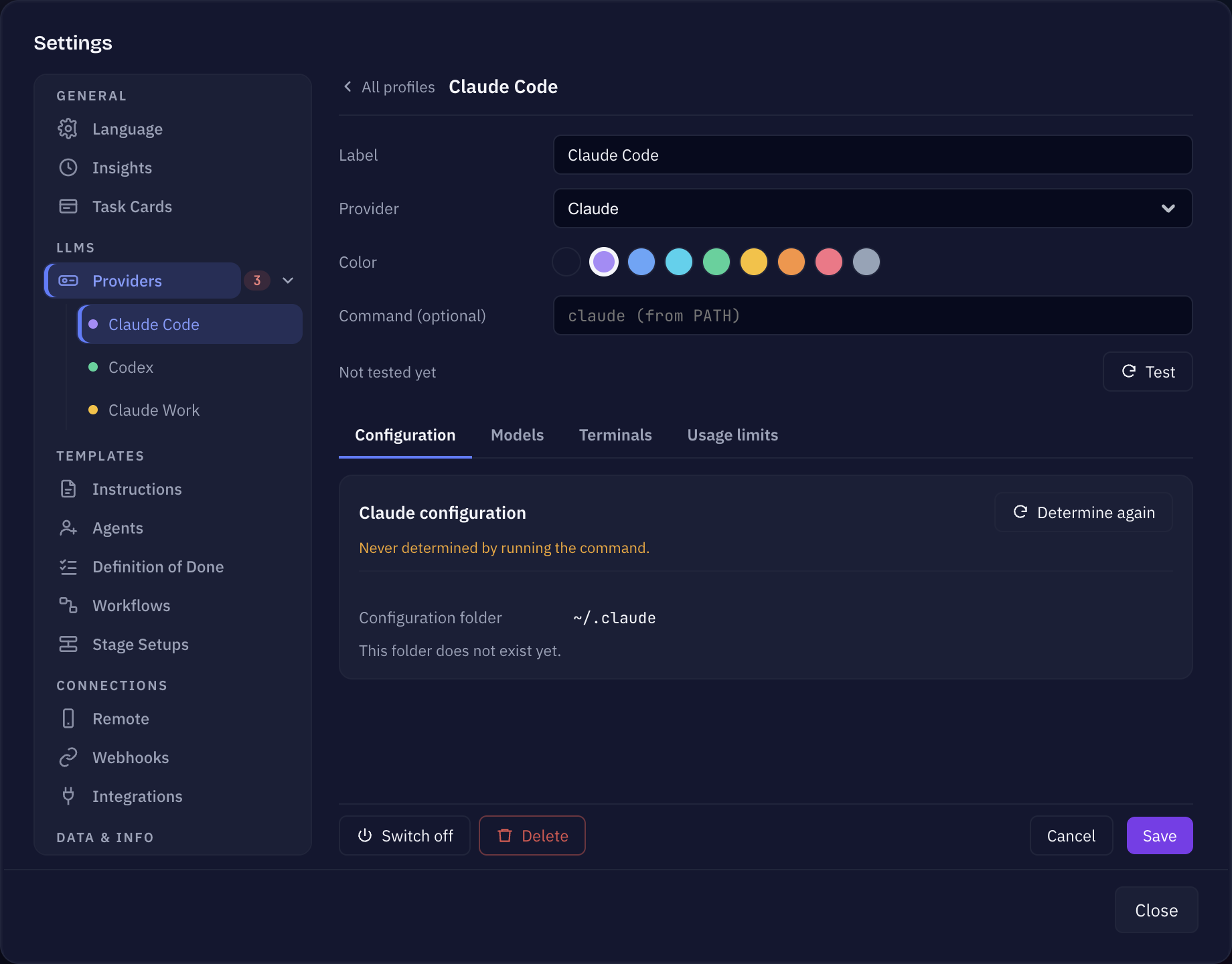
- Open the cog icon in the top right → Providers and click the profile.
- On the Configuration tab, the banner says whether the skill is there: The Sightdeck skill is not in this folder, an outdated version, or up to date. The Skill folder row shows where it goes.
- Click Install skill — or Update skill / Reinstall skill when one is already there.
- Repeat for every other profile you run tasks on.
- Claude Code gets the skill in its configuration folder. A Claude profile also offers a Cowork install, which opens the skill in the Claude app for you to confirm there. That one applies to Cowork on this machine, not to the profile's folder.
- Codex finds skills in its own fixed skill folder. It gets a version of the skill without the hooks, because Codex has no hook system.
Works with or without the app
The skill is self-contained. Even without the desktop app open it keeps the same lifecycle and writes everything to its task file — no app required.
Open the app later and it reads that file, showing the full history. Nothing is lost when you switch machines or hand a project to a teammate over git.
Sightdeck keeps its instructions for the agent in its own file. It does not write into your CLAUDE.md or AGENTS.md.
Keeping the skill up to date
After an app update, a one-time popup tells you when the bundled skill is newer than the one you installed. It is informational only — it never blocks and never installs on its own.
- Start Sightdeck AI after an update. If a newer skill is bundled, the popup names both versions, once per new app version.
- Open the cog icon → Providers when you are ready. The Providers entry shows how many profiles have an outdated skill; on each profile's Configuration tab, click Update skill.