
What you get
- A one-click Download as PDF action in the action row at the top of the task's details, next to Concept.
- A branded, light-themed document — logo header, task title, ID and Type, Sightdeck typography — that looks the same wherever it lands, regardless of the app's dark/light setting.
- The task's response plus its properties and the other details worth knowing about the task, so the PDF stands on its own without the app.
- A native save dialog to pick the destination and file name, and a toast offering to Open the file straight after.
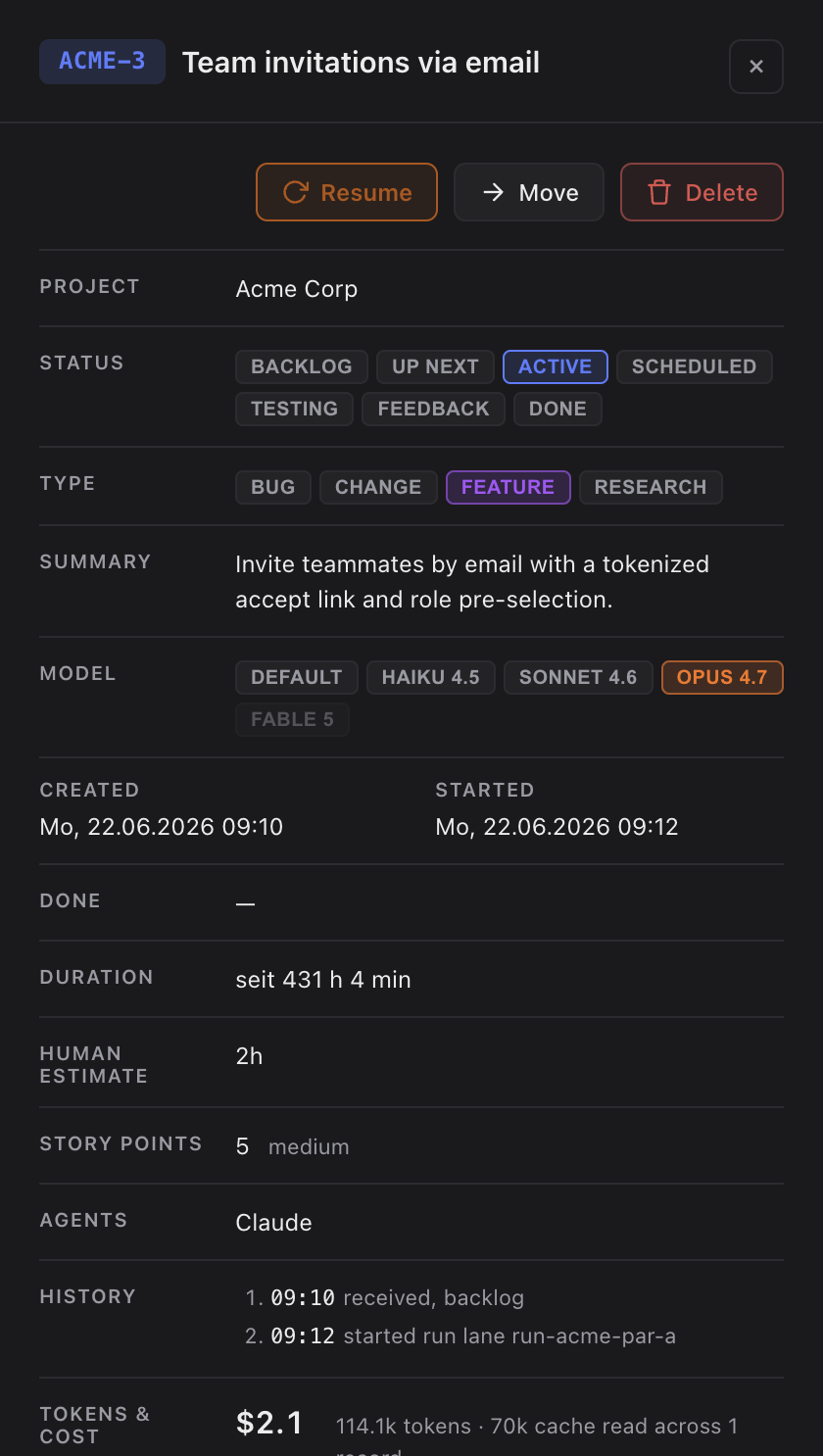
How you use it
- Select a task whose concept has resolved into an actual response.
- Click Download as PDF in the task's details. A native save dialog lets you choose where the file goes and what it's called.
- On success, click Open on the confirmation toast to view the file immediately.
The exported response is the same content the panel shows: for a research task it's the answer section (Resolution / Answer); for every other Type it's the full concept, with the task-chat section stripped out.
When there's no response yet
The button stays hidden until the task's concept resolves to a non-empty response. A task with no concept file yet, or one that turns out empty once the chat section is stripped, simply shows nothing — there's no separate "not ready" state to interpret. The button appears the moment there's something worth exporting, the same reveal-once-resolved pattern the Concept and Answer sections use.
Did this page help?
Thanks — noted.