Before you start
You need two provider profiles in Settings → Providers — for example Claude Code and Codex. If you only have one, follow Add Codex as a second provider first. Two terms you'll meet on the way:
- A stage is one session on one provider. Tasks go through the stages in order.
- A workflow is the steps inside one stage — what the agent works through in that session. A stage without a workflow is one session that does the whole task.
Steps
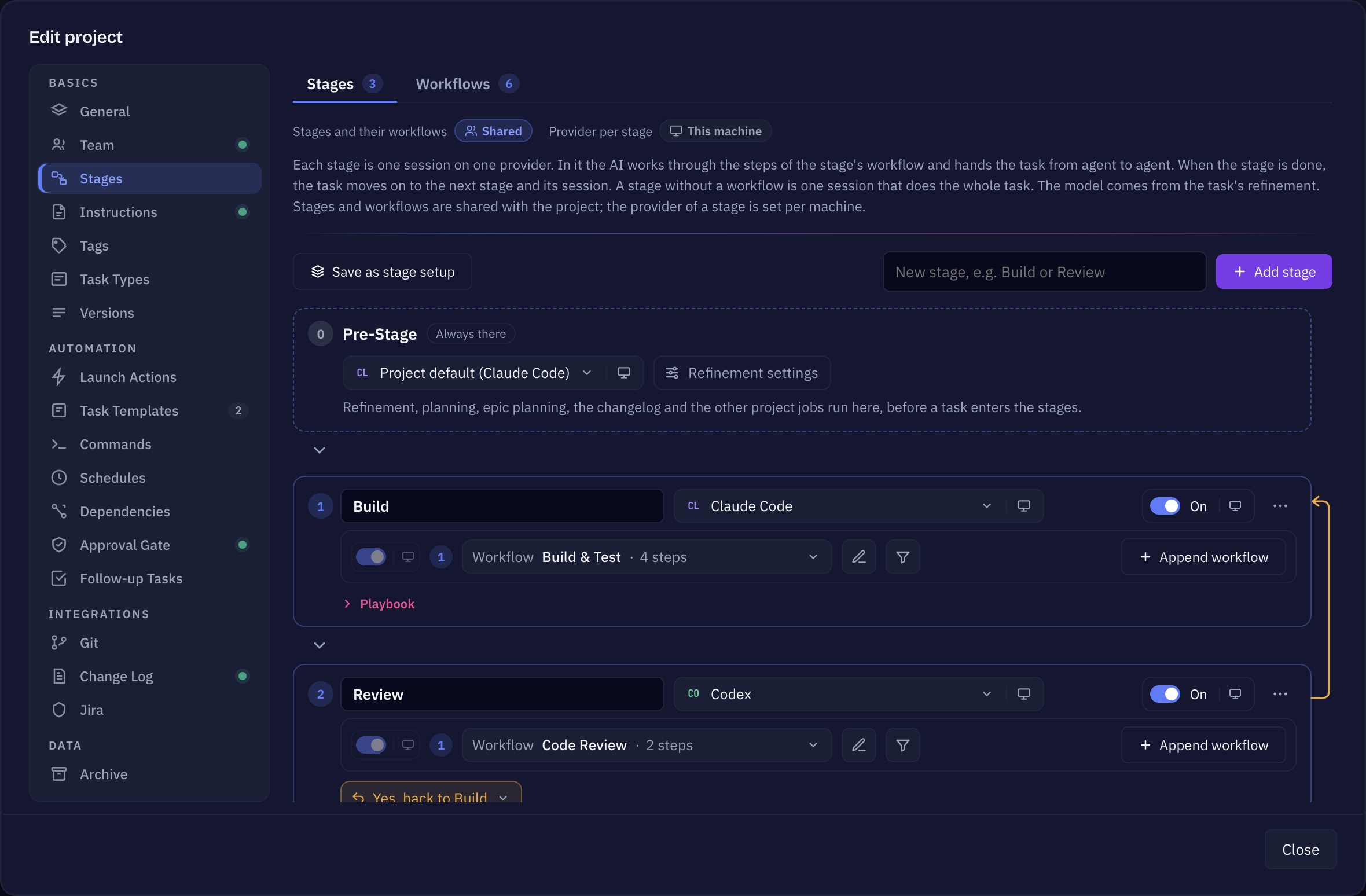
- Open the project's stages. Open Project Settings → Stages. At the top sits the Pre-Stage (Always there): refinement, planning, the change log and the other project jobs run there, before a task enters the stages. Below it you see the stages themselves. A project that has none yet shows a single stage called Work that runs every task in one session.
- Name the first stage Build. Click the stage name and change it to Build. Its provider pill shows Project default (…) — leave it there, or pick the profile that should write the code. Leave its workflow on No workflow: one session for now; building is one job.
- Add a Review stage on the other provider. Type Review into the field New stage, e.g. Build or Review and click Add stage. In the Review stage's provider pill, pick your second profile. The provider of a stage is stored on this computer only, so a colleague picks their own; the stages and workflows themselves are shared with the project.
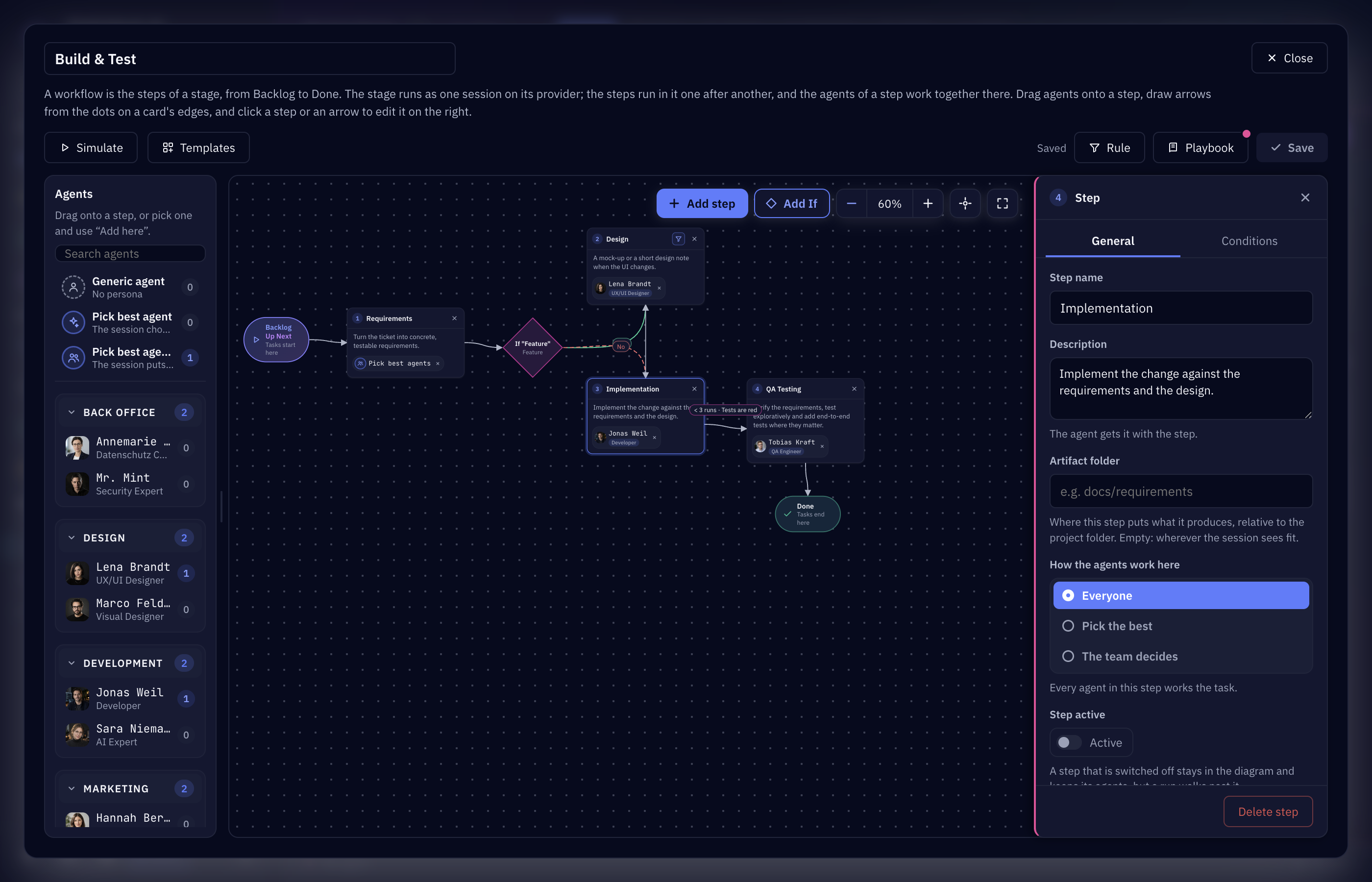
- Give the Review stage a workflow. Open the Review stage's More actions menu (⋯) and choose Build new workflow. The new workflow is linked to the stage right away, and the editor opens on an empty canvas:
- Click Add step and name the step, e.g. Review changes.
- Click the step and write its Description — this is what the agent gets for the step. Say what to check: correctness, tests, the acceptance criteria, and that anything that must be redone goes back to Build.
- Draw the arrows from the dots on the card edges: Backlog to your step, your step to Done. The editor lists what is missing under Problems until the way from Backlog to Done is complete.
- Allow the review to send tasks back. Under the Review stage, set May send back from No, only forward to Yes, back to Build. Only earlier stages can be picked.
- Start a task. Start any task the way you always do. It enters Build and runs there on the first provider. When Build is done, the task moves on to Review and a new session starts on the second provider.
- Follow it in the Stage view. Switch the project's view to Stages. Each stage is a row: its number, name and provider, how many tasks are in it, and — for Review — Yes, back to Build. To the right come Queued and then the stage's steps, each with the tasks on it. A task on the move shows what it is doing, e.g. Running or Handing over. Tasks worked outside the stages, for example started before you set them up, appear in a row of their own, In progress, no stage.
When the review sends a task back
If the review finds something that has to be done again, the reviewing agent ends its stage by sending the task back to Build instead of forward, and says in the handover what has to change. The task re-enters Build on the first provider with that handover, and once Build finishes it comes to Review again. In the Stage view you simply see the task back in the Build row.
In the task itself, the Setup tab lists every stage under Stages with may send back to Build on the Review card, and the Activity tab shows the stages with the one the task is in, its step (Step 1/1) and the provider and model it runs on.
Good to know
- One task, other providers. The provider and model of each stage can be changed for a single task: open it, go to Setup → Stages and pick them there (For this task only).
- Reuse it. Save as stage setup keeps these stages with their workflows for every project; load them into another project with Load stage setup…. You'll find saved ones under Settings → Templates → Stage Setups.
- Cross-check. If the project's cross-check before done (Verification) is still on, the stages page says so — a review stage on another provider does the same job, so you usually want only one of the two.
What you get
- Every task is built by one agent and checked by a different one, without you starting anything twice.
- Rework goes back to the builder with a clear note instead of piling up in your inbox.
- One view that shows where every task stands in the pipeline.