
What you get
- Discover assets with AI: the AI reads routes, configs and infrastructure files and suggests assets for you to review.
- An inventory with a Category, a status, protection needs, exposure, data kinds, findings and risks for each asset.
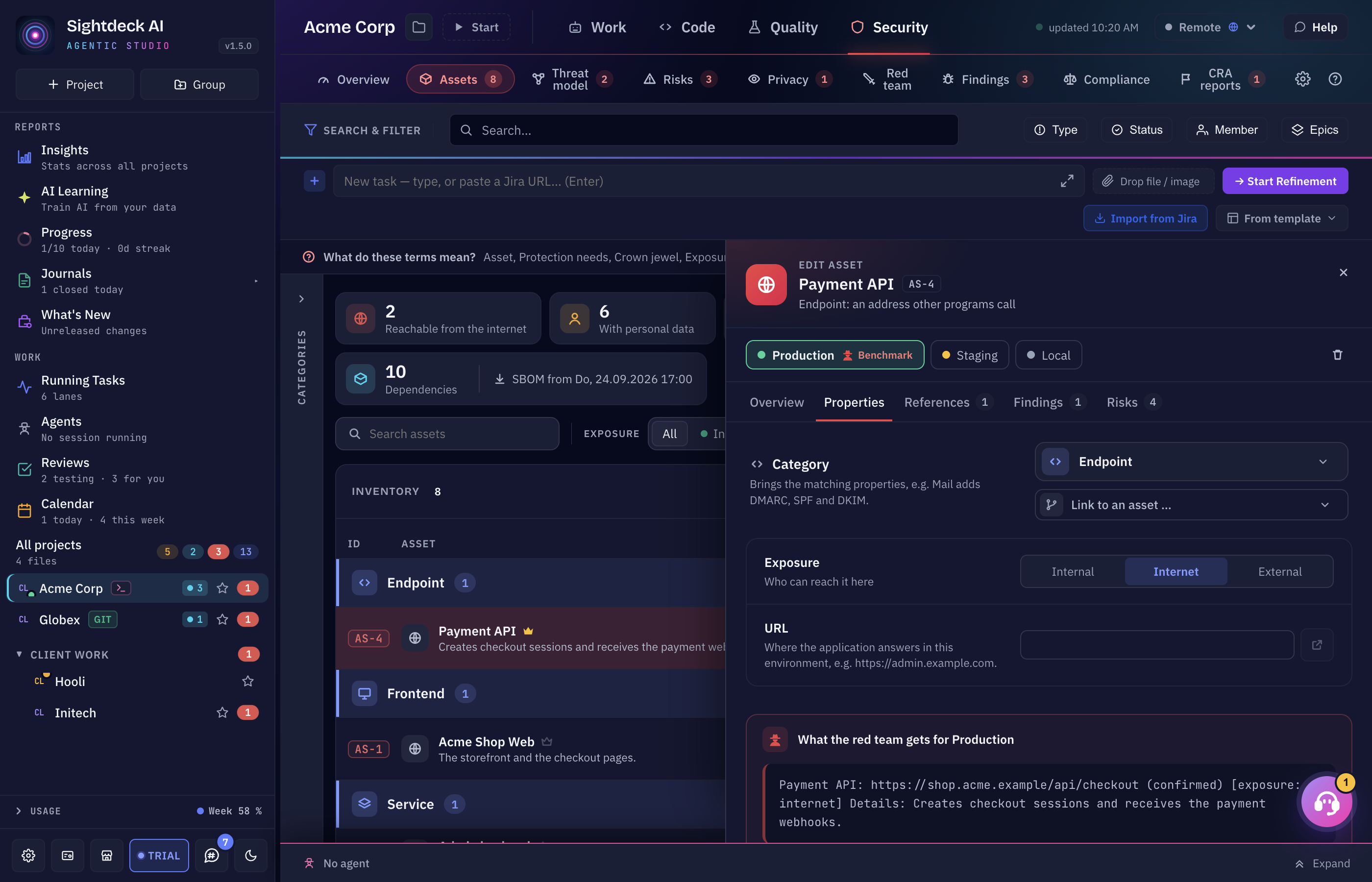
The Assets tab: the inventory, with one asset open in the details. - Crown jewels: the few assets whose loss would hurt most.
- One view per environment, with the Benchmark marked.
- Data protection details of a provider, kept on the asset and used by Privacy.
- An SBOM export of everything your software ships with.
Find your assets
Start with Discover assets with AI. The AI takes stock of the project while a short animation runs. When it is done, the tab shows three steps:
- Find: the AI read your code.
- Review: the suggestions wait under To review. Keep what is real, Drop what is wrong or not worth tracking. Keep all takes every suggestion at once. What you keep moves to the Inventory.
- Crown jewels: click the crown next to the few assets whose loss would hurt most, for example the customer database.
Packages from your lock files are not assets. They are counted in the Dependencies tile and go into the SBOM instead.
You can also add an asset by hand with New asset. Give it a name and pick what it is, then Save asset. Data, protection needs, properties and references follow once it is saved.
The inventory
- Number tiles on top: Reachable from the internet, With personal data, Crown jewels and With open findings. Click one to show only those assets, click again to show all.
- Categories on the left group the assets, for example Infrastructure, Application, Data or Accounts.
- Search and filters for exposure, type, status, data, tags and crown jewels. Reset filters clears them.
- Status: Draft, Approved or Changed. An approved asset whose details change becomes Changed, so you know to look at it again.
- Click the ID to copy it. Notes that mention another asset by its ID, such as
AS-7, link to it.
Describe an asset
Click an asset to open its details on the right. Changes save on their own. The details have these tabs: Overview, Properties, References, Findings and Risks.
- Crown jewel: Losing this would hurt most. Crown jewels come first when the Overview asks what still needs a threat model.
- Category: decides the type and which properties follow. Mail, for example, adds DMARC, SPF and DKIM.
- Exposure: Internet (reachable from the internet), Internal (only reachable from inside) or External (run by someone else).
- Data: Personal data, Special category, Payment card, Financial, Credentials or Session. Each one says what it covers.
- Owner: who answers for this asset. It decides how the asset is protected and gets the task when a finding hits it. Not who wrote the code.
- Tags from the project, and Notes.
The Risks tab lists the threat models this asset is part of and the risks linked to it.
Protection needs
How bad would a leak, a manipulation or an outage be? Rate each one as Normal, High or Very high:
- Confidentiality: how bad would it be if the data got out?
- Integrity: how bad would it be if it were changed unnoticed?
- Availability: how bad would it be if it were down?
The rating raises the priority of findings on this asset, and it sets the impact of risks derived from threats on it. Write down Why this rating for the next person.
Turn on Link to the data stores it uses to take over the rating of a database. An API that reads from a database rated Very high for confidentiality then counts as Very high too. A linked data store can only raise a rating, never lower it, and only for confidentiality and integrity. Data stores linked through a threat model show up on their own.
Environments and the Benchmark
Environments are set up in the Security settings (the gear next to the tabs). Once there are some, the asset details show a View bar with one button per environment. The one marked Benchmark is the environment security is measured against. Threat models, the red team and the check of your measures work on it.
- In the Benchmark you set the asset's properties, such as the provider, backups or multi-factor login. Each one says whether it is Recommended, a risky choice, or Info only.
- In any other environment you first answer Does it exist there with Yes, No or Unknown. No means the red team leaves it out there; Unknown tells the red team to check it first.
- Values come from the Benchmark until you Override them. Reset goes back to the Benchmark value.
- What the red team gets shows the line about this asset that a red team run receives for that environment.
Provider privacy data lives on the asset
For an outside service, the Properties tab has a Data protection block:
- Processing agreement (DPA): Not needed, Missing, In progress or Done.
- Processes the data in: EU / EEA or Outside the EU.
- Allowed outside the EU by: Adequacy decision, Standard contractual clauses, EU-US Data Privacy Framework or Binding corporate rules. Each option explains what it means.
You set this once, on the asset. Every processing activity in Privacy that sends personal data to this provider takes these values and shows them read-only, with a link to change them on the asset.
References: where it is defined
The References tab ties the asset to your code. A path opens in the Code view, :42 at the end opens that line, a route that starts with a slash is searched in the code, and a variable name in UPPER_SNAKE marks that line in the files you name. How to write a reference has examples.
For a secret, Where it flows follows the name through parameters, config keys and bindings to every place the code uses it, and warns when it is written to the log, sent in a response or reaches the browser.
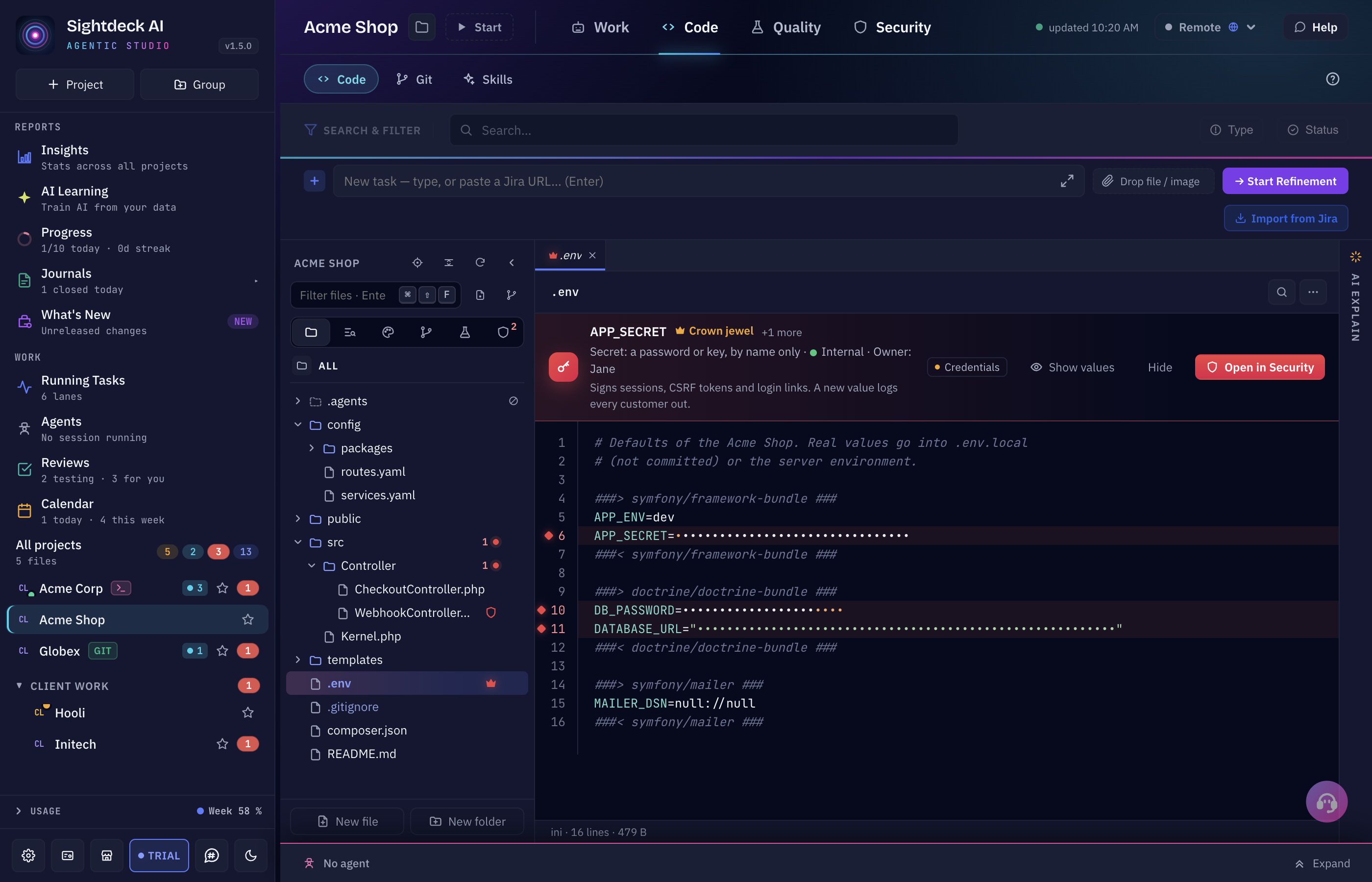
The Code view links back: an asset file carries a shield, a crown jewel a crown, and the file opens with a banner naming the asset. The lines that define it are marked, secret values stay masked until you click Show values, and every line a secret flows to gets a chip with its name. See Code view.
Export an SBOM
The Dependencies tile counts the packages in your lock files (npm, Composer, Pipenv, Poetry, Cargo and Go modules). Export SBOM writes a CycloneDX file with every package and version. Afterwards the tile shows when the last SBOM was made. The release gate on the Overview asks for one from the last 30 days.
Example: the Acme payment API
- After Discover assets with AI,
AS-1Acme Shop Web,AS-4Payment API andAS-7Customer database wait under To review. You keep all three. - You click the crown on
AS-4Payment API, set its exposure to Internet and its data to Payment card. AS-7Customer database gets Very high for confidentiality. OnAS-4you turn on Link to the data stores it uses and linkAS-7, so the API counts as Very high too.- In the owner field you type a team name that is not there yet. It is added to Responsibilities and offered everywhere from then on.
- On the Staging view you answer Yes to Does it exist in Staging? and override its URL.
Related
- Security overview: the chain from asset to fix.
- Threat models: start one from the assets you picked.
- Privacy: where the provider data is used.
- Code view: open a reference in the code.