
What you get
- Free-form orders. There are no fixed job types. Anything you can ask the Buddy in the chat can be a job.
- One sentence to start. "Every weekday at 9: which pull requests were merged yesterday?" The Buddy reads the what, where and when from it.
- Jobs for one project or for all projects.
- Jobs that only look and tell you, or jobs that may change things.
- The answer in the Buddy chat, and a system notification when Sightdeck is in the background.
Where you find it
Buddy Jobs live in Global Settings → Buddy Jobs, the app-wide Settings. There is no Buddy Jobs tab in Project Settings. Every way in, including a link from the Buddy chat, opens this one screen. A filter above the list narrows it to one project or to the jobs on all projects.
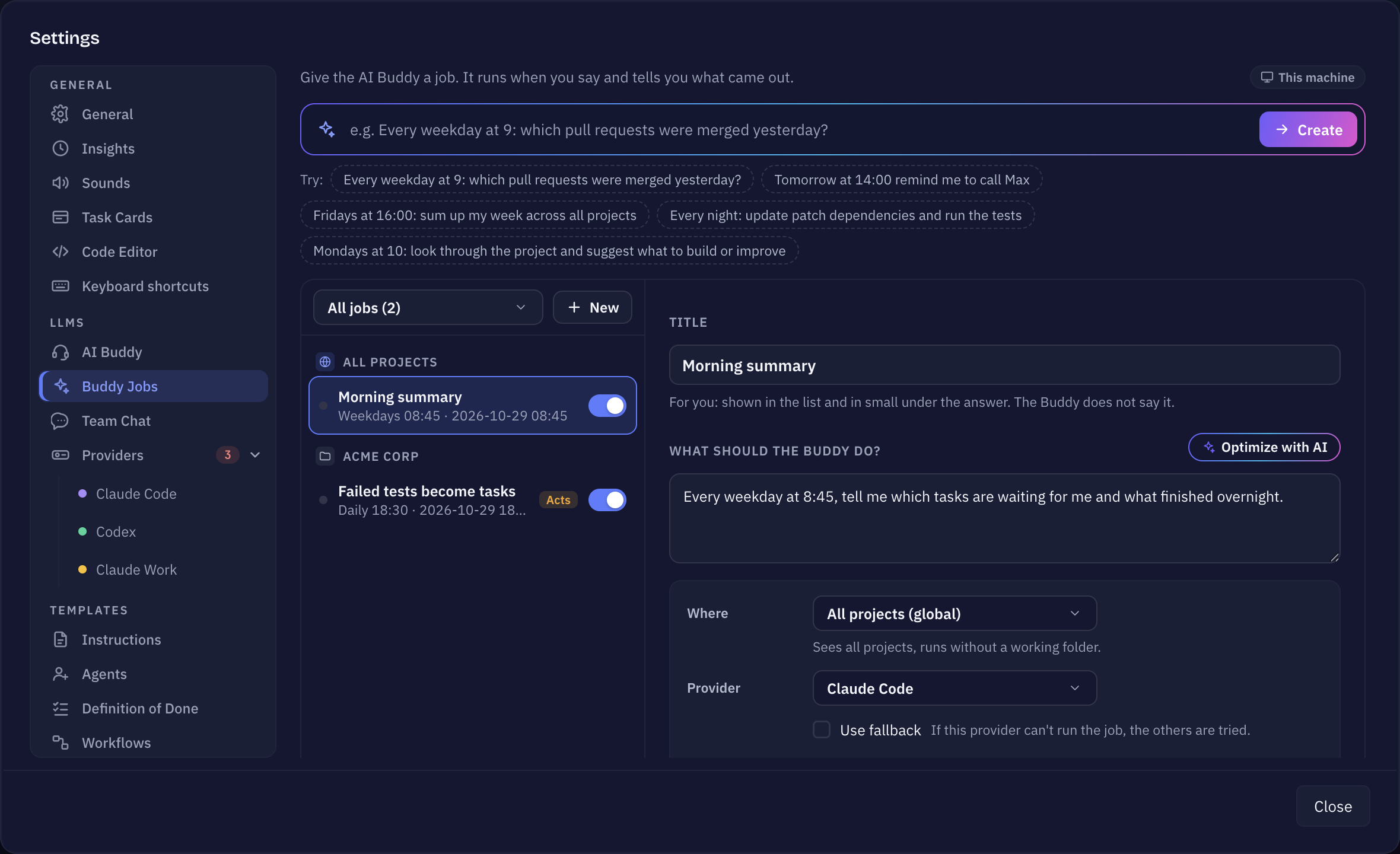
The screen carries the This machine chip. Your jobs are stored on this computer and are not shared with your team through the repository. That is on purpose: a job that may change things should not run on every teammate's machine.
Create a job
- Write one sentence in the field at the top and press Create (or Enter). Below the field, Try: shows example sentences.
- The Buddy fills in a draft. The fields it read from your sentence are marked from your text. If it could not read where or when, it says so, and you set them yourself.
- Check the draft, then click Create job. New starts with an empty job instead.
The fields of a job:
- Title: for you. It shows in the list and in small under the answer. The Buddy does not say it.
- What should the Buddy do?: the order itself. Optimize with AI rewrites it as a clear instruction; Undo brings your text back.
- Where: one project, or All projects (global).
- When: Once, Every N h, Daily, Weekdays or Weekly, with the time. The next run shows below.
- Buddy may: Look and tell me reads code, board and git and changes nothing. May change things edits files, runs commands and creates what the job asks for. It runs unattended and needs the Claude CLI as provider. Such jobs carry an Acts badge in the list.
- Notify: the Buddy always speaks up. The system notification can be switched off per job.
The switch in the list pauses a job. An open job has Run now, Delete and its Last runs. A click on a run opens its full answer in the Buddy chat.
When a job runs
- The Buddy does the job and speaks up at the orb. The full answer lands in the Buddy chat.
- The answer starts right away with the result. The Buddy does not repeat the title or your order text.
- Under the answer you see in small: from Buddy Jobs · title. So you always know where a message came from.
- A job on all projects writes its answer straight into the Buddy chat and opens the small chat at the orb, wherever you are in the app.
Jobs only run while Sightdeck is open, and only on this machine. A one-off job that was missed runs at the next start. A daily or weekly run that was missed while the app was closed is skipped.
Create a job from the chat
You can also just tell the Buddy in the chat: "remind me tomorrow at 14:00 to ..." or "every morning, tell me ...". The Buddy creates the job right away. You do not need to click anything.
The chat then shows the job as created, with two buttons:
- Open takes you to Global Settings → Buddy Jobs, with that job selected.
- Remove deletes it again, after a confirmation.
Example: open pull requests every morning
For the Acme Corp shop you want to start each day knowing which pull requests wait for you.
- Open Global Settings → Buddy Jobs and write: "Every weekday at 9: which pull requests of the shop wait for my review?"
- The Buddy fills in the draft: title "PR review check", Where: the Acme Corp shop, When: Weekdays at 09:00, Buddy may: Look and tell me.
- Click Create job.
- Next morning at 9 the orb speaks up. In the Buddy chat you read the two pull requests that wait, one of them from Jonas. Below it, in small: from Buddy Jobs · PR review check.