
What you get
- Every task lands on its own branch, forked from your main branch and named consistently, without you typing anything.
- A choice per run: a new branch per task, one shared branch for a whole selection, or your current branch without any git actions.
- Every task shows which branch it works on.
- Optional worktrees let several tasks run in parallel without fighting over the same working copy — with your ignored files, such as
.env, copied in. - Optional push when a task is done. By default nothing leaves your machine.
How you set it up
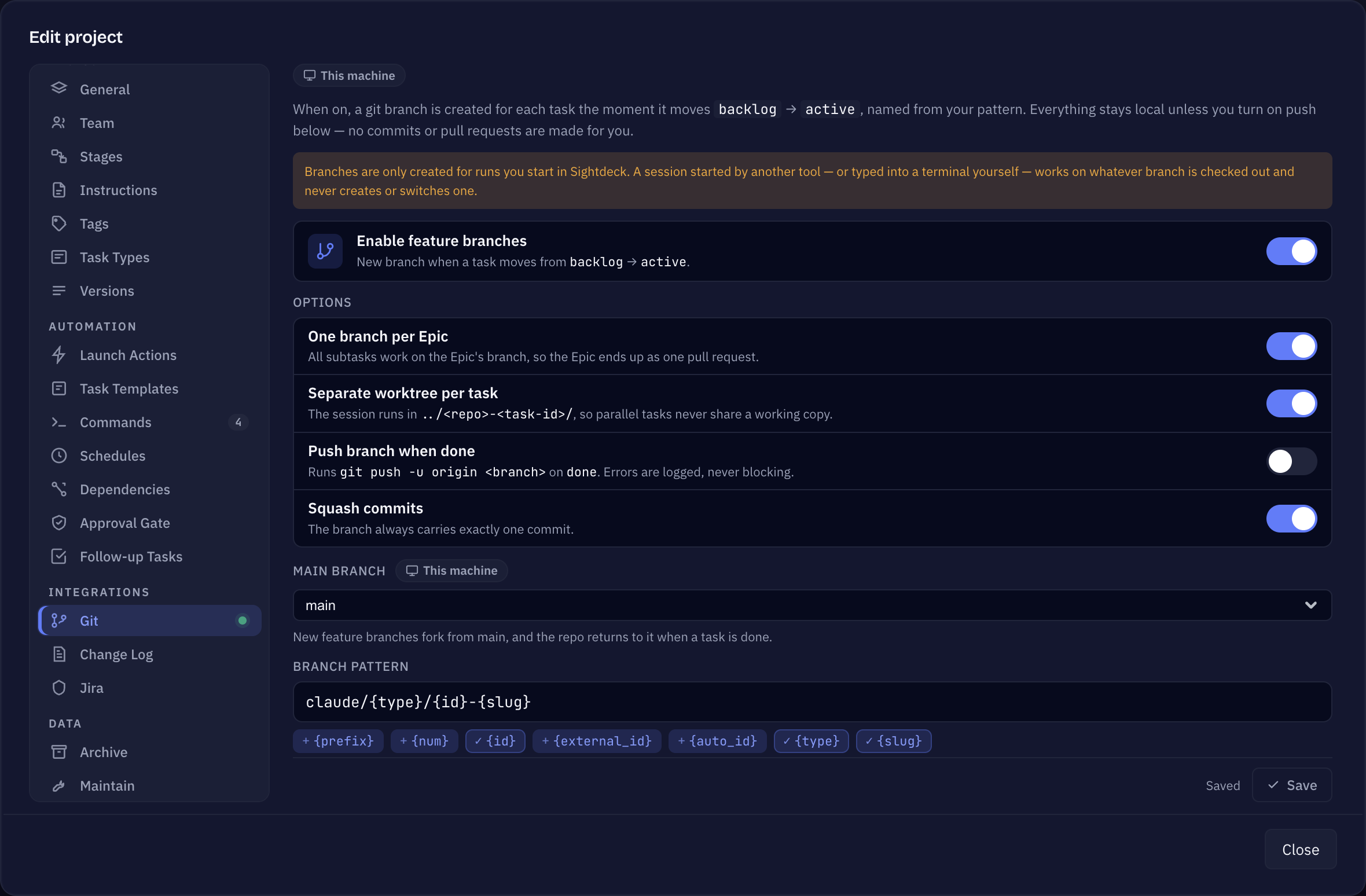
- Open Edit project → Git and switch on Enable feature branches.
- Pick the Main branch — the branch new feature branches fork from, and the one the repository returns to when a task is done. Left unset, Sightdeck uses whatever is checked out and says so.
- Pick a Branch pattern — the Next branch preview shows the next real branch name as you type. The default works for most people; only change it if your team follows its own naming convention.
- Under Options, switch on what you need: Separate worktree per task, Push branch when done, Squash commits and One branch per Epic.
- Save. From now on the branch is created the moment a task moves from
backlogtoactive.
Which branch a run works on
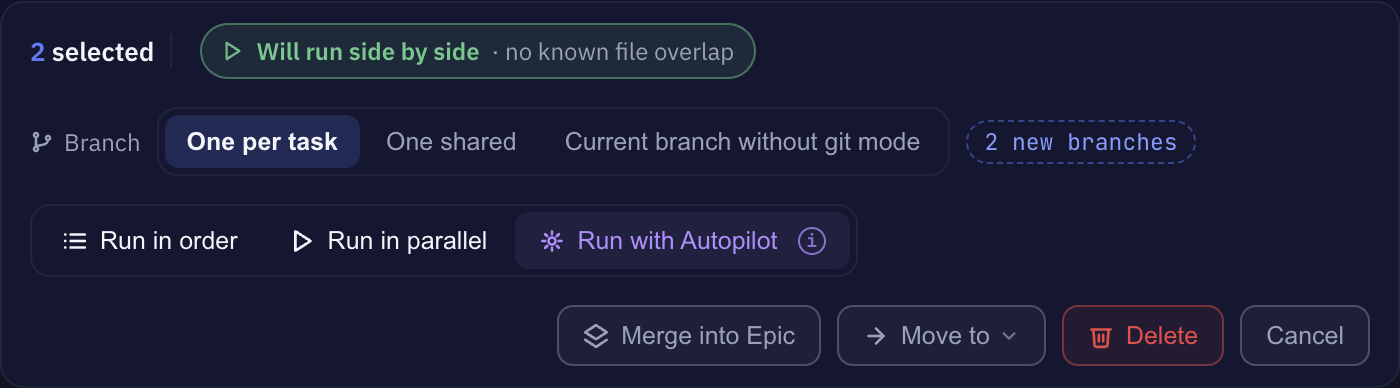
The Git tab sets the default. For a single run you can choose differently:
- One per task — the default: every task gets its own branch from the pattern. A task that already has a branch keeps it.
- One shared — one new branch for the whole selection: the first task creates it, the others commit onto it. The tasks run in order, because one branch means one working copy.
- Current branch without git mode — no git for this run: it works on the branch as it is checked out. Nothing is created, switched, committed or pushed. Also runs in order.
You pick it where you start: the Branch choice in the selection bar when several tasks are selected, Branch for this launch in a task's details, or the menu next to a card's Start button (Start on new branch, Start on current branch without git mode). Alt/⌥-click on Start is the shortcut for the current branch. Before the run, a preview says which branch it will be — a new one, the Epic's shared branch, the main branch, or the branch as it is checked out.
Worktrees and Epics
In plain mode the branch is created right in your project folder. With Separate worktree per task, Sightdeck AI creates a separate working copy next to your repo and starts the task's session in there — so a parallel task can't disturb your current checkout, and two tasks running at once never see each other's half-finished files. When the task is done, a cleanup button on the card removes that worktree — so you can inspect it first. Sightdeck AI never stashes; the working tree stays yours.
With One branch per Epic on, all subtasks of an Epic work on the Epic's branch (and its worktree), so the Epic ends up as one pull request. Switch it off and every subtask gets its own branch and pull request.
Commits, squash and push
Sightdeck itself makes no commits or pull requests for you. The agent commits deliberate checkpoints to the task's branch while it works — typically after a green check and before a risky change — and when it finishes a task, it commits everything on that branch, so nothing is left behind on your main branch.
- Squash commits keeps the branch at exactly one commit on top of where it started.
- Push branch when done pushes the branch to
originwhen the task is done. A failed push (offline, no remote, an auth prompt) never blocks the task — it just lands in the history. - Moving a card to Done yourself only changes its status. It no longer commits or pushes anything, so a branch that was already merged cannot block the click.
Your setting, not the project's
Whether you work with a feature branch per task, what it is called and whether you use worktrees is how you work, so the Git settings are stored on this computer and not committed to the repository. A teammate who clones the project decides for themselves — working with worktrees while a teammate does not is no argument. Each setting in the project settings says whether it is shared or stays on this computer.