
What you get
- A Default policy for the whole project, and one rule per kind of decision that overrides it.
- A note per rule that the agent reads and has to follow — the place for "tests are the contract" or "only migrations with a rollback".
- A trace on every task: Gate decisions in the task details lists what was decided under which rule.
- Questions the gate made mandatory are marked on the card, so you can see that the agent asked because you told it to.
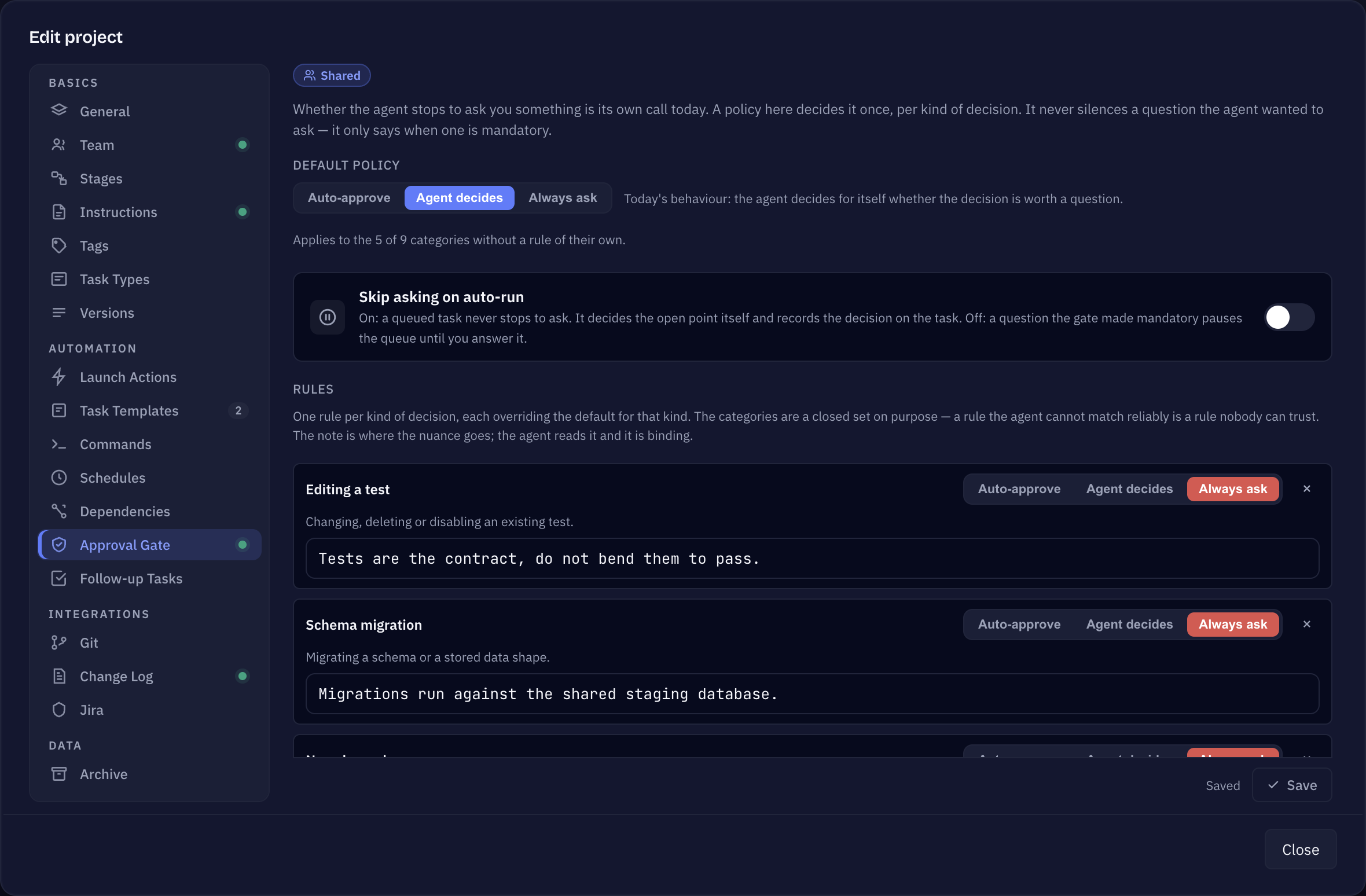
The three policies
- Always ask — the agent must ask you before acting, even when it is sure. The task moves to Needs You with the question.
- Agent decides — the agent decides for itself whether the decision is worth a question. This is the default and the behaviour you have without any rule.
- Auto-approve — standing permission: the agent decides, acts, and records what it decided. No question.
A policy never silences a question the agent wanted to ask. It only says when a question is mandatory.
The decision categories
Rules are written for a fixed set of categories. The list is closed on purpose: a rule the agent cannot match reliably would be a rule nobody can trust.
- Editing a test — changing, deleting or disabling an existing test.
- Schema migration — migrating a schema or a stored data shape.
- New dependency — pulling in a library the project does not have yet.
- Out of scope — work beyond what the task asked for.
- Option choice — picking between two workable implementations.
- Naming — naming a symbol, file or user-visible label.
- Formatting — formatting, layout and style-only changes.
- Destructive — deletes, force-pushes, anything that can lose data.
- Other — a question that does not fit any of the categories above.
How you set it up
- Open Edit project → Approval Gate.
- Pick the Default policy: Auto-approve, Agent decides or Always ask. The line below it tells you how many categories it still covers.
- Under Rules, choose a category and click + Add rule. A new rule starts on Always ask — or on Auto-approve if your default is already Always ask — so it never just repeats the default.
- Set the rule's policy and, if it needs nuance, write a note (up to 500 characters), for example Why — e.g. tests are the contract.
- Save. Each category can have one rule; once every category has one, the picker says Every category has a rule. Remove a rule with its remove button and the category falls back to the default.
The agent reads the gate at the start of every session, so a change applies from the next task you start.
Queued tasks decide on their own
Tasks started from the Up Next queue run through without stopping to ask you — also the stage sessions of a workflow run that was started that way. An open point is decided by the agent with its best judgement for the project, and every decision is recorded:
- A decision that falls under a gate category appears under Gate decisions on the task — also when its rule says Always ask. The rule then turns into a mandatory record instead of a mandatory question.
- Any other assumption is written into the task's history, and the agent names its decisions in its final reply.
- When a note forbids a change outright, the agent does not make it. It files a follow-up task with the question and the options instead.
- When something is missing that only you can provide — a credential, an access, a bug it cannot reproduce — the agent puts the task back into the backlog with the missing piece named, and the queue moves on.
If you would rather have the queue wait for you, switch off Skip asking on auto-run on the same tab. A question the gate made mandatory then pauses the queue until you answer it in Needs You. Tasks you start yourself always ask as usual — the switch only concerns queued runs.
Reading the trace
Gate decisions in a task's details lists every gate decision of the run, oldest first, with its outcome — Auto-approved, Agent decided or Asked — and the agent's short reason. The collapsed line counts them, for example 2 auto-approved · 1 asked. A list with nothing but auto-approvals stays closed; as soon as the agent had to weigh something or asked you, it opens by itself.