
What you get
- Run tasks with Claude Code or Codex, in the same app and even in the same project.
- As many provider profiles as you need: a second Claude account, a wrapper script, a work and a private setup side by side.
- One page per profile with everything that belongs to it: configuration folder, command, color, models and terminal behaviour.
- The Sightdeck skill installed straight into the folder that profile reads, with a check that tells you when it is outdated.
- A default provider per project, shown in the sidebar, so you always see where a project's tasks run.
A profile is a command, not a model and not a key
A profile says two things: which agent it is and which command starts it. It does not fix a model — models are picked per task, so one profile serves all of them. And it holds no credentials: every agent uses its own sign-in, exactly as when you start it in a terminal yourself (claude login, codex login). Sightdeck refuses anything in a profile that looks like a key.
Nothing can run until at least one profile exists. With no provider set up, the sidebar shows No provider — "Nothing can run until you add one."
Add a provider
- Open the cog icon in the top right, then Providers.
- Click Add profile.
- Give it a Label, for example "Codex (GPT-5)" or "Claude — work account".
- Pick the Provider: Claude or Codex. Codex is marked beta.
- Pick a Color. It marks this provider in the project list and on task cards.
- Leave Command (optional) empty to use
claudeorcodexfrom your PATH, or enter your own command — a wrapper script or a second installation. - Save, then press Test. The status next to it says Available when Sightdeck found and started the command, or Not available with the reason.
Want the same agent twice, for example with a second account? Add a second profile of the same provider and give it a command that points at that account's setup.
The profile's page
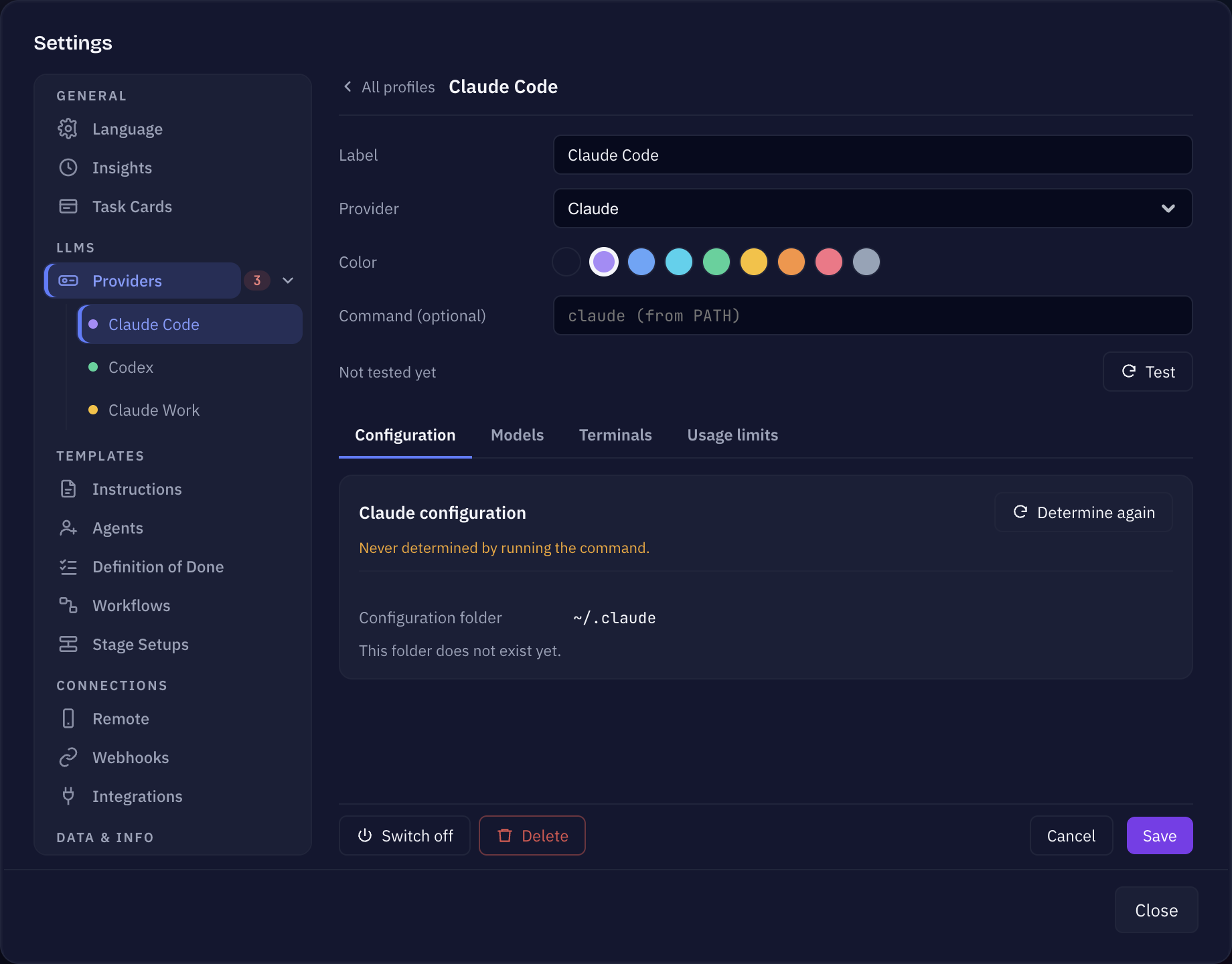
Click a profile in the list to open its page. Under the basics you find four tabs:
- Configuration — which folder this agent reads its settings from, and what Sightdeck found there: the settings file, hooks (Claude Code only; Codex has no hook system), and the skills in that folder. Sightdeck finds the folder by running the command, so a wrapper that sets its own folder is shown correctly. Determine again re-reads it after you changed the command. If two profiles share a folder, the page says so.
- Models — the models this provider offers in every model picker. Refresh checks for new models and current prices, + Add adds a model by its id, and switching a model off hides it from every picker.
- Terminals — whether this provider's sessions start with full access. For Claude Code this is Full Access Without Confirmations: it reads, writes and runs anything in the project without asking first. For Codex it is Danger Full Access. Both are off by default. Codex has no in-between: switched off, it refuses to run at all, because it has no per-action approval prompt to fall back to.
- Usage limits — Claude profiles only: how much of the 5-hour and weekly window of your subscription is used, and from which level Sightdeck warns you (Warn at). The numbers appear after the first run; only Pro and Max subscriptions report them.
At the top of the page you can Switch off a profile — it stays saved but disappears from every select, and no run uses it — or Delete it. The last profile that is switched on cannot be switched off. Tasks and projects that named a deleted profile fall back to the next provider in line.
Whether a session opens in a Terminal window or runs inside Sightdeck is a project setting: Run agents embedded in Sightdeck in the project's General settings, on by default. See Agents view.
Install the Sightdeck skill per profile
The skill teaches the agent how to read and update your tasks. Because every profile can read a different configuration folder, the skill is installed per profile:
- Open the profile's page, tab Configuration.
- The banner at the top says whether the skill is there: "The Sightdeck skill is not in this folder", an outdated version, or "up to date". The Skill folder row shows exactly where it goes.
- Click Install skill (or Update skill / Reinstall skill).
When a new app version brings a newer skill, the Providers entry in Settings shows how many profiles have an outdated skill. More on the skill itself: Skill setup.
Each project's default provider
Every project names its own Default provider in Project settings → General. It is required — nothing in the project runs until one is picked. There is no global default any more.
The default provider runs everything in the project that does not pick its own: the Pre-Stage (refinement, planning, the changelog and the other project jobs), stages set to Project default, Ask, AI Explain and the skill trigger test.
The sidebar shows the provider under each project, marked default; if the Pre-Stage runs on a different one, it is listed too. A project without a default shows "No default provider — pick one in Project settings → General".
The provider choice is stored on your computer, not shared: provider accounts differ between machines, so a colleague picks their own.
Which provider runs a task
Sightdeck asks from the most specific to the most general, and the first answer wins.
In a project without stages:
- The task itself. In the task's details you can pick a provider for this one task. The select then says Pinned to this task; left on Inherited, the task follows its project. A task that runs somewhere else than its project carries a small provider mark on its card.
- The project's default provider.
In a project with stages, every stage is its own session:
- The task's choice for that stage — in the task's details under Stages you can set provider and model per stage, for this task only.
- The stage's provider, set in the project's Stages settings.
- The project's default provider (a stage set to Project default).
The model a stage uses is the task's own model (the one refinement picked) when it belongs to the same kind of provider — a Codex stage does not get a Claude model — unless the task names a model for that stage.
If the provider a layer names cannot run the job — it is switched off, not installed on this machine, or lacks what the job needs — Sightdeck skips it, writes that into the task's history and uses the next one. With nothing left, the task does not start and you see "No provider can run this".
Where Claude Code and Codex differ
- Full access: optional for Claude Code, required for Codex (see the Terminals tab above).
- Plan mode: the plan-mode option of the planning settings is a Claude Code feature and is not available on a Codex profile.
- Usage limits are only reported by Claude subscriptions.
- Hooks: Claude Code reads hooks from its settings; Codex has no hook system, so the Configuration tab shows only whether its
config.tomlexists.