
The states a task moves through
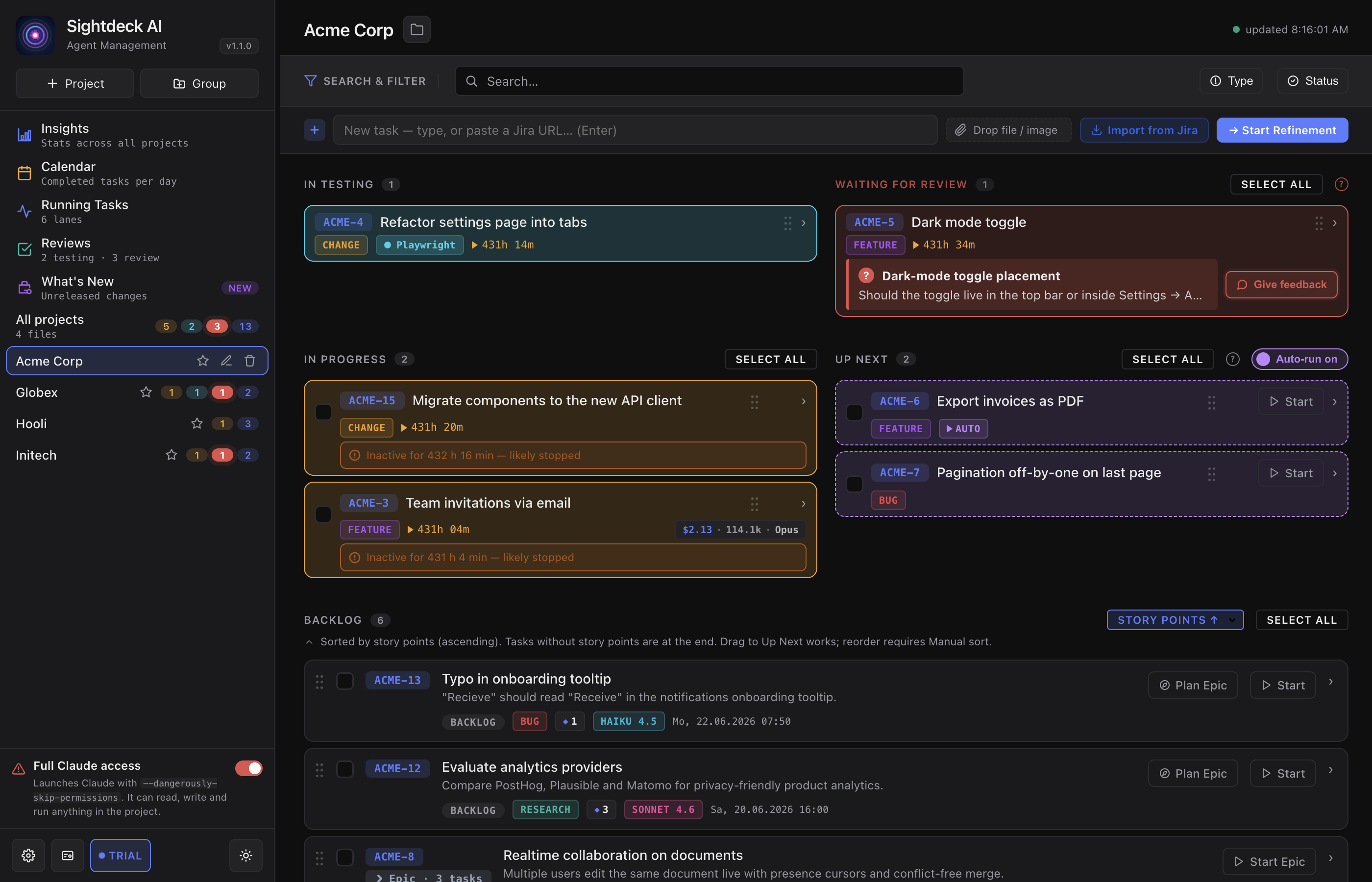
Each state is a column on the board, and the card carries a matching pill:
- Backlog — created, not started yet.
- Up Next — queued for the auto-scheduler. You put tasks here yourself, and the scheduler starts them one at a time.
- Scheduled — lined up as part of a bulk start or an Epic run, waiting its turn to start. It has no column of its own; a scheduled task sits in the Backlog column with a Queued pill, and a hint naming the run it is queued onto.
- In Progress — the agent is working on it.
- In Testing — a check is running (tests, build, lint). A badge names the tool, so you know whether it is a quick check or a long run.
- Needs You — the agent is waiting for your answer. The card gets a red border and carries the question, and the same task shows up under Needs you on your phone and in the notification when it starts waiting.
- Done — work is finished and verified.
The pill on the card uses a shorter form of the column name — active for In Progress, testing for In Testing, feedback for Needs You. In the task file these states are stored as backlog, up_next, scheduled, active, testing, feedback_required and done; you only meet those spellings if you open sightdeck.xml yourself.
What you get
- You always know where a task really stands — a task cannot show "working" while it is actually waiting on you. A card whose session stopped on a question turns red instead of looking busy.
- The badge next to the testing pill tells you which tool is checking right now, so a long browser run and a quick type check are easy to tell apart.
- A task moving from In Testing back to In Progress is normal — a bug was found, the agent fixes it and re-checks. You see the iterations, not just the result.
- Done is only reached after a green check — never an "I think it works" claim.
How you use it
- Watch the status pill on each card — colour and label tell you the current state.
- When a task is in In Testing, read the small badge next to the pill for the tool that is verifying.
- When a task moves to Needs You, answer the question right on the card — see Needs You.
- To reopen a finished task, hit Rework on the card — it sends the task back to Backlog and the lifecycle runs again from the top.
Stages inside In Progress
With stages set up for a project, a task runs through them in order while it is in progress — for example an implementation stage and then a review on another provider. The status stays the same; the Stages row on the task's Activity tab and the Stage view show where it stands. A later stage can send a task back to an earlier one.
What "Done" is backed by
Every test command Sightdeck AI recognises leaves a pass or fail record on the task — taken from whether the command actually succeeded, not from what the agent says about it afterwards. A check you did by hand can be recorded the same way.
By default that record is evidence you can read. Switch the verification gate on for a project and it becomes a condition: a task cannot be closed without a green record that is newer than its last file change.
- Turn it on by setting
"require_verification_on_done": truein the project's.agents/sightdeck/config.json. It is off unless you do. - A close that does not qualify is refused, and the task lands in Needs You with the reason on the card — no green verification run was recorded, the last recorded verification run failed, or the last green run predates the last file change.
- It guards every route into Done, including dragging a card into the Done column yourself.
- Tasks with nothing to verify pass untouched: research tasks, informational closes, and tasks that changed no file at all.
- The evidence belongs to one round of work. Sending a task back to Backlog or reworking it clears it, so last week's green run never vouches for this week's change.
That is the point of switching it on: with the gate active, "done" stops being something anyone can simply assert.
Moving a task by hand
The agent keeps the status in sync automatically, but you're not locked into the flow. You can move a task from any status to any other status yourself — drag it between groups in the list, or right-click a card and pick Set status — when you want to correct or override where a task sits. With several tasks selected, the same menu sets the status for all of them. The automatic transitions above are the default; manual moves are always available when you need them.
One column is special: dropping a backlog or queued task onto In Progress doesn't just relabel it — it starts it, the same as pressing Start on the card. Drop several selected tasks at once and Sightdeck's multi-select bar moves the whole batch to another status in one step, the same way — see Bulk start.
Three things worth knowing
- Dropping a task onto In Progress starts it. The drop is the same action as pressing Start — no separate confirmation, because you just told the board to run it.
- Moving a task to Done yourself changes only its status. It no longer commits or pushes anything, so a branch that was already merged cannot block the click. Committing is the agent's job when it finishes the task.
- A task moved to another project lands in that project's backlog, whatever status it had before. A running session belongs to the project it was started in; carrying a task's "in progress" across would claim a session that does not exist there.