
What you get
- A scan that reports what it found, grouped by finding, with a count next to each group.
- A checkbox per finding — you decide what gets cleaned up, not the scan.
- A summary of the exact consequence before anything happens: how many files move, how much that is, and how many repairs get applied.
- A way back: removed files move into a
.trash/folder inside the store, they are not deleted — and Undo it restores the last repair. - Ready-to-copy commands for the fixes Sightdeck cannot apply itself, such as taking a machine-local file out of git: the command, where to run it from, and a Copy button.
How you use it
- Open Edit project → Maintain and press Scan store.
- Read the findings and untick anything you want to keep.
- Press Apply. The store files are backed up into the same folder first, and everything is re-checked immediately before the write, so a change that happened while you were reading cannot be overwritten.
A scan on its own changes nothing — it only looks. You can run it as often as you like.
What it looks for
The findings come in three groups: files that are safe to clean up, files worth a look before they go, and repairs. Among them:
- Session file-tracking records — snapshots a session writes while it works, once they are old enough that no running session can still be using one.
- Files parked in _to_delete — files an agent moved aside because it was not allowed to delete inside the store. Nothing else ever empties that folder.
- Recovery leftovers, stale locks, empty attachment folders, and concepts or attachments that no task references any more.
- Sightdeck hooks need reinstalling — the project's Claude Code hooks are old, doubled or point to a script that is gone. The repair reinstalls them the way a session start does, leaves hooks of other tools alone, and backs the settings file up into
.trash/first. - Broken links between tasks, and a task left running by a crashed session (see below).
The Move concepts tab next to Maintain moves existing concept files into the concept folder set on the General tab — see Project folders.
No task is ever deleted
This is the one rule the tab does not bend. A task whose concept, parent and attachments are all gone is still a task; Maintain clears the broken references around it. There is no setting that changes that — if you want a task gone, you delete the task itself.
While a run is going
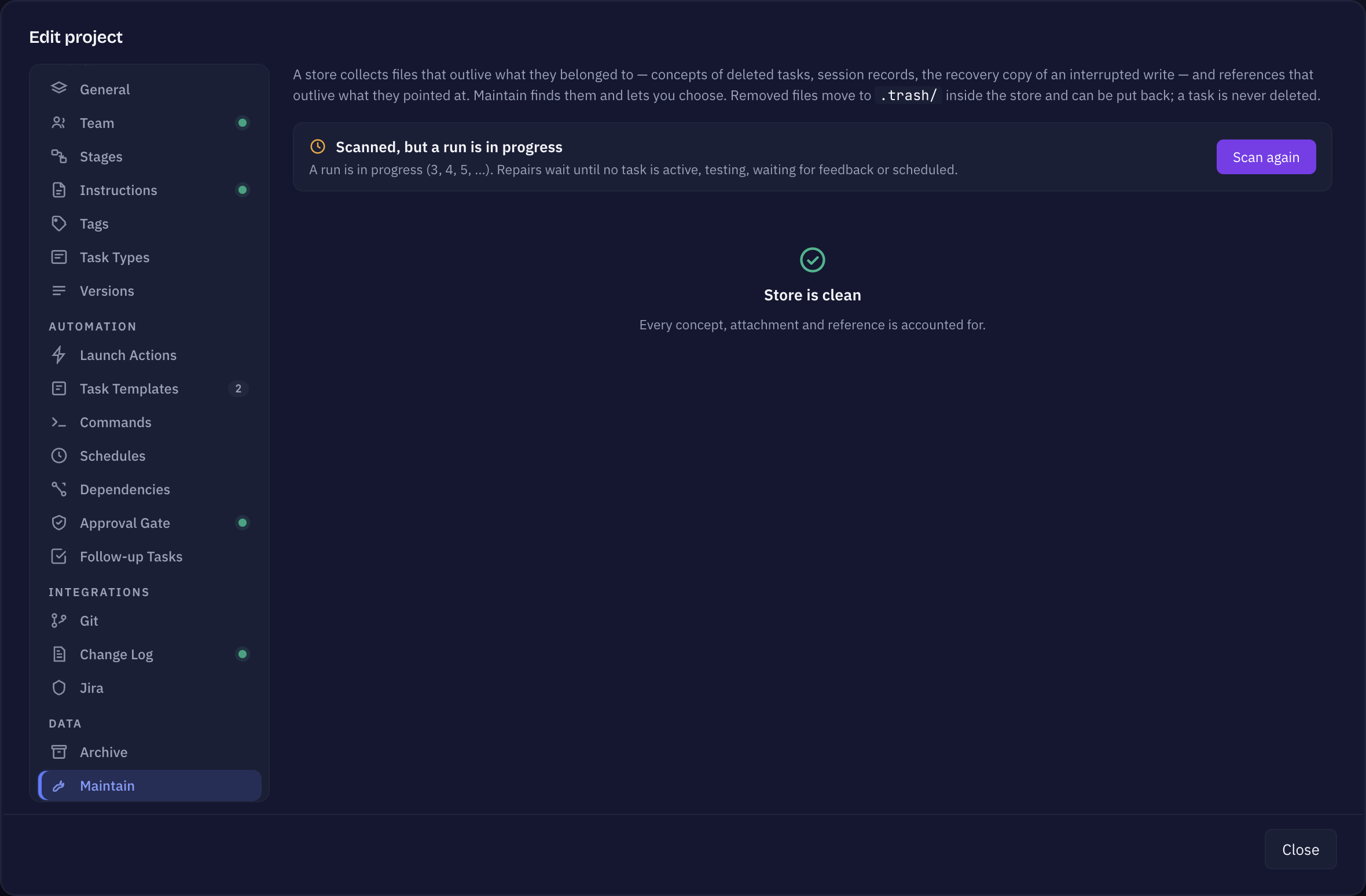
Repairs wait until no task in the project is active, testing, waiting for feedback or scheduled. If a run is in progress the tab says so and offers Scan again — you still see the findings, they are just not applied underneath a session that is working on the same files.
The finding you are most likely to see
A task left running by a crashed session: no history event for more than twelve hours while the task still says it is working. Applying the repair moves it back to the backlog and records why in the task's own history, so the board stops showing work that nobody is doing.
For finished work you want out of the live file rather than repaired, use the Task Archive instead — that moves whole tasks out and can bring them back.