What it is
A Command is the deterministic sibling of a Launch Action and a Task Template: a Launch Action runs a prompt through the agent, a Command runs a shell string through the shell. Nothing is AI-generated — the exact command you type is what runs, every time.
Commands are also the building blocks of the Start button in the project head: its start, stop, restart and health slots each point at one of the project's commands. See Startup Commands.
What you get
- Run a build, a deploy script, a linter or any other static step from the same place you run tasks — no tokens spent asking the agent to type a command you already know.
- Use one from your phone on the Remote page — fix something and immediately fire the deployment script, wherever you are.
- Drop a command onto the board like a task: pick it from the "From template" menu and it runs through the same lifecycle as any other card, only its "session" is the shell process.
- Wire a command to run automatically before or after a task, without touching the task itself each time.
How you set one up
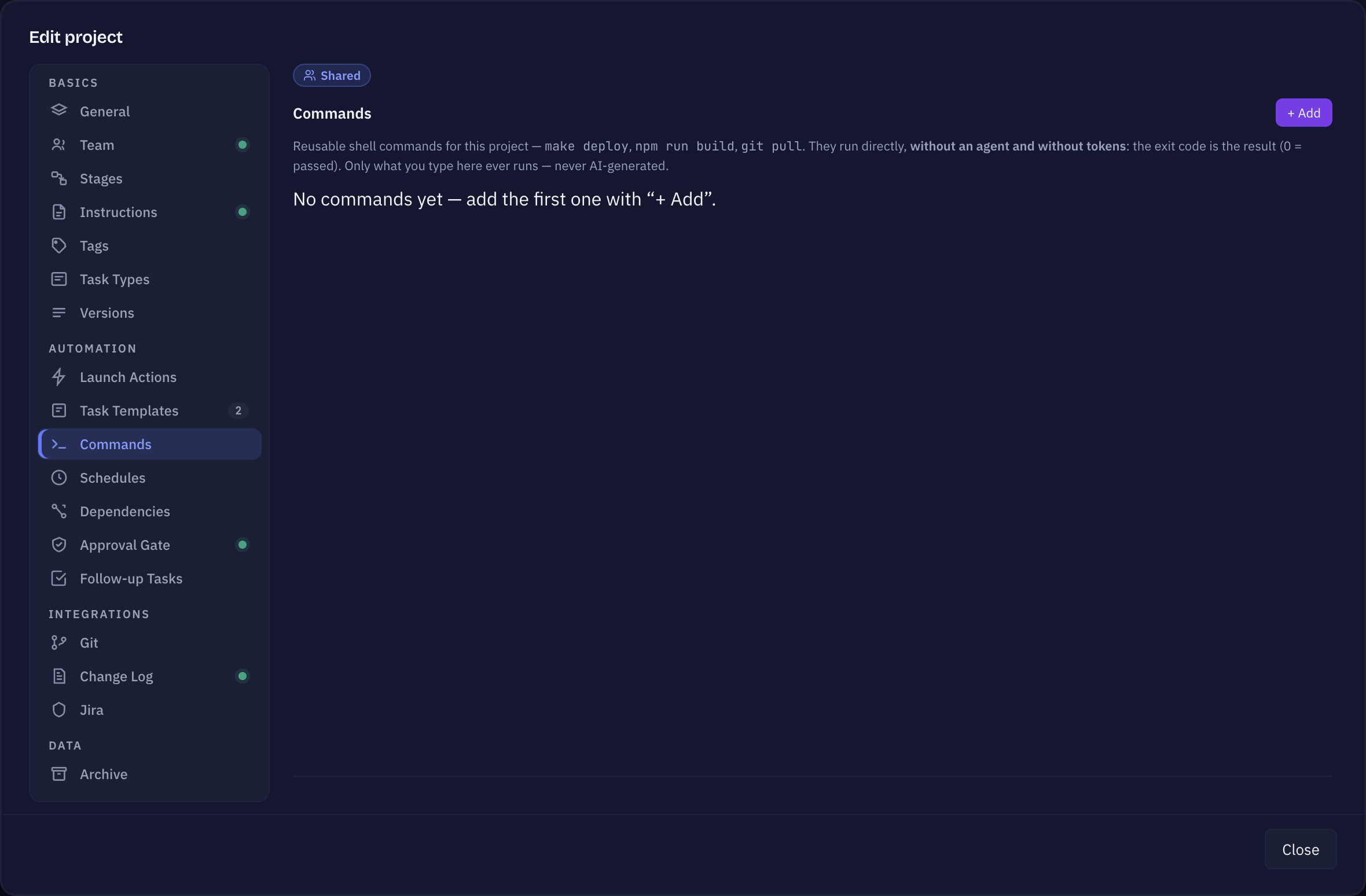
- Open Project Settings → Commands and click + Add.
- Give it a Name and the Command — the exact shell line to run (for example
make deploy). It runs throughbash -lc, so several lines,\line continuations,&&chains and small embedded scripts all work; the exit code of the last line is the result. - Optionally set a Working directory (defaults to the project root) and whether it should Confirm before running — pre-checked automatically for command lines that look destructive (
deploy,push,publish,rm), but always your explicit choice to keep or clear. - Save.
Running it as a board task
Pick a command from the From template menu on the quick-add bar, the same place task templates live. It is added to the backlog like any task, moves through the board the same way, and — when started — runs the stored shell command instead of starting an agent. The link is kept live: editing the command afterwards (a corrected line, a newly required confirmation) is picked up by every card still pointing at it, even one already sitting on the board.
Before/After hooks
A single task can also carry its own Before and After command, picked from your stored list, independent of whatever it is a board task or a Command task itself:
- Before runs right before the agent's own run starts, and its exit code gates the start — a non-zero exit stops the task before a single token is spent.
- After runs once the task reaches Done. If it is set to ask for confirmation first, the task waits with a visible "run pending" marker until you confirm it from the card, rather than firing unattended.
Both are set under Run hooks on the Setup tab of the task's details — pick a stored command from the dropdown, or leave it on None. Clearing the picker removes the hook from that one task; the stored command itself is untouched.
Where a command runs
A command runs in the same place as the project's agent sessions: inside Sightdeck, or in a Terminal window when Run agents embedded in Sightdeck is switched off in Edit project → General. See Inside Sightdeck or in a Terminal window.
Chains and failure
A command inside a serial run or a schedule can be set to Stop the rest of the chain on a non-zero exit (the default) or Continue regardless — pick whichever matches whether the next step actually depends on this one succeeding.