Where you find it
Refinement, planning and the model recommendation run in the project's Pre-Stage — the part that runs before a task enters its stages. That is where their settings live:
- Open Edit project → Stages.
- On the Pre-Stage card, check the Provider it runs on.
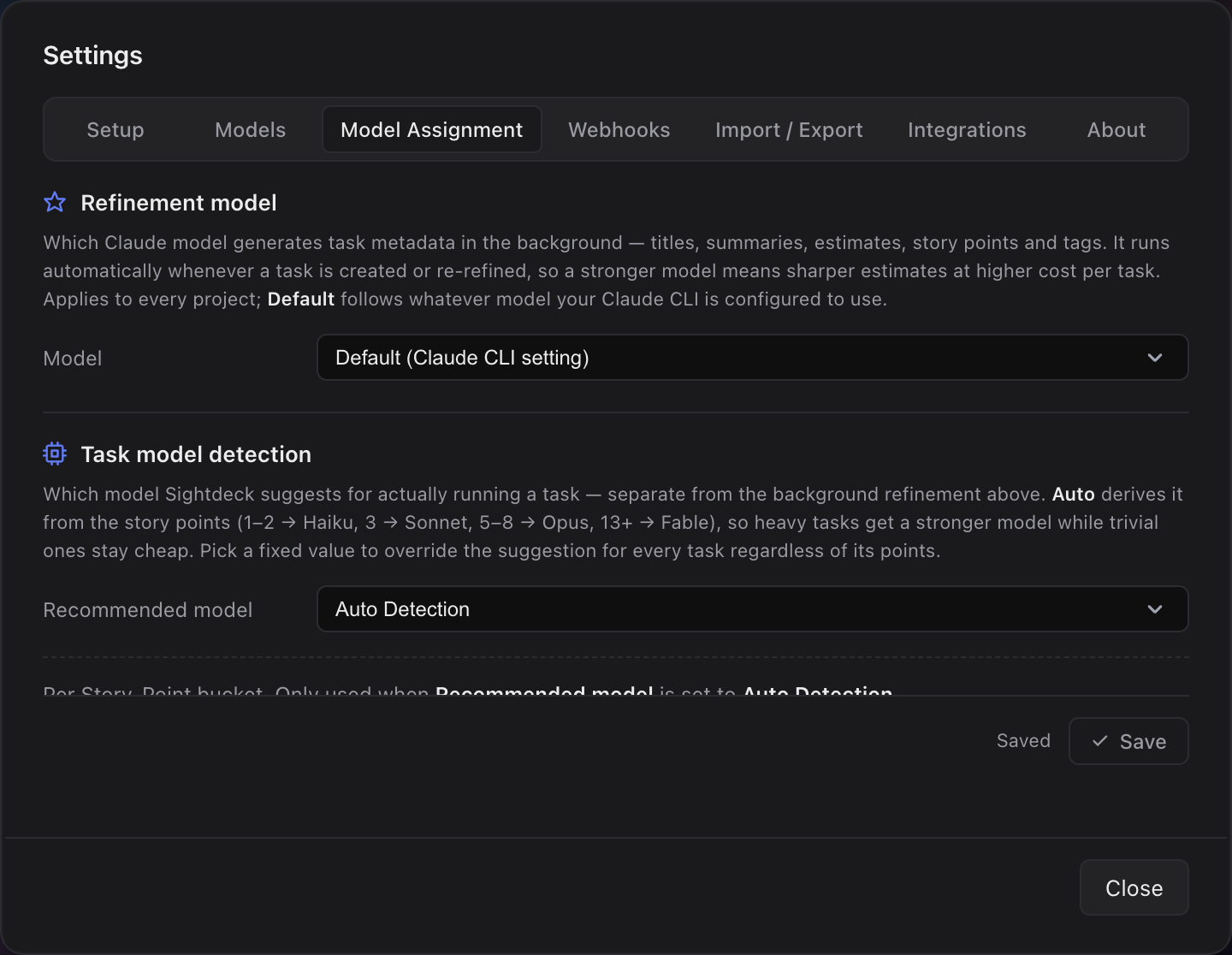
- Click Refinement settings. A dialog opens with two tabs: Model Assignment and Planning.
What you set is stored for this project and for the Pre-Stage's provider, on this computer. Switch the Pre-Stage to another provider and that provider brings its own set — nothing is inherited, so what you see for a provider is exactly what it runs. The pickers only offer models that provider actually has.
Model Assignment
- Refinement model — the model that writes task metadata in the background (title, summary, estimate, story points, tags) whenever a task is created or refined again. Default follows whatever model your agent is configured to use.
- Recommended model (under Task model detection) — the model proposed for running a task. Auto Detection picks it from the task's Story Points using the bucket map below; a fixed model overrides the suggestion for every task.
- Story-Point buckets — per bucket (1–2, 3, 5–8, 13+) the model Auto Detection picks. The four buckets collapse the full scale: SP1 and SP2 share a model, SP5 and SP8 share one, and SP13, SP21 and SP34 share one. The map is only used while Recommended model is on Auto Detection.
Out of the box, Auto Detection gives trivial work (SP1–SP2) Haiku, small tasks (SP3) Sonnet, medium to large work (SP5–SP8) Opus and huge or unclear tasks (SP13 and up) Fable. Move any bucket to a different model when that suits your project better.
The Claude models, from cheapest to strongest
On a Claude profile the pickers offer four families. They differ in how capable, how fast and how expensive they are:
- Haiku — the fastest and cheapest. Good enough for typos, one-line fixes and other trivial work.
- Sonnet — balanced speed, cost and quality. The everyday choice for a small, well-defined feature.
- Opus — clearly more capable and clearly more expensive. For complex work spanning several files.
- Fable — the top tier, above Opus. For the largest or least clearly defined tasks, where you would rather pay than re-do the work.
A Codex profile offers the models listed on its own Models tab instead.
Story Points come from your own tasks
Refinement no longer estimates Story Points on a fixed scale. It estimates them from your project's own finished tasks — how long work of each size really took here and how its Story Points spread. The more finished work a project has, the closer the first estimate gets. AI Learning shows what a project has learned and lets you apply it.
Planning
The Planning tab of the same dialog decides how Plan Epic turns a task into an Epic with subtasks. It has its own Save button.
- Planning engine — Sightdeck guided (a guided dialog with a few questions that creates the subtasks itself), Claude plan mode (Claude Code's official plan mode, reviewed inside Sightdeck before subtasks are created — not available on a Codex profile), or Custom skill (any installed skill handles the planning; a field for the skill name appears).
- Planning model — the model the planning run uses.
How you use it
- Open the Refinement settings as described above.
- Pick the Refinement model and the Recommended model (Auto Detection is the usual choice).
- Optional: adjust the model per Story-Point bucket — for example move SP3 to Opus, or SP5 down to Sonnet.
- Save. The next refinement and the next task start use the new choice.
- After refinement, open a task — the Model field on its Setup tab shows the suggested model. Change it if you know better, then start the task.
Which models exist at all
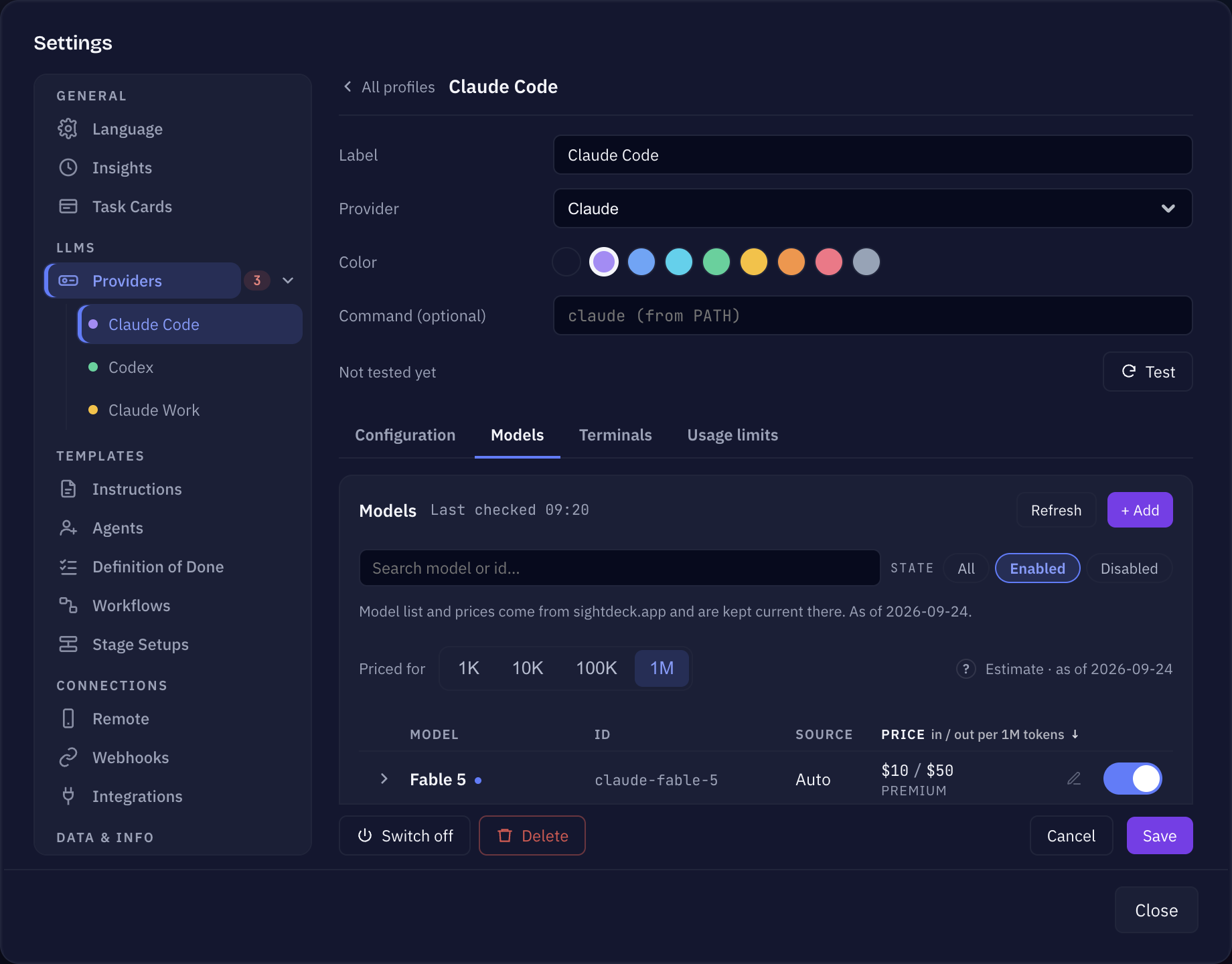
The models a provider offers are listed on its own page: Settings → Providers → the profile → Models. Refresh checks for new models, + Add adds one by its id, and switching a model off hides it from every picker.
If a Refinement setting still points at a model you switched off, the dialog says so and asks you to pick a replacement or switch the model back on — there is nothing underneath to fall back to.