
What you get
- Every instruction file of the project in one list, grouped by the tool that reads it, with size, estimated tokens and whether git shares it.
- An editor with Write, Preview and Changes views, an Outline of the headings and find in file.
- A review of the diff before anything is written, and a guard when the file changed on disk in the meantime.
- Hints for common problems, and instruction templates you can load into any file.
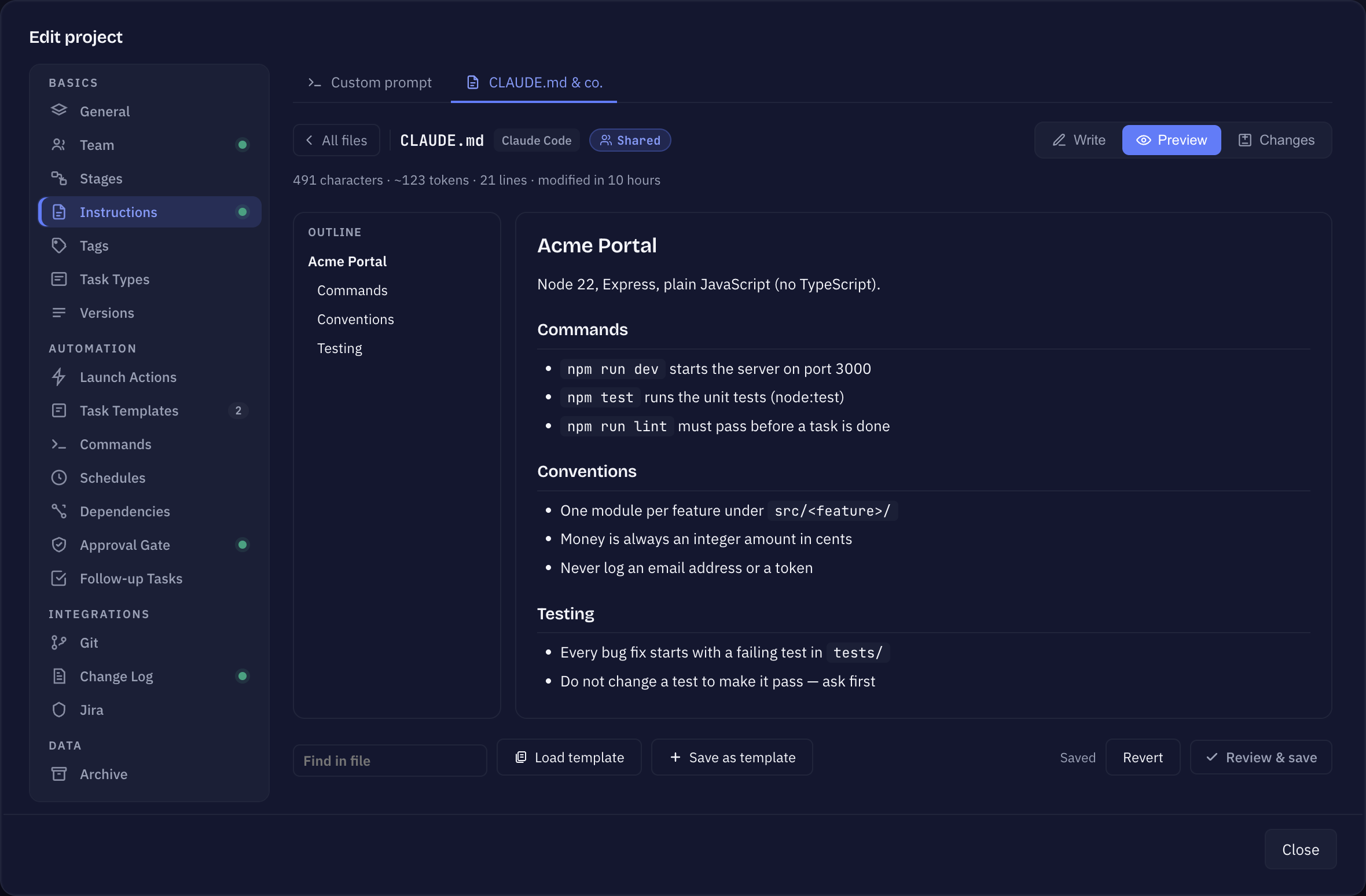
Which files are listed
Open Edit project → Instructions and stay on the CLAUDE.md & co. tab. The list shows:
- Claude Code —
CLAUDE.md,CLAUDE.local.md(your own notes for this checkout, kept out of git) and.claude/CLAUDE.mdif it exists. - Codex, Cursor & co. —
AGENTS.md. - Gemini CLI —
GEMINI.md. - Sightdeck —
SIGHTDECK.md, read-only (see below).
Each file shows whether it is Shared (git tracks it), stays on This machine (git ignores it) or is Not in git yet. A file that does not exist yet can be created with a short starter; it is written when you save. Each agent’s own instructions are edited under Team → Agents, not here. The second tab, Custom prompt, is described in Custom prompt.
Edit, review, save
- Press Edit on a file.
- Write in Write, check the rendered Markdown in Preview, and jump through the headings with Outline.
- Press Review & save. Nothing is written yet — you see the diff from what is on disk to your version.
- Confirm with Write CLAUDE.md (or whichever file it is). Revert drops your changes.
The changes go straight into the repository, so review them like code. A file can be at most 512 KB.
Protection against overwriting
If another session or a git pull changed the file after you opened it, your version is not written. The editor says “changed on disk since you opened it” and shows the difference between what is on disk now and your version. Then you choose: Reload from disk, or Overwrite with mine.
Hints
A file can carry hints, each with a fix where one exists. For example:
- most of
CLAUDE.mdalso stands inAGENTS.md— Import AGENTS.md keeps one place to edit; CLAUDE.local.mdis not in.gitignoreyet — Add to .gitignore;- an
@import points at a file that does not exist; - the file is long and loaded into every session;
- an old Sightdeck block is still in the file — Remove block.
For Claude Code the page also sums up how many tokens these files (and what they import) add to every session.
Fill from a template
Keep reusable instructions under Settings → Templates → Instructions, or get them from the Store. In the editor, Load template offers four ways to load one:
- Append — added below the draft.
- Add as section — added as a marked section that you can later update or remove as a whole.
- Replace — the draft becomes the template.
- Own file — the template becomes a file of its own (for example
docs/QA.md), and the instruction files you tick point at it. Tick Copy the text instead of referencing it for agents that do not follow imports, such as Codex.
Loading only changes the draft — you still review and save. Save as template stores your current draft as a new template or updates an existing one.
SIGHTDECK.md: Sightdeck’s own instructions
Sightdeck no longer writes anything into CLAUDE.md or AGENTS.md. Its instructions for agents — the team, the stages and the team’s Definition of Done — go into SIGHTDECK.md in the Sightdeck folder. It is rewritten whenever those settings change, so it is read-only here: edit Team, Stages or the Definition of Done instead. The Sightdeck skill loads the file while Sightdeck is on for the project. If an older Sightdeck block is still in one of your files, the hint above removes it.
Switching Sightdeck off for a project
At the top of Edit project → General, Sightdeck active in this project switches Sightdeck off for this project. Off means: the skill and its hooks stay out of your sessions, nothing starts and no stage runs. The board stays readable. It only applies to this computer — the team is not affected. A banner on the board says Sightdeck is off; Switch on brings it back.