
What you get
- No manual refresh. Anything that changes is visible at once.
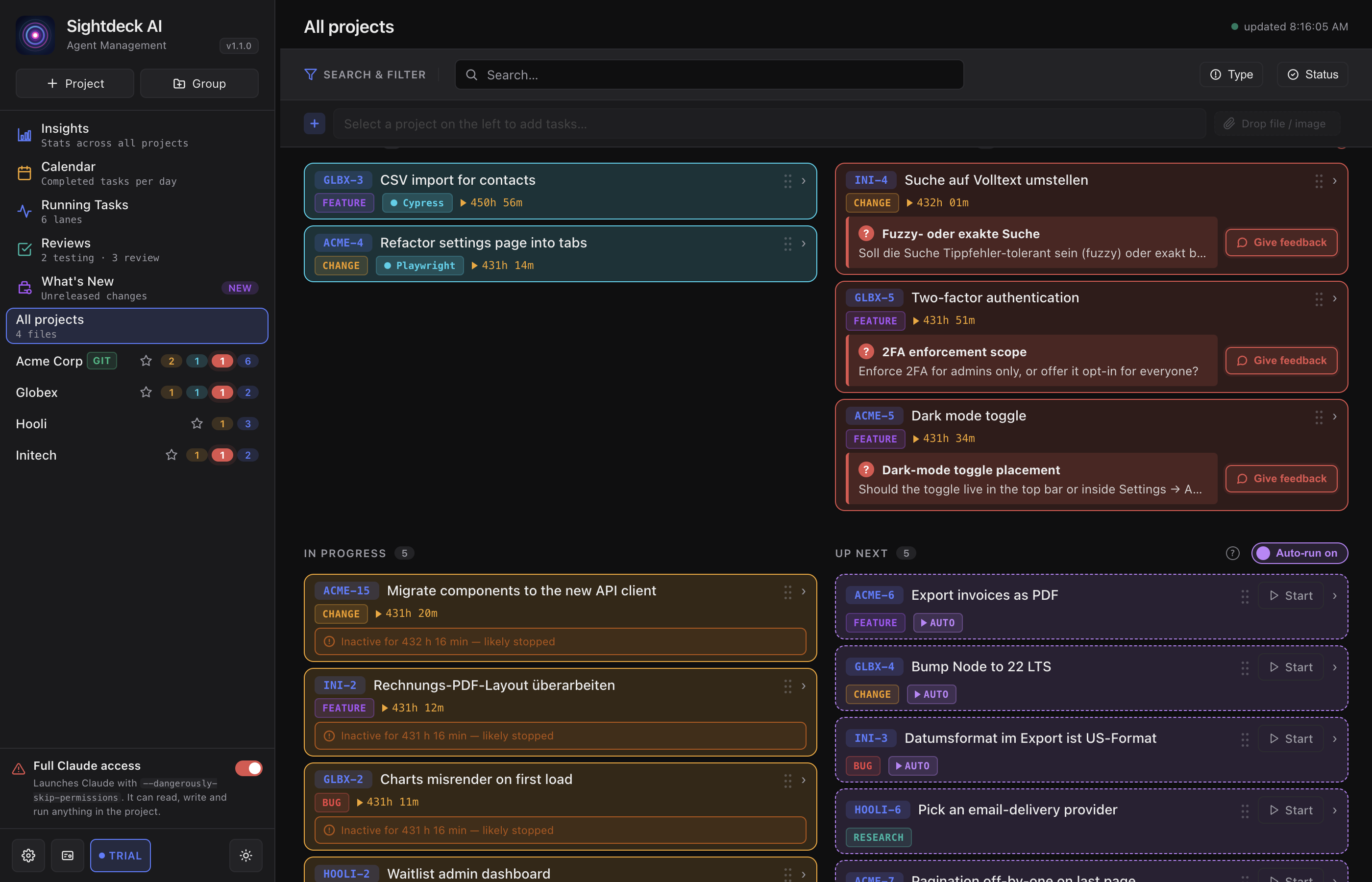
- Several projects at once: All Projects in the sidebar shows an aggregated view of what is running across every repo.
- You can tell whether an agent is stuck in one project while another runs smoothly through. The sidebar also names each project's default provider.
- Rename, hide or remove projects individually without losing tasks — the XML stays in the repo.
How you use it
- Click Add project in the sidebar — or drop a project folder onto the window. The dialog opens pre-filled with the detected Sightdeck folder, project folder, name and prefix. Review the values and confirm.
- The project appears in the sidebar. Click it → detail view.
- All Projects in the sidebar shows a mixed view of every registered project.
- Hover the sidebar entry to rename or remove. Removing only un-registers the project — the folders stay on disk.
Picking a project from a dropdown
Every project dropdown in Sightdeck works the same way:
- Favorites first. Projects you marked as favorite in the sidebar sit in their own Favorites section at the top, the rest follow under Projects.
- Search. Type into Search project… to narrow a long list.
- What is running. Each entry says how busy the project is, for example 2 active · 14 done, or no active tasks.
When a project becomes unreadable
If a project's sightdeck.xml can no longer be read — file moved, folder gone, permission revoked — the sidebar entry shows a red border and a small ! pill. Clicking the broken project retries the load automatically; once the underlying issue is fixed, the red state clears without any extra button.
The red banner above the task list shows the error of the currently active project only. Switching to a working project clears the heading area; the All Projects view still lists every broken project at once.
Hat dir diese Seite geholfen?
Danke — ist notiert.