
What you get
- Large tasks stop sitting in the backlog as untouchable monsters — planning turns them into a handful of small, ready-to-start pieces.
- The agent drives the breakdown: a few focused questions, then a concrete plan.
- The parent stays put — it keeps its estimate and Type, and just gains a subtask list and the
Epic · Nchip. - Planning never auto-starts a subtask — you pick the moment with Start Epic.
How you use it
- Open a backlog task that feels too big — or unclear — to start.
- Click Plan Epic. It shows only when the task is in
backlog, has no subtasks yet and is already classified. - A planning session opens — inside Sightdeck or in a Terminal window, whichever the project uses — and the agent starts planning. It reads the task's title, summary and concept, then asks focused questions about scope and acceptance criteria.
- Answer the questions right in the session. After a few of them the agent produces a plan.
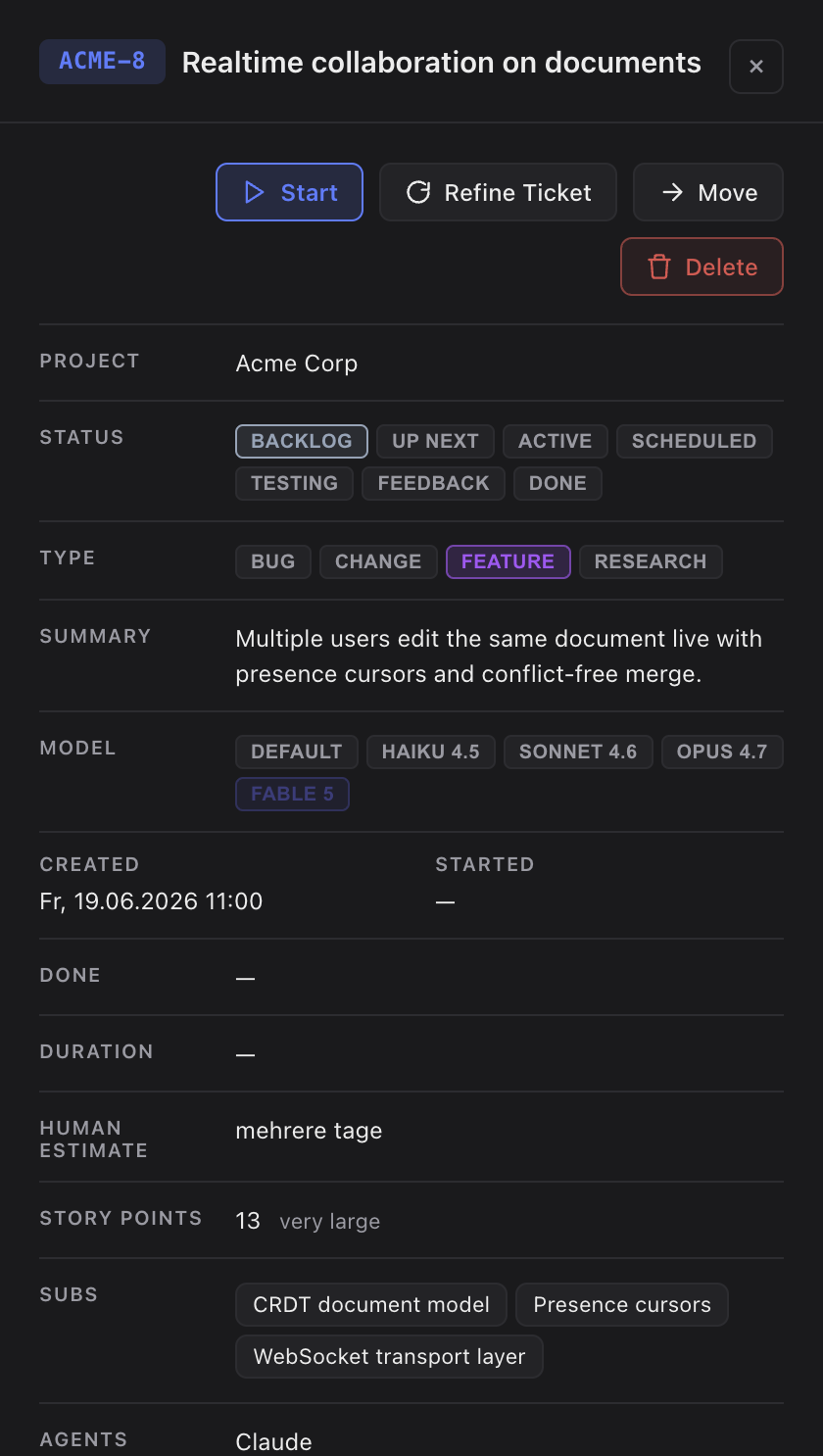
- The agent creates the subtasks under the parent and prints the list. The parent now shows
Epic · N; click Start Epic when you're ready.
Choose the planner (Planning engine)
Which planner Plan Epic runs is set per project: Edit project → Stages, on the Pre-Stage card click Refinement settings, tab Planning, Planning engine. It is stored for the Pre-Stage's provider, see Model Assignment & Planning.
- Sightdeck guided (default) — the guided question dialog above. Subtasks are created directly once the dialog concludes.
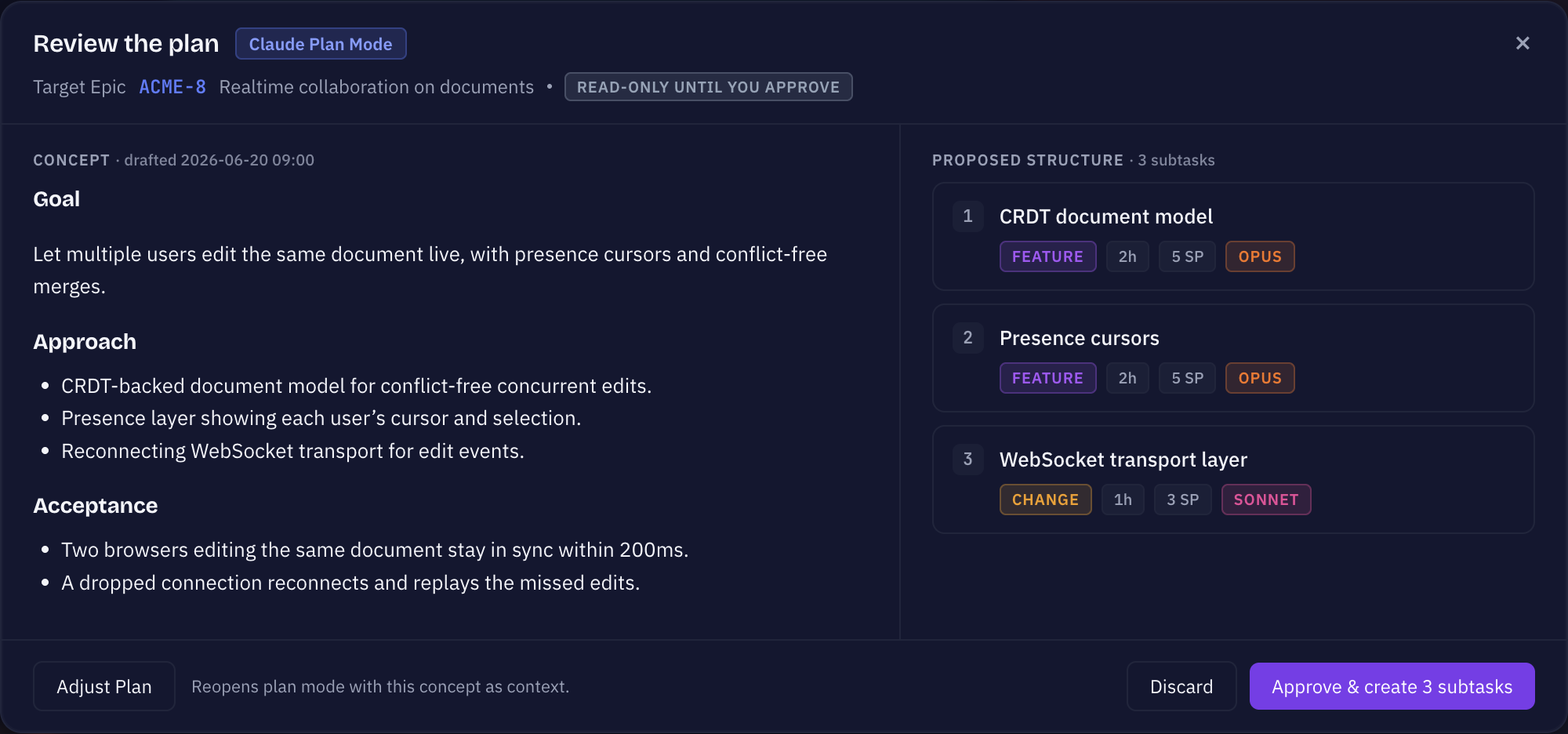
- Claude plan mode — launches Claude Code's official plan mode, so it is only available when the Pre-Stage runs on a Claude profile. Claude drafts the breakdown read-only and waits for your approval, then hands it back as a plan proposal you review inside Sightdeck (see below) — nothing is created until you approve.
- Custom skill — points the planning run at a named skill you have installed; that skill drives the breakdown, and the subtasks are still written under the parent.
All three keep the parent in backlog until subtasks exist, and all three use the Planning model set on the same tab.
The concept review (Claude plan mode)
Concepts shouldn't be hidden. When the Claude plan mode engine finishes, Sightdeck opens a large concept-review window over the board: the drafted concept is the hero on the left, the proposed Epic and subtasks — with Type, estimate, Story Points and model — sit on the right.
- Approve & create materialises the subtasks under the parent and saves the drafted concept onto it, so Edit Plan later shows the full plan, not just the original ticket text.
- Adjust Plan relaunches plan mode so the agent can redraft the proposal with your feedback.
- Discard drops the proposal; the parent stays a plain backlog task.
The Plan Epic button adapts so the review is always reachable: a pending proposal turns it into a pulsing Finish Planning; a settled Epic turns it into Edit Plan.
Planning an Epic again
An Epic whose breakdown turned out incomplete can be planned a second time — Plan Epic stays available. A re-plan extends the breakdown: the agent reads the existing subtasks first, aims its questions at the gaps, and only ever appends new subtasks. Existing ones are never re-worded, re-estimated, reordered or removed, and overlapping proposals are dropped rather than duplicated. "Nothing to add" is a valid outcome. To change or drop an existing subtask, use the Refinement modal or delete it in the app.
When Sightdeck AI suggests it
When refinement decides a task would benefit from planning, the Plan Epic button pulses gently. That happens when the task scores high on complexity, or when the original wording was too vague to implement directly. While the dialog runs, the card shows an animated Planning… pill next to the status chip.
The pulse is a suggestion, not a gate — you can still hit Start and run the task in one go. Skip planning for tasks that are already small and clear, for tasks that already have subtasks (add more with + Subtask), and in the "All projects" view, which has no single project to plan into.
Editing the plan before you approve it
The plan you get is a proposal, not a verdict:
- Switch a subtask off — it stays in the list, greyed out, and is simply not created when you approve.
- Remove a subtask while editing the plan, with a confirmation before it goes.
- Re-plan an Epic that already has subtasks — the dialog then shows the existing subtasks next to the new proposals, so you can see what the plan is adding instead of guessing whether something will be duplicated.
A re-plan only ever appends. Subtasks that already exist are never rewritten, re-estimated or reordered by it.