
What you get
- Every task runs through the project's stages in order, and each stage is its own session on its own provider.
- A review on another provider than the one that wrote the code — with the right to send the task back.
- A visual workflow editor: steps, arrows, decisions and the agents that work each step.
- Steps and whole workflows that only apply to some tasks, decided by Story Points, task types and tags.
- A Stage view with one column per stage, so you see at a glance what is being built, reviewed or tested.
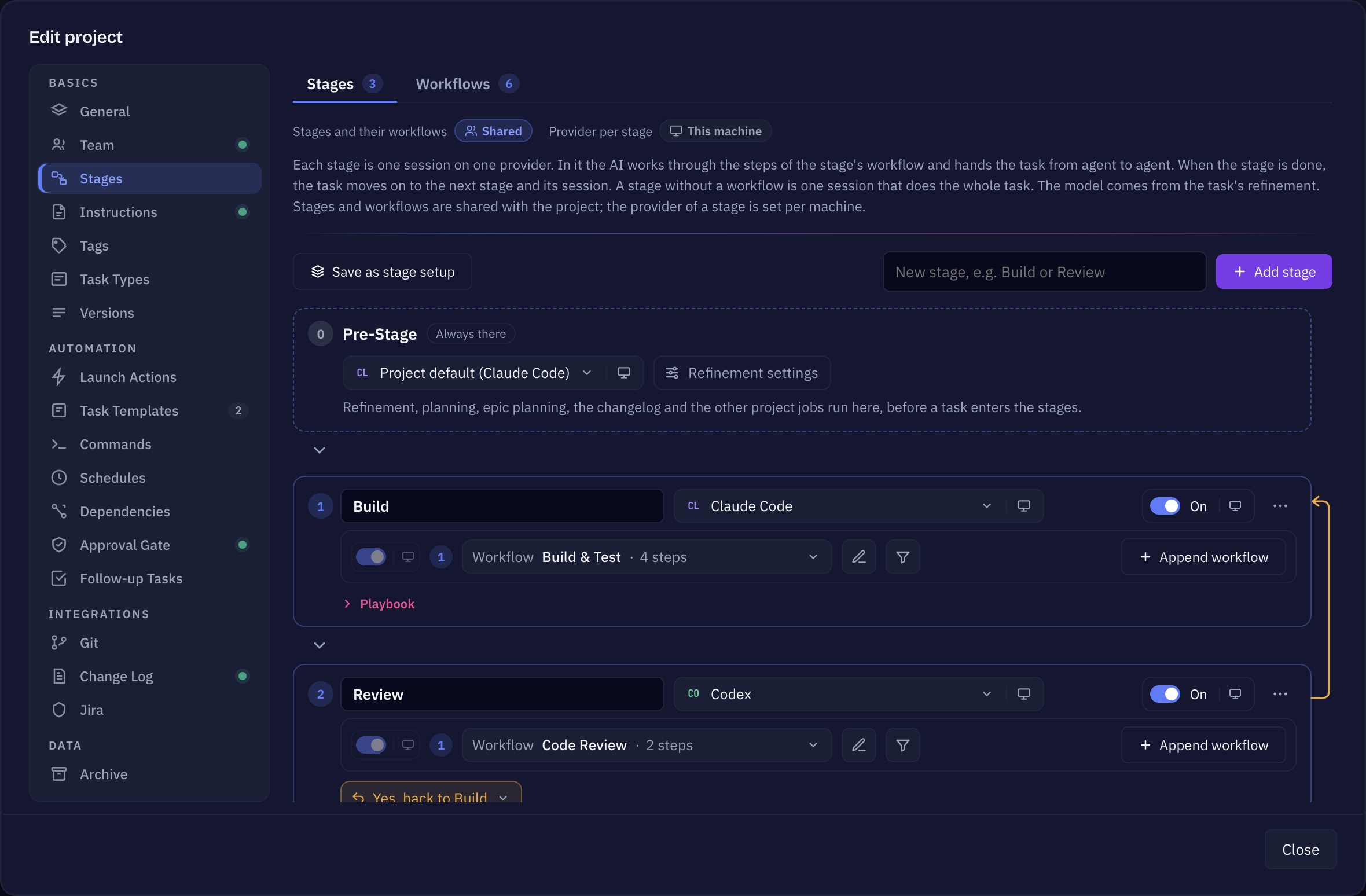
Stages and workflows in one sentence each
- A stage is one session on one provider. When it is done, the task moves on to the next stage and its session.
- A workflow is the steps inside a stage, from Backlog to Done. The steps run one after another in that stage's session, and the agents of a step work together there. A stage without a workflow is one session that does the whole task.
A project without stages works as always: every task runs in one session on the project's provider, from start to finish.
Set up stages
- Open Project settings → Stages, tab Stages.
- The Pre-Stage is always there. Refinement, planning, epic planning, the changelog and the other project jobs run in it, before a task enters the stages. Pick its Provider.
- Click Add stage and give it a name, for example Build or Review.
- Choose the stage's Provider: Project default, Like the Pre-Stage, or a specific provider profile.
- Choose its Workflow: an existing one, Build new workflow, or No workflow: one session.
- For a later stage, set May send back: No, only forward or Yes, back to an earlier stage.
- Order the stages with Move up / Move down.
Each stage has an On/Off switch. A stage that is off stays in the list, but a run walks past it.
Stages and workflows are shared with the project. The provider of a stage is set per machine — provider accounts differ between computers, so a colleague sets their own. Under Provider and model per stage you can set provider and model for several stages at once.
Stages in a row on the same provider and model can share one session: the next stage continues in the session that is already open instead of starting a new one. That saves tokens; it works only for sessions running inside Sightdeck.
Several workflows in one stage
A stage has one standard workflow and can have more, each with a Rule. Use Append workflow to add one. From top to bottom, the first workflow that is on and whose rule fits the task runs; if no rule fits, the first one without a rule runs. Drag the grip on the left to reorder, and switch a workflow off in this stage with its switch. At least one workflow stays on.
A rule looks at Story Points, Task types and Tags (click a tag once: must have; twice: must not have). Free text alone never picks a workflow. So a stage can run a light workflow for SP1 and SP2 bug fixes and a thorough one for everything bigger.
The workflow editor
Open it from a stage with Edit workflow, or from the Workflows tab of the Stages settings. The canvas runs from Backlog (tasks start here) to Done (tasks end here).
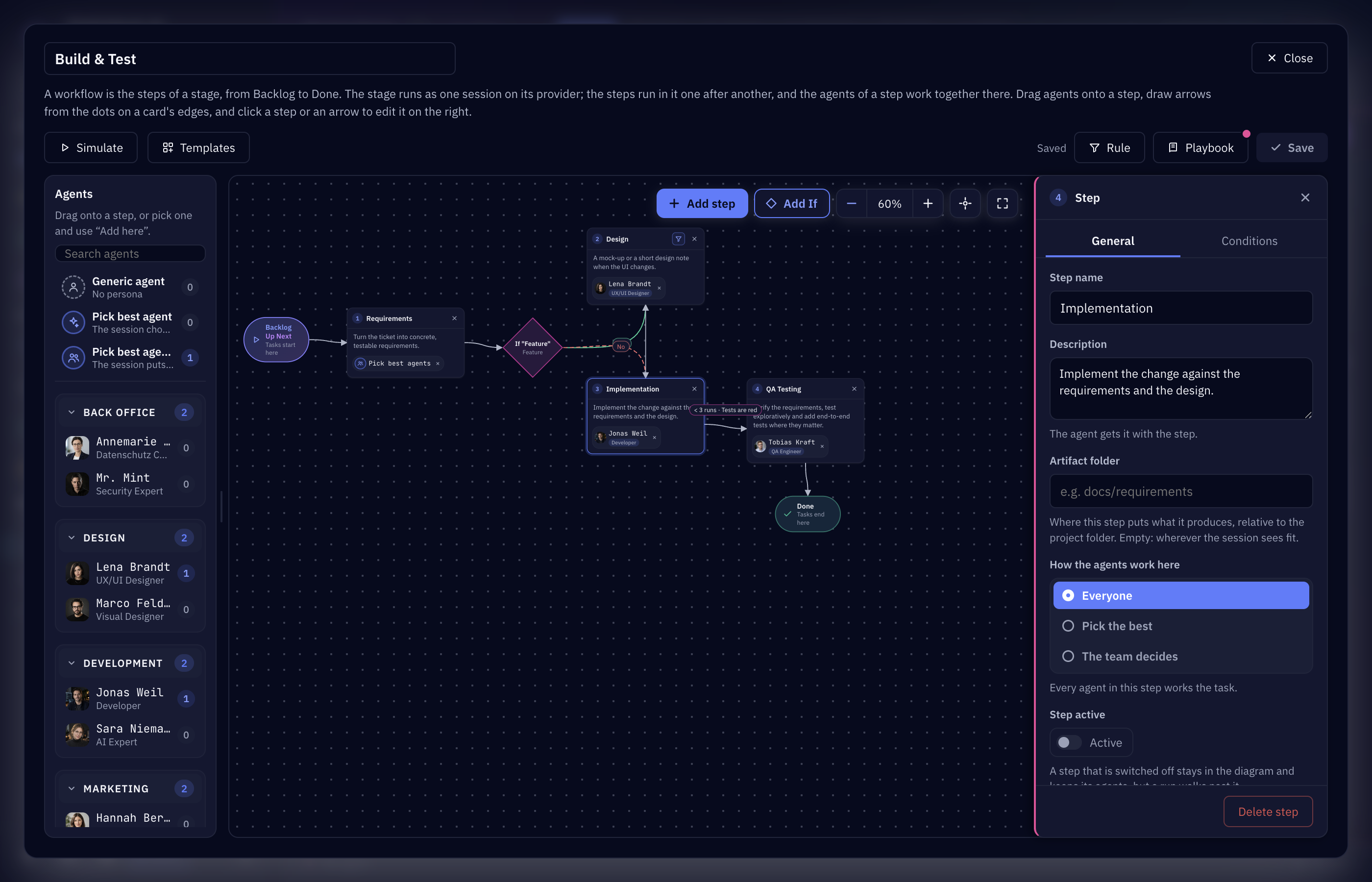
- Add step adds a step. Give it a name and a description — the agent gets the description with the step.
- Draw arrows from the dots on a card's edge to the next step. An arrow can carry a rule ("only if tests fail"), and an arrow back to an earlier step makes a loop. A loop without a limit is flagged, with a button to limit it; once the limit is reached, the task comes to you.
- Add If adds a decision: tasks that meet its condition go the Yes way, the others the No way.
- Drag agents from the Agents list onto a step. Under How the agents work here you choose Everyone (every agent in the step works the task), Pick the best (the session picks the one that fits best) or The team decides (the agents decide among themselves which of them are needed). There are also Pick best agent and Pick best agents, which choose from the whole team.
- Conditions: in the step's Conditions tab, Use this step only when takes a Story Points range, task types, tags, attachments, changed files and a further rule in your own words. Empty fields mean the step is always used. Sightdeck checks Story Points and types itself; the agent judges the free-text rule.
- Switch a step off with Step active. It stays in the diagram and keeps its agents, but a run walks past it.
- Artifact folder says where a step puts what it produces, for example
docs/requirements. - Playbook: who does what along the chain, in your own words. It is handed to every step.
- Simulate runs a test ticket through the diagram and dims the steps it would skip.
The editor lists problems as you draw — no arrow from Backlog, a step that cannot reach Done, an If without exactly one Yes and one No arrow. A workflow with problems cannot run until you fix them. Workflows are saved as files in .agents/sightdeck/workflows, and Save as template keeps one, without its agents, for all your projects.
Sending a task back
A stage that may send back — typically a review on a different provider — ends its work either forward or back. When the review finds problems, the task goes back to the earlier stage you named, with a handover that says what has to change, and runs through the stages again from there. A stage can only send back to the stage you allowed, never anywhere else.
The Stage view
Switch the project to Stages in the view switcher, next to Board and List. Each project with stages gets a row with one column per stage, framed by a start column (Not in a stage yet) and Done. A card shows whether its stage is running, which step it is on, or that it is handing over. Tasks worked outside the stages — started by hand, or before the stages existed — collect under In progress, no stage.
"Queued" between stages
When a stage is done, its session ends (unless the next stage shares it) and the next stage gets a session of its own. Until that session has started and picked the task up, the task stands in the queue with the status Queued and a note in its history ("queued for the next stage"). That is expected: the task turns active again as soon as the next stage's session starts working on it. The first stage queues a task from the backlog the same way.
Per task: other provider or model for a stage
In a task's details, the Stages block lists the project's stages with the provider and model each would use. Change them there for this task only; left empty, the stage's provider and the task's model apply. See Providers for the full order.
Reuse stages in other projects
Under the Stages tab, Save as stage setup keeps the project's stages with their workflows for every project; Load stage setup… brings one into another project — its stages are replaced, its workflows are added. You manage stage setups under Settings → Templates → Stage Setups, and ready-made ones come from the Store.