
What you get
- Fill the queue, leave the desk: tasks are worked off one after another within each project until that project's queue is empty.
- First in, first out: tasks run in the order you queued them. A task you queue now goes to the end of the line — nothing reorders the queue behind your back, not backlog priority, not creation date.
- Each task runs with its own chosen model.
- Queued tasks run through without stopping to ask you: the agent decides open points itself and records every decision on the task — see Approval Gate.
- Epics and unclassified tasks are skipped — they stay visibly queued and never block the rest.
- Nothing waits for you: a queued task that stops to ask a question is answered by the scheduler after a short grace period. Read what that means before you queue something you want the final say on.
How you use it
- Queue tasks into Up Next — drag a backlog card onto the cell, or right-click it and pick Queue Up Next.
- Check the Auto-run toggle in the Up Next cell. It is on by default and applies app-wide.
- Switch Auto-run off to pause: the running task always finishes, only the next launch is held back.
- Switch it back on to resume immediately. Pull a queued task back to the backlog any time before it starts.
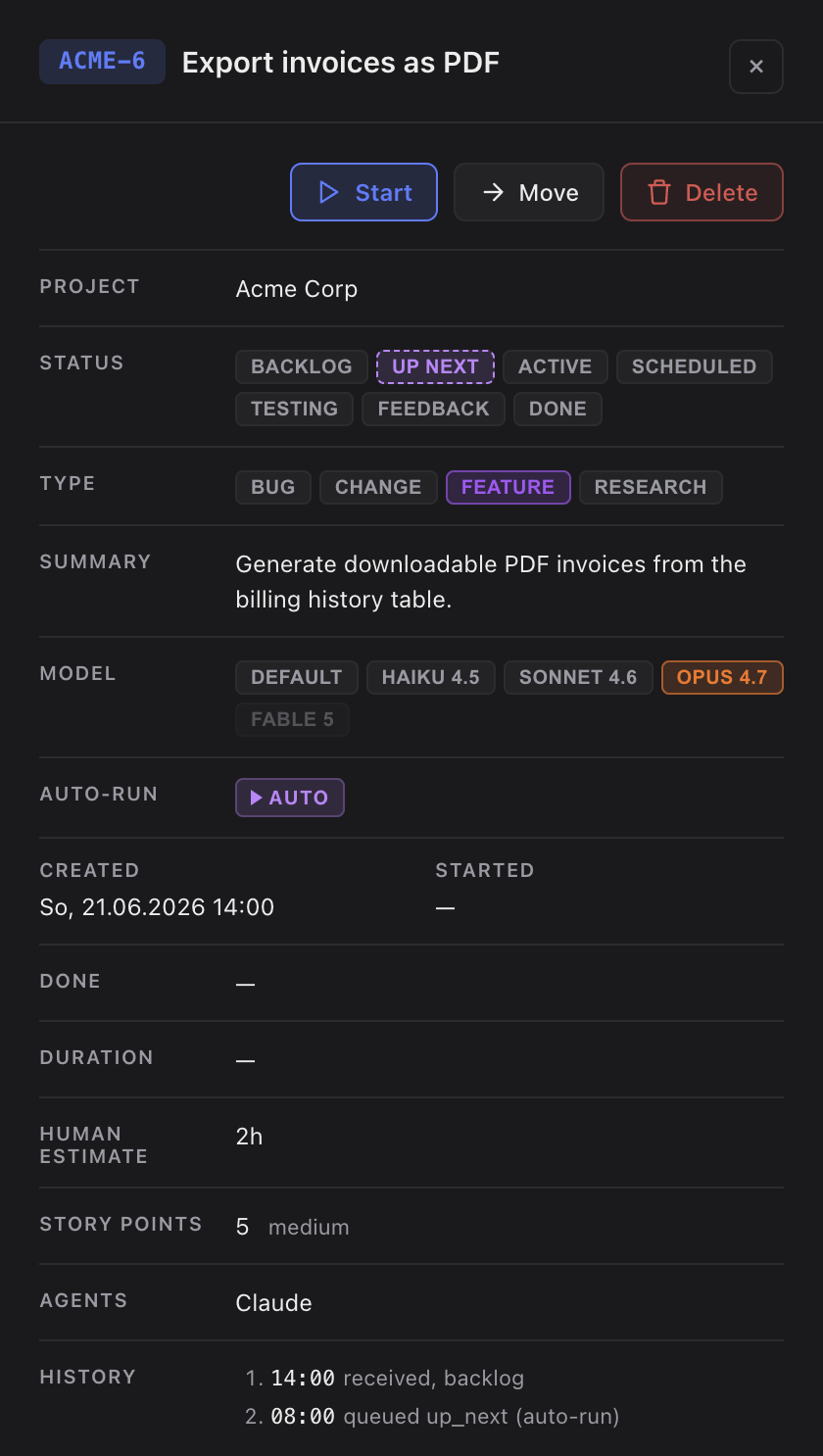
How the scheduler keeps things running
The scheduler babysits the queue so an unattended run doesn't stall. If a session is interrupted — you closed the window, the machine slept — it re-launches the task after a short idle period, and keeps re-launching until the task reaches done or you pull it back.
Those decisions are never invisible after the fact: each one is written into the task's timeline together with the question it settled, and the card gets a violet Auto-answered pill (with a count once it happened more than once). The pill stays after the task is done — when you review a finished run, you can see at a glance which calls were yours and which the agent made for you.
Every task the scheduler started carries a violet Auto pill. When one finishes, Sightdeck chains straight into the next queued task — no confirmation step. To group tasks into a single run by hand instead, use Bulk start.
Changing the order of the queue
The queue is worked in the order tasks entered it. Drag a queued card up or down inside Up Next to change that order — the position you drop it at is the position it will be started from.
Starting a queued task yourself
A task the scheduler starts runs unattended: it decides the small trade-offs on its own and only stops for a real blocker. When you press Start on a queued task, that is not what you asked for — so a manual start switches the unattended mode back off and the session asks you questions again, exactly like any other task you start by hand.
The auto-run switch itself is remembered per project on your machine, so each project keeps its own setting, and it is hidden in the all-projects view — auto-run is a decision per project, and a switch that could mean four things at once would be a trap.