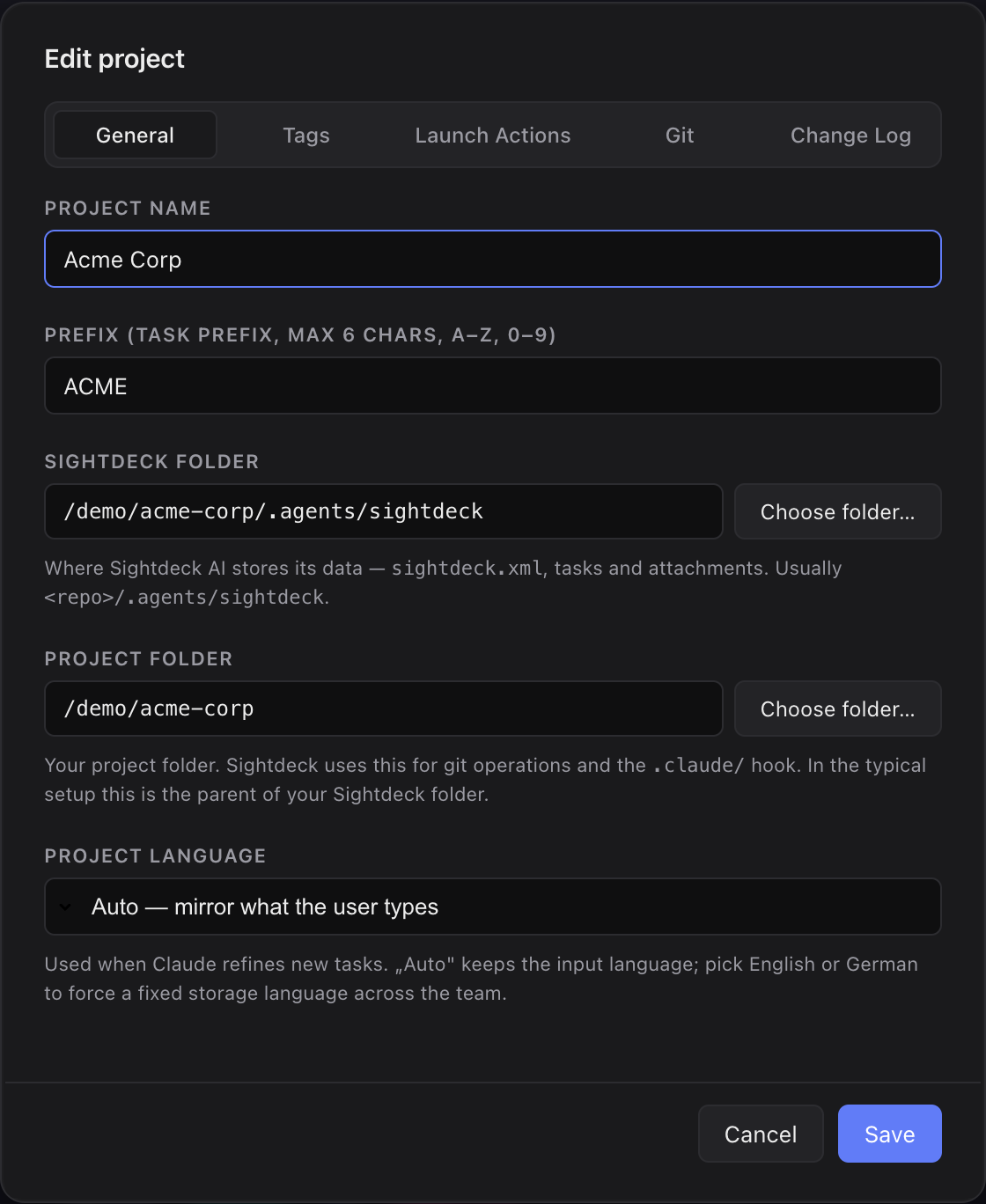
What it is
- Sightdeck folder — holds
sightdeck.xml,tasks/,attachments/andgroupings.json. This is where Sightdeck AI reads and writes. - Project folder — the actual repository root, used for git operations (branches, worktrees, push) and as the folder the agent works in.
They can point at the same parent (the common case — repo with .agents/sightdeck/ inside) or at different locations (e.g. Sightdeck folder in App Support, Project folder at the repo).
What you get
- Move your Sightdeck AI data without losing the link to your repo. Point the Sightdeck folder at any empty location and Sightdeck AI migrates the existing data atomically. The Project folder keeps pointing at the code.
- Use Sightdeck AI against repos you don't want to track tasks in. Pick a Sightdeck folder anywhere (App Support, an external disk, a separate git-ignored directory) while the Project folder targets the real repo for git ops.
- Cleaner mental model: "where is my XML" and "where is my code" are now two independent answers.
How you use it
- Open the project's Edit modal (gear / right-click → Edit project).
- Sightdeck folder — path to the directory that contains
sightdeck.xml. Use Choose folder… to pick it. - Project folder — path to the repo root. Use Choose folder… to pick it.
- Save.
A concept folder of your own
Concept files — the plan behind a task — do not have to live next to sightdeck.xml. In Edit project → General, Concept folder (relative to project folder, optional) names the folder new concept files are written to, for example docs/concepts. Leave it empty and Sightdeck detects a known folder or falls back to tasks/ next to sightdeck.xml.
Changing the folder only affects new concepts. To bring the existing ones along, open Edit project → Maintain, tab Move concepts: it previews which files will move, skips a file when the destination already has one with the same name, and notes the new path in each task's history. Attachments are not moved.
Open the files a concept points at
A concept often references other files — a mockup, a screenshot, a spec. In the concept window those references can be opened straight away; images open full size. A reference to a file that is not there is marked not found, and a note at the top counts how many references in the concept point at missing files.
Defaults when adding a fresh project
Adding a project only really asks you for one thing: the repo folder. Drop it on the window or pick it, and Sightdeck works out where the task data should live and pre-fills the rest of the Add-project modal (name, prefix, Sightdeck folder) so you can just confirm with Add project. Dropping or picking a folder that does not yet contain sightdeck.xml defaults to:
- Sightdeck folder — a folder the app manages for you outside your repo, so no Sightdeck AI files land in your code. You never need to open it by hand.
- Project folder — the dropped folder itself.
Use Choose folder… in the Add-project modal to switch the Sightdeck folder to <project>/.agents/sightdeck for local (in-repo) mode — useful when the team wants the task list checked into git. If the dropped folder already contains a sightdeck.xml (direct or under .agents/sightdeck/), that path wins and is pre-filled as-is.