
The built-in types
These four are always there and cannot be removed:
- Bug — broken behaviour or a regression.
- Change — rework or refactoring of existing functionality.
- Feature — new functionality or an enhancement.
- Research — an investigation, an analysis or an answered question.
A new task shows Unclassified until refinement has picked a type, or until you pick one yourself.
Add your own types
- Open Edit project → Task Types.
- Type a name into New task type, e.g. Hotfix and click Add (or press Enter). Names can be up to 24 characters.
- Pick a Colour from the row of dots: Slate, Blue, Cyan, Green, Amber, Orange, Red, Pink or Purple. The pill at the start of the row shows how the type will look on a card.
- Write a Description (up to 240 characters): what is this type about? The AI reads it.
- Click Save. Until then the tab says there are unsaved changes.
A project can have up to 20 types of its own. They belong to the project, so every project can have its own set.
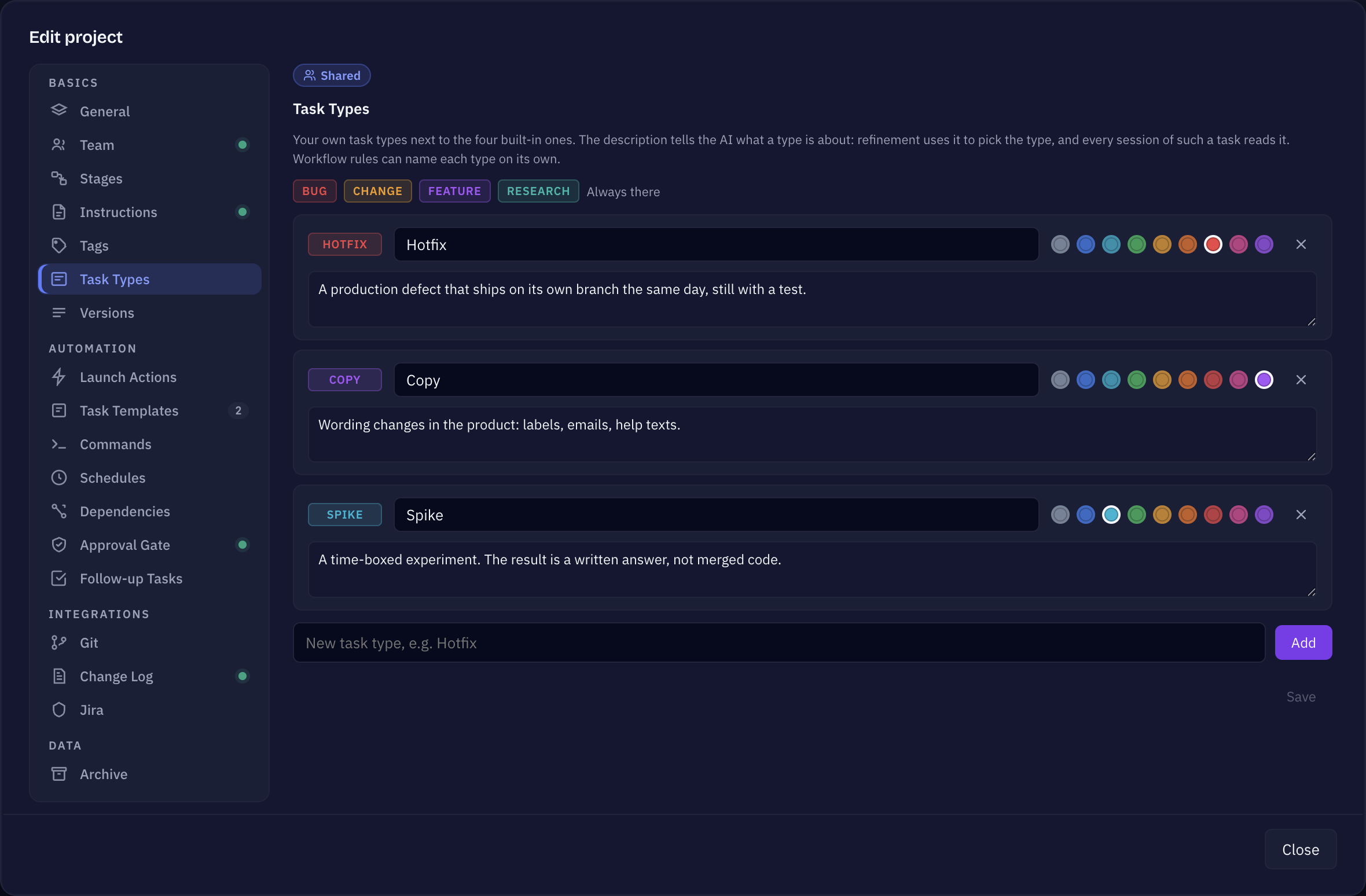
What the description does
- Refinement uses it to pick the type of a new task, so a good description means fewer tasks you have to re-type by hand.
- Every session of a task with that type reads it, so the agent knows what kind of work it is doing.
- In the app, the description is the tooltip of the type.
A workflow per type
In the workflow editor, the Task types condition of a step or a stage lists your own types next to the built-in ones. Tick a type there and that step only runs for tasks of this type — for example a security review that only runs for Hotfix. A condition matches the type exactly: a rule on Bug does not take a Hotfix, even if both are about broken behaviour.
Everywhere else Sightdeck needs one of the four built-in types to decide — for example which section a task goes into in the changelog — a type of your own counts as a Change.
Using the types
- Set the Type of a task in its details: your own types appear as buttons next to Bug, Change, Feature and Research.
- Filter the board by Type in the filter bar.
- Rename a type or change its colour any time — tasks follow the change after you save.
- Remove task type asks first. Tasks that carry it keep it and show it in grey until you pick another type.