
What you get
- A file tree with git status, and tabs for the files you have open.
- Syntax highlighting, find and replace, and Go to file with Cmd/Ctrl+P.
- A Markdown preview with a table of contents, and an outline of your Makefile targets.
- New, rename, move and delete right in the tree.
- Code Review: every changed file before and after, side by side, with a way to ask why a change was made.
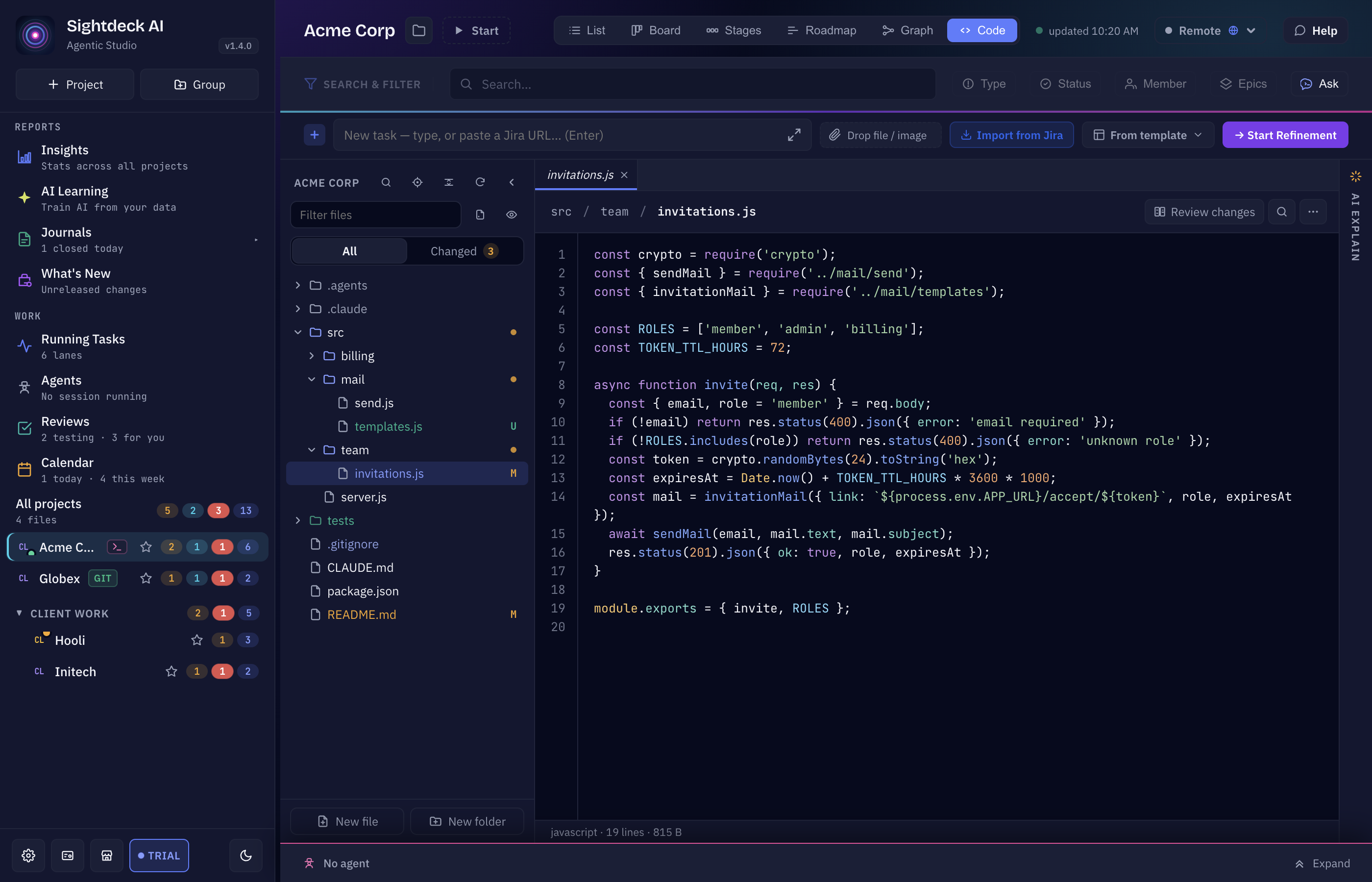
Open the Code view
Pick a project and switch to Code in the view switcher, next to Board, List and Stages. The tree shows the project folder; click a file to open it. Pick a file on the left is what you see before you do.
The file tree
- Git status: changed files are marked as Modified, New, not in git yet, Renamed, Deleted or Merge conflict, and a folder with changes inside is marked too.
- All and Changed at the top switch between every file and only the changed ones (as a list or a tree).
- Filter files narrows the tree by name. You can show or hide hidden and gitignored files, fold every folder, and find the open file in the tree.
- Right-click a file or folder for New file, New folder, Rename and Delete, to copy its path, or to show it in Finder or Explorer. Deleting asks first and cannot be undone.
- Drag a file or folder onto another folder to move it. Sightdeck asks first and tells you that imports and references to it are not updated.
Reading and editing files
- Tabs: every file you open gets a tab. Right-click a tab to close it, close the others or close all.
- Syntax highlighting for code files. Binary files and files that are too large are not shown.
- Edit turns the open file into an editor. Changes are saved on their own (Autosave on); Cmd/Ctrl+S saves at once. If the file changes on disk while you edit, Sightdeck asks whether to overwrite it or load it from disk.
- Find with Cmd/Ctrl+F. Show replace adds a replace field: Replace one match or All.
- Go to file with Cmd/Ctrl+P: type part of a file name, pick it with the arrow keys and Enter.
- Click a line number to copy
path:line. Soft wrap (Alt+Z) and Whitespace are in the toolbar.
There is more for reading code: Git Blame shows which task wrote a file and opens that task, Go to definition and Where is it used? jump through names, and AI Explain on the right edge of the view reads the file and what it imports and explains it, without changing anything.
Markdown preview
A Markdown file opens as a Preview. Switch to Source or Split to see the text beside the preview. Next to the preview, On this page lists the headings as a table of contents — click one to jump there, or fold the list away when you need the room.
Makefile targets
A Makefile gets a Targets outline: every target in file order, each with a button to Run make that target. Add section comments at the start of a line and the outline turns the same targets into a structured list, so a long Makefile stays easy to scan:
#/ Setup
install:  ## Install dependencies
	npm install

#// Docker
up:  ## Start the containers
	docker compose up -d

#/ App
build:  ## Build the app
	npm run build
#/ adds a section header to the outline; #// adds a subsection header nested under the section above it, grouping the targets that follow. In the example, Setup and App are sections, and Docker is a subsection under Setup. Make reads both as ordinary comments, so the file still runs the same. Fix indents puts a tab in front of any recipe line that starts with spaces, which make would otherwise reject.
Code Review
Open a changed file — the Changed list in the tree shows them all — and click Review changes above it. The view turns into a review of what differs from the last commit.
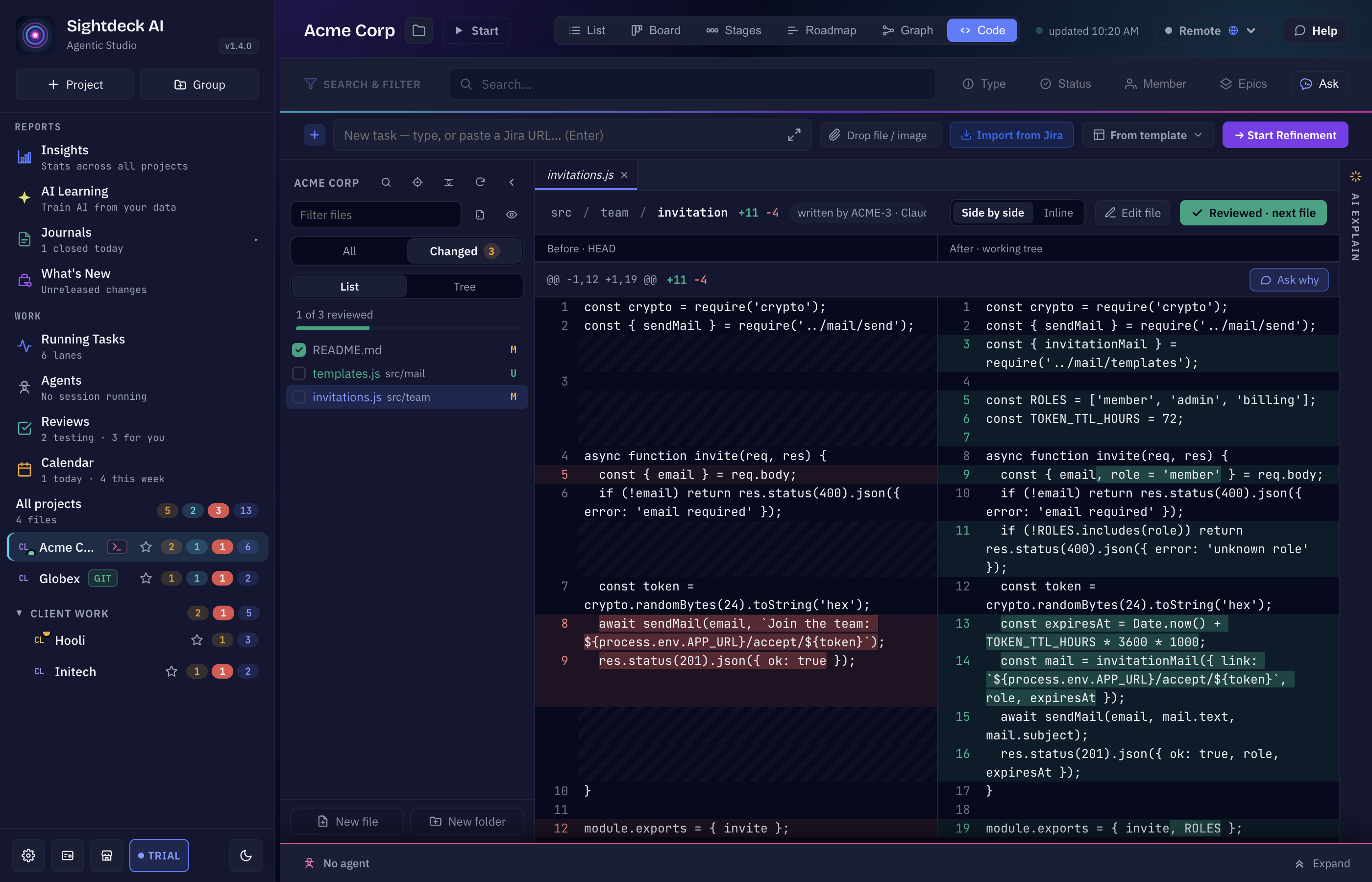
- Before and after. Before · HEAD on the left, After · working tree on the right. Switch to Inline if you prefer one column. Long stretches of unchanged lines fold away. A new file shows as New file · not in HEAD.
- Ask why. Every change has Ask why. It opens the Ask the project chat with that change as context — including which task wrote it — and answers "Why was this change made?" from the code. Follow-up questions such as Is this tested?, What could break? and Is there a simpler way? are one click away. The chat only reads; it never changes a file.
- Tick off what you reviewed. Reviewed · next file marks the file and opens the next one. In the file list you can mark a single file, or a whole folder with Mark all files in this folder as reviewed. The header counts along ("3 of 12 reviewed") until All changes reviewed.
Edit file leaves the review and opens the file for editing.
Related
- Git branches & worktrees — where a task's changes live.
- Agents view — the lines each running session changed.