
What it gathers
- Tasks in Needs You — questions the agent asked.
- Answers to research questions you have not marked as read yet, with a jump straight into the full answer.
- Tasks in In Testing — verifications you can watch live.
Always across every project, no matter which one is selected on the board. Tasks that are simply finished are not collected here — the board and the Insights view are the place for those.
How this compares to the Needs You column, Running Tasks and the phone page: see Which view should I check?
What you get
- One place for your agent rounds — no hopping between projects.
- Answered questions stay visible long enough to revisit what was decided.
- Testing runs surface here, so you can check on a verification without leaving your current project.
How you use it
- In the left sidebar, click Reviews (top group, with the teal bubble).
- The queue on the left lists the questions first — the ones that block other tasks or the Up Next queue at the top, then by how long they have waited — and the testing runs below them.
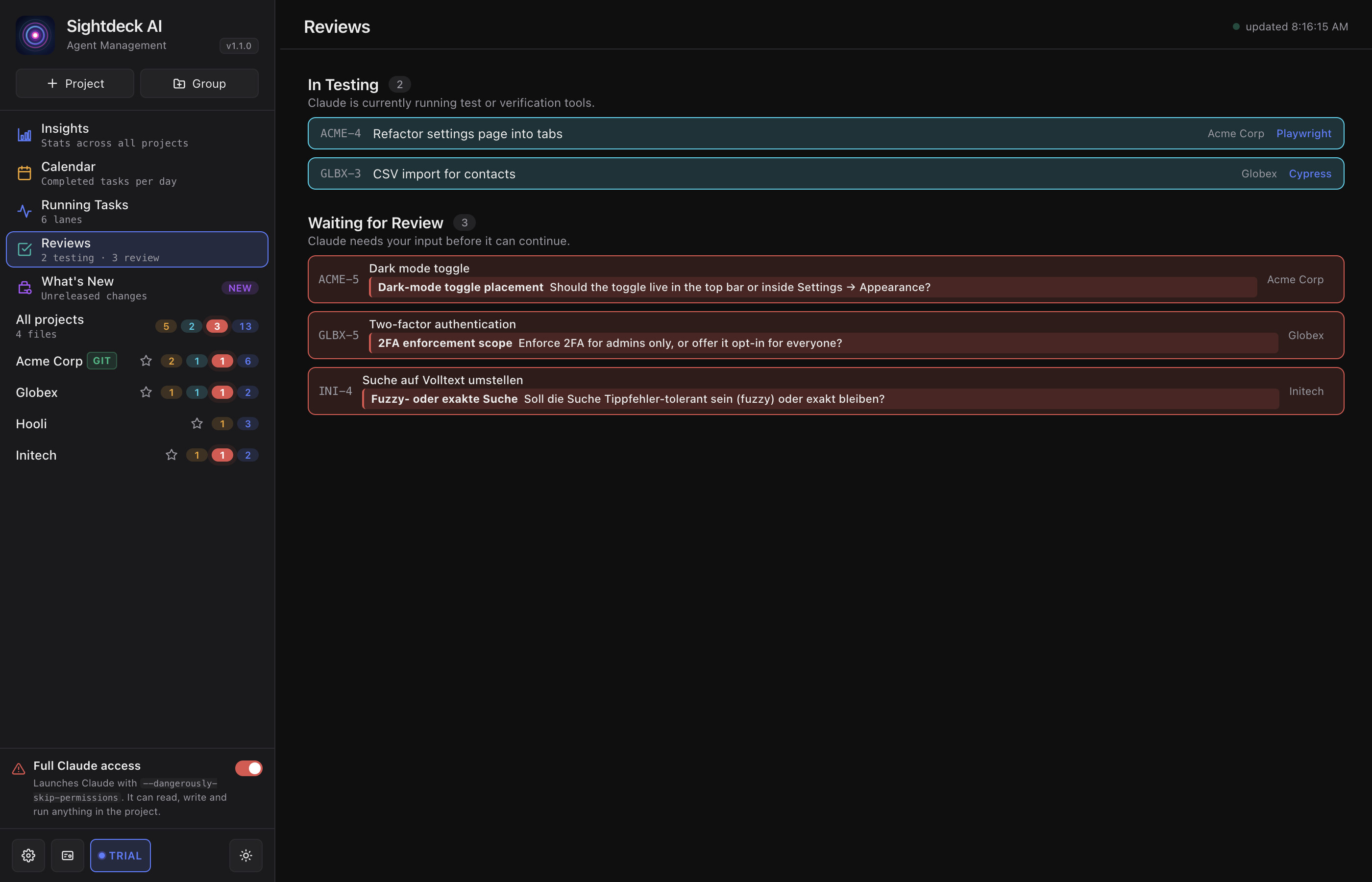
The Reviews view — answered questions, testing runs and tasks that need you. - The pane on the right shows the selected question in full, with the latest events and the files the task changed. When the agent numbered its options, each option is a button.
- Answer right there: pick an option or type your own answer and press Send (or Enter). The answer goes to the task's session, or starts a new one when that session is gone.
- Open task opens the full task details next to the queue.
Keyboard: J / K move through the queue, 1–9 pick an option, Enter jumps into the answer field, O opens the task.
The questions you answer here come from the Needs You flow — Reviews is the cross-project roll-up of the same signals.
Turn an answer into a task
When an answered question is worth acting on, each answered card offers Convert to Task. It opens a Convert to task? dialog that names the entry and gives you an optional Extra instructions field — anything the agent should keep in mind while writing the task, like "only touch the launcher" or "keep it to a single file". Leave it empty to let the agent reformulate the answer on its own.
Click Create task (or press Cmd/Ctrl+Enter) and the new task lands in that project's backlog and runs through the normal refinement pass. Converting also marks the answer as read. Cancel, Escape or a click outside aborts — no task is created and the card stays unread.