
What you get
- Test plans with a due date, exit criteria and a Go / No-Go verdict.
- Test executions built from picked test cases or from a filter, optionally for one configuration such as a browser.
- A runner that walks you through each test case, step by step.
- Defects created from a failed test case, linked to that test case and the run.
Create a test plan
Open the Test plans tab and click + for a New test plan. Edit plan opens its details:
- Name, for example "Release 2.7 regression", and a Due date.
- Description.
- Escaped defects: defects found after the release, for example in production. The Trend report uses them.
- Exit criteria: when is the plan done? See below.
You can also start an execution without a plan; it shows under Test runs without plan. When a release is out, Close plan keeps it with all results but moves it under Closed plans.
Add a test run
In a plan, click Add test run. The builder offers two ways to choose the test cases:
- Pick test cases: tick test cases or whole folders. The list stays as picked.
- Dynamic (filter): every test case that matches the filter is in the run, for example all P1 cases of type Regression. New matching test cases join automatically; ones that already have a result stay.
If you set up Configurations (for example Browser: Chrome, Firefox, Safari), the run picks one option per group, and the reports show results per configuration. Disabled test cases are not offered for new runs.
If a test case changes after it was added to a run, the run shows that it changed in the catalog. Take the new version updates it. Results of earlier runs are never touched.
Execute in the runner
Click Start (or Continue) on a run. The runner covers the Quality view: the run's test cases on the left, the current one in the middle.
- Read the preconditions and do each step. Mark a step as Step passed or Step failed. In a checklist or Gherkin test case, the items decide the result on their own.
- Write what you saw under Actual result / note. It helps the defect if the case fails.
- Set the result: Passed (P), Failed (F), Blocked (B) or Skipped (S). After a pass the runner moves on to the next untested case.
- Time spent fills in on its own: the minutes since the case was shown. Change it if it was different.
Each result is recorded with who set it (your git user name) and when.
A failed test case becomes a defect
When you set a case to Failed, the runner opens Create defect, already filled in with a title, the steps to reproduce and the step that failed. You can edit it, then:
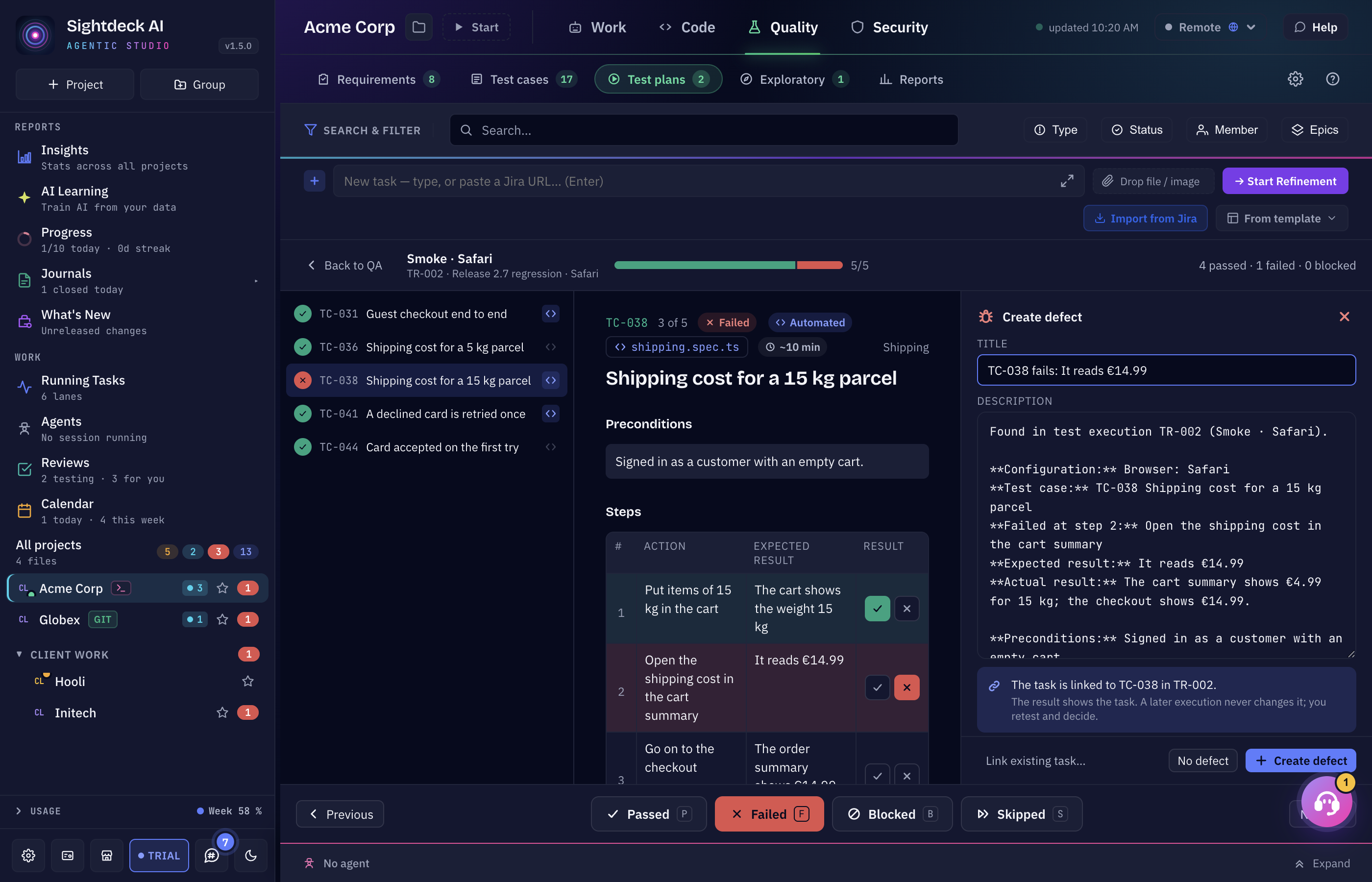
- Create defect: a task of type Defect (it behaves like a bug) goes on the board, linked to the test case and the run.
- Link existing task…: link a task that already describes the problem.
- No defect: close the panel without a task.
A later run never changes the defect. When all defects of a case are done, the case shows Retest. Run it again, and once it passes, close the defect yourself when you are sure. If several failed cases have no defect yet, Create defects for all creates them in one go.
Exit criteria and Go / No-Go
Exit criteria say when a plan is done. They are checked against the last result of every test case in the plan's runs, so a release is only Go when its test cases actually ran and passed.
- Thresholds: executed at least a percentage, pass rate at least a percentage, failed at most a number.
- Gates: no open defect, all P1 test cases passed, all high-risk test cases passed.
Start from an example (Release, Regression or Smoke) and adjust it. A criterion you switch off does not count. The plan then shows Go when all criteria are met, or No-Go with how many are not, and how far each one is from its target. The plan also shows its effort: planned, left and spent, from the estimates of its test cases.
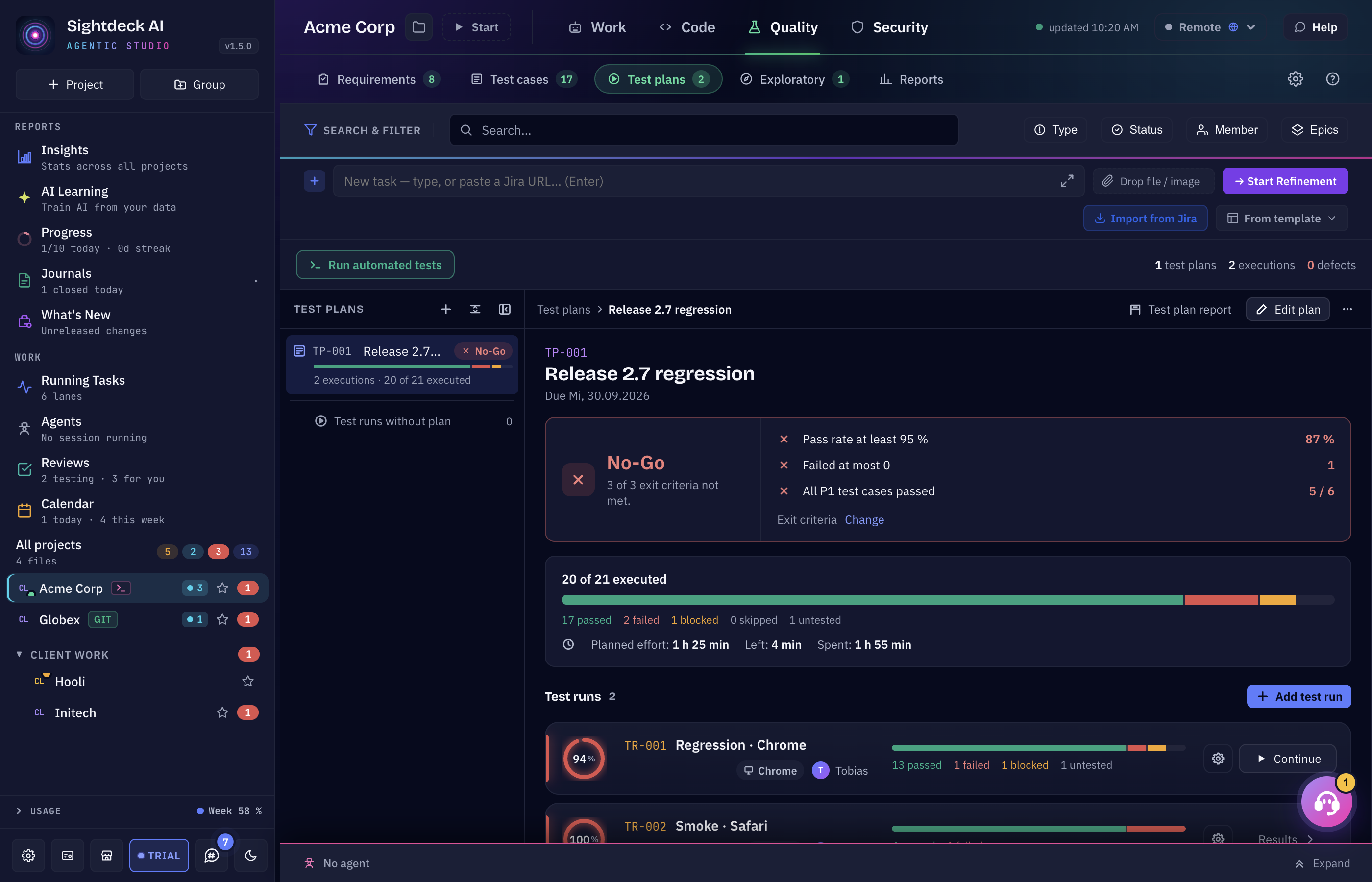
Example: "Release 2.7 regression"
- Create the plan, due on the release date, and apply the Release example: 100 % executed, 95 % passed, no failed case, no open defect, all P1 and all high-risk cases passed.
- Add a dynamic run with all Regression test cases of the Checkout folder: TC-031 to TC-047.
- Run it in the runner. TC-038 fails at step 2: shipping shows €14.99 for a 10 kg parcel. Create the defect; it is linked to TC-038 and the run.
- The plan shows No-Go. Tobias fixes the defect. TC-038 shows Retest, passes, and the plan turns Go.
Related
- Automated test results: fill a run from your test tool.
- Reports: the test plan report with Go / No-Go, burndown and defects.
- QA settings: configurations such as browser, OS and device.
- Definition of Done.