
What you get
- A tree with your folders, smart lists and test types, a list in the middle and the open test case on the right.
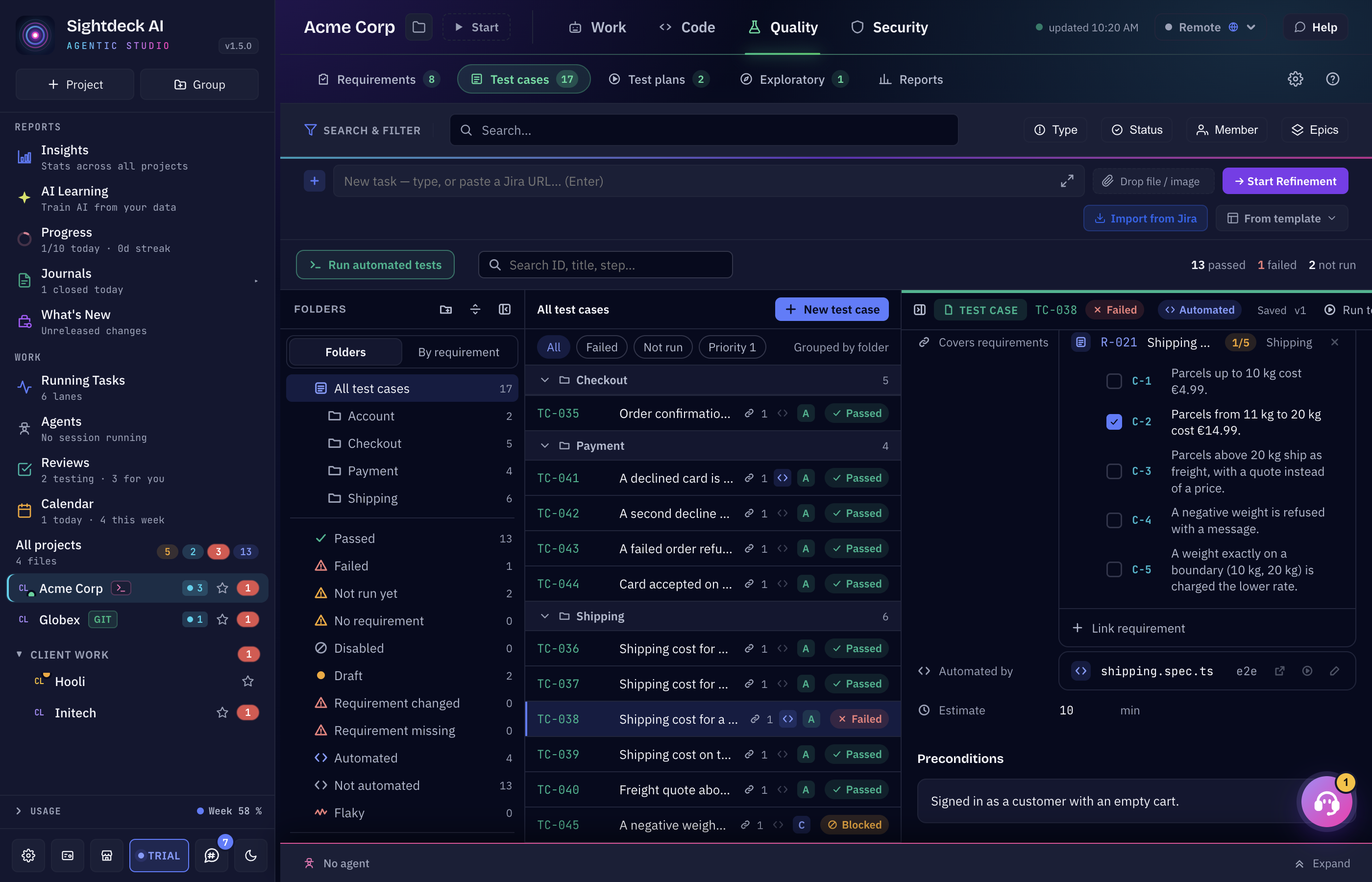
TC-038 with its steps, the requirement it covers and its automation file. - Four formats: Steps, Text, Checklist and Gherkin.
- Links to the requirements and test conditions it covers, and to the script that automates it.
- A review state, an estimate and the last executions on every test case.
The tree
- Folders group test cases the way you like. Switch to By requirement to see them grouped by the folders of the requirements they cover. That is only a view; their own folders stay as they are.
- Smart lists find what needs attention: Failed, Not run yet, No requirement, Draft, Automated and Not automated, Flaky, High risk, Requirement changed, Requirement missing and more.
- Test type filters by Smoke & Sanity, Regression, Functional, Compatibility, Usability, Security or your own type.
- Search ID, title, step… searches the text of the test cases too.
Write a test case
Click New test case, or New test case for this on a requirement, so the link is already there. Each one gets an ID such as TC-038.
- Title: what this test case checks.
- Preconditions: what has to be true before step 1.
- Format:
- Steps: one row per step with an Action and an Expected result. Enter in the last cell adds a step; drag a step or use Alt+↑/↓ to move it.
- Text: a description and one expected result.
- Checklist: one line per check, in groups if you like.
- Gherkin: Given, When, Then. A Scenario Outline runs once per Examples row. Sightdeck flags a scenario without Then or an Examples column nobody uses. Copy as .feature copies it tagged with the test case and its requirements.
- Sections: add Test data (field and value), Data sets (the same test with several columns of data) or free Notes.
- Priority, Test type and Estimate (minutes one execution takes, used for the effort of a test plan).
Check quality lets the assistant read the test case and point out unclear steps, missing expected results, several checks in one, or hidden preconditions. It suggests; you edit.
Link it to the requirement
Covers requirements holds the requirements this test case checks, and for each one the test conditions it covers. This link is what makes coverage and traceability work: the requirement shows the test case and its last result, and the reports count it.
If a covered requirement changes, the test case shows Requirement changed and goes back to review. Check that it still fits, then click Still fits, approve. If a linked requirement was deleted or renamed, it shows Requirement missing with a way to remove or fix the link.
Review: Draft, Changed, Approved
New test cases start as Draft, including the ones you accept from AI suggestions. Someone approves them, and they become Approved. An approved test case that is edited again shows Changed. Nothing gets approved without a person.
Link an automated test script
A test case can point to the file that automates it, for example a Cypress or Playwright spec. That link has two jobs: imported results find the right test case, and the Code view knows the file is a test.
- In the test case, click Link a spec file under Automated by and enter the path inside the project, for example
e2e/shipping.spec.ts. - Or from the Code view: right-click the file, choose Quality and then Link to test case…, and tick the test cases this file automates.
- Draft automation lets the assistant write a Playwright or Cypress spec in the style of your existing ones. Check selectors and TODOs, then Save file and link stores it in the project and sets it as Automated by.
In the Code view, a linked file shows a bar with the kind of test (for example Playwright test), how many test cases it automates, its last run, Open in Quality and Run test. The test case header has Run test as well, once a single-test command is set in QA settings.
Example: TC-038 "Parcel of exactly 10 kg costs €4.99"
- Create the test case from the test condition "Parcel weight = 10" on R-021, so it already covers R-021 and that condition.
- Precondition: "The cart is empty."
- Step 1: "Add a product that weighs 10 kg." Expected: "The cart shows 10 kg."
- Step 2: "Go to checkout." Expected: "Shipping is €4.99."
- Set priority P1, test type Regression, estimate 3 minutes.
- Link
e2e/shipping.spec.tsunder Automated by. The same file can automate TC-031 to TC-047 too.
More you can do
- Execute this test case… or select several and Execute these to start a test execution right away.
- Duplicate creates a copy as a new test case, starting as Draft and without automation.
- Last executions shows how this test case came out in earlier runs.
- Disable… keeps a test case but takes it out of coverage, statistics and new runs, with a reason.
Without a license a project holds up to 5 test cases.
Related
- Test design: where test conditions come from.
- Test plans and runs: execute test cases.
- Automated test results: import what your scripts reported.
- Code view: see which files are tests.