
What you get
- A round orb in the bottom right corner of every project page. A click opens the chat with the Buddy.
- A short introduction the first time, with an offer to show you around in the Walkthrough.
- Hints in a speech bubble: a task that waits for your answer, what got done since yesterday, a pushed branch.
- A Buddy that can change files and run commands when you ask for a change.
- Your own name, picture, stance and personality for it.
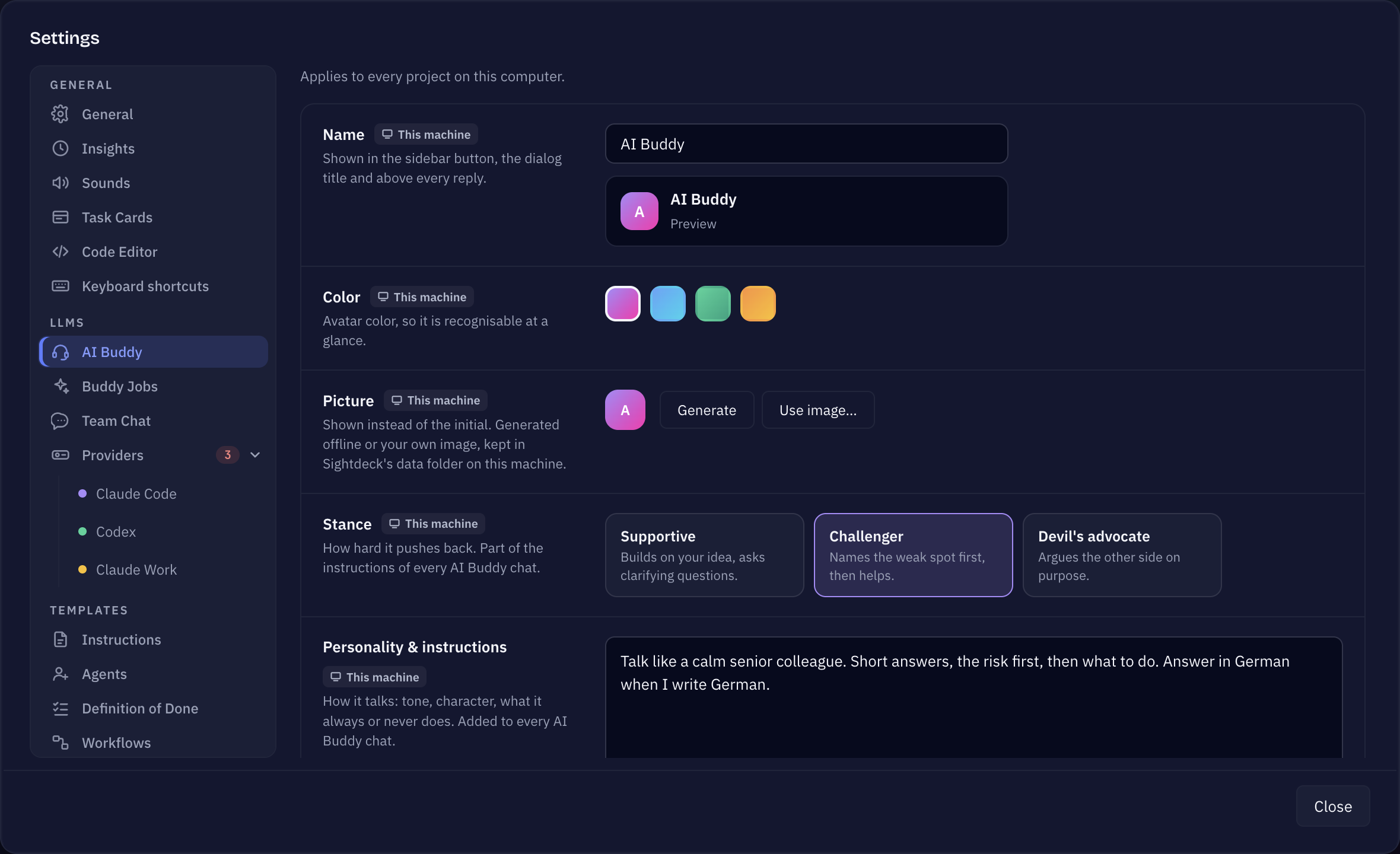
Settings → AI Buddy.
The orb
- The orb sits bottom right. Drag it to another corner if it is in the way. It snaps to the nearest corner and stays there.
- A badge on the orb counts the tasks of this project that wait for you. It shows when the Buddy is working, too.
- Click the orb to open the chat with the Buddy for the project you are in. Cmd/Ctrl+J works as well.
Prefer no orb? In Settings → AI Buddy → How you open it, pick Only in the Team Chat. Then you reach the Buddy under AI Buddy in the Team Chat.
First meeting and the Walkthrough
The first time the Buddy speaks up, it introduces itself and offers a short Walkthrough of Sightdeck. The bubble stays until you answer:
- Start now opens the Walkthrough.
- No thanks declines.
- Later asks whether it should remind you again: In an hour, Next app start, or No, thanks.
Once you started the Walkthrough or said no, the Buddy does not offer it again. You can still open it any time with the ? in each view.
When the Buddy speaks up
The Buddy shows a speech bubble above the orb when it has something useful to say, for the project you are looking at. It shows at most one bubble every ten minutes. Everything else stays a number on the badge.
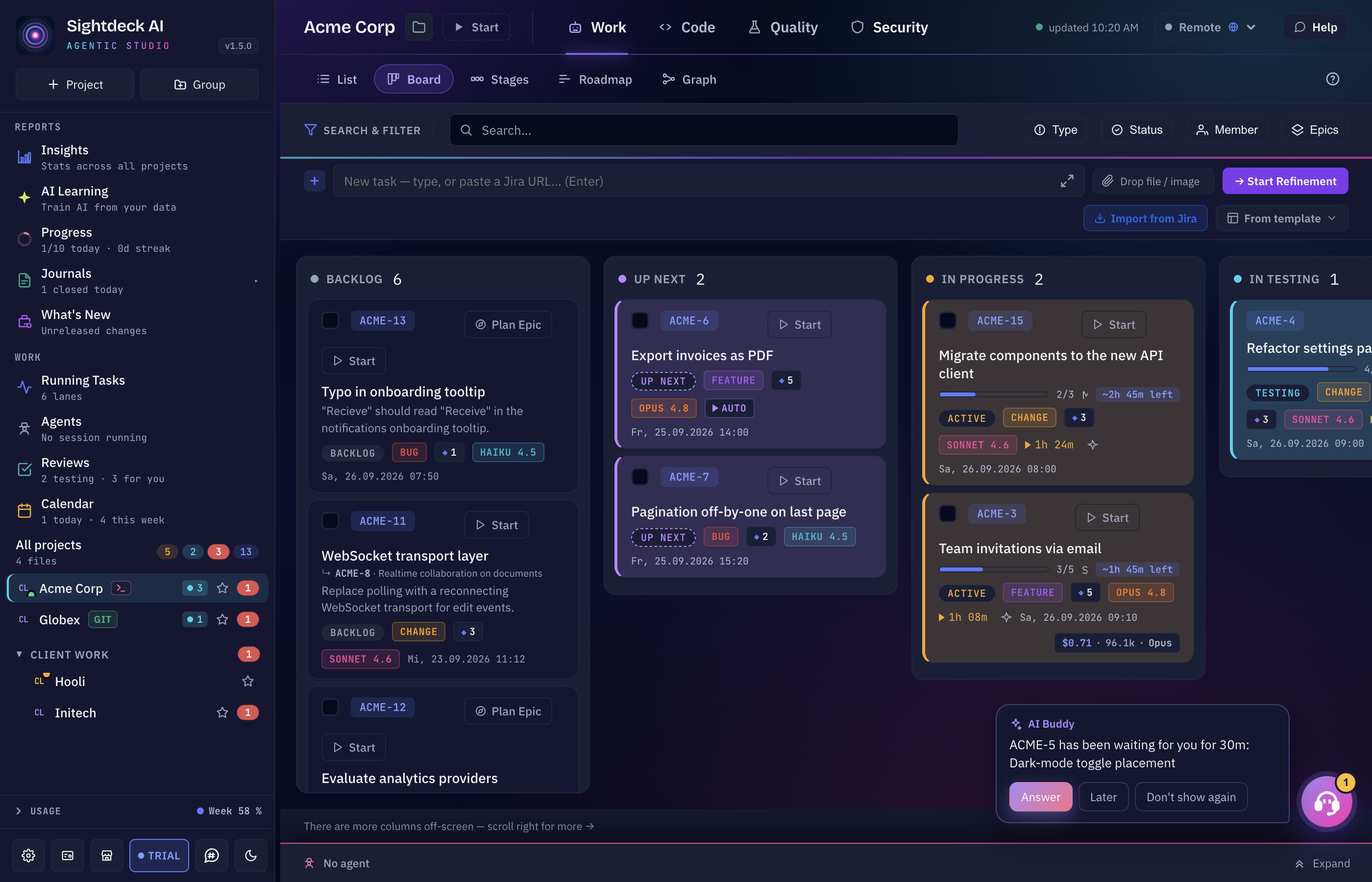
- A task has waited for your answer for a while. Answer takes you straight to the question.
- On the first look at a project each day: what got done since yesterday and what waits.
- Your first visit to Code, Quality or Security: Show me explains that area.
- Every two to three weeks: an offer to check the agent setup.
- Now and then: an offer to set up a Buddy Job.
Later hides a bubble for now. Don't show again silences that kind of hint for good.
It tells you how a push ended
You push a branch in the Git client and switch to another view before it is done. You do not have to go back to check. The Buddy tells you at the orb:
- "Branch checkout-guest is pushed." If the branch has no pull request yet, it offers Create pull request or Open on GitHub.
- If the push failed, it says so and offers Open Git, where you see why.
What the Buddy may do
By default the Buddy may change the project. When you ask for a change, it edits files and runs commands. It never commits or pushes unless you ask for it.
If you want it to only look, switch Settings → AI Buddy → What it may do to Read only. Then it reads the project and proposes changes as cards you run yourself. This setting also applies to every agent in the Team Chat.
Make it yours
Everything lives in Settings → AI Buddy and applies to every project on this computer:
- Name, Color and Picture: how it looks in the orb, the chat and the Team Chat. The default name is AI Buddy.
- Stance: how hard it pushes back. Supportive, Challenger or Devil's advocate.
- Personality & instructions: how it talks, its tone, what it always or never does. This only changes the AI Buddy. The agents in the Team Chat keep their own instructions.
- Keyboard shortcut and the default provider and model.
Example: a day with the Buddy
- You open the Acme Corp shop in the morning. The bubble says: "Since yesterday: 3 done, 1 waiting for you." You click Answer and reply to Tobias, who asks which payment test cards to use.
- You open the Buddy and write: "Rename the button Buy now to Place order in the checkout." It makes the change in the checkout template.
- In the Git client you push the branch and go back to the board. A minute later the orb says the branch is pushed and offers Create pull request.
Related
- Team Chat: talk to all agents of a project at once.
- Buddy Jobs: give the Buddy a job on a schedule.
- Agent setup check: let the Buddy review your agent instructions.
- Git client: push, pull and branches.