
What you get
- An Overview that says in one line whether action is needed, and what to do next.
- An inventory of Assets: what an attacker would go for, how much protection each one needs, and where it runs.
- Threat models with a data flow diagram and a list of threats, sorted by STRIDE.
- Risks rated by likelihood and impact, each with an owner and a decision.
- Privacy records of processing activities, tied to your assets.
- Red team runs, where agents attack your running app within fixed rules.
- Findings from scanners, red team runs and people, ranked by priority.
- Compliance controls and CRA reports with their deadlines.
Open Security
Pick a project and open Security. The tabs run from left to right in the order you usually work: Overview, Assets, Threat model, Risks, Privacy, Red team, Findings, Compliance and CRA reports. The gear at the end of the tab row opens the Security settings.
A project with nothing in it yet greets you with Security, without the dread and three ways to start: Import SARIF, Threat model with AI and Discover assets with AI. Most teams start with the assets.
The chain: from asset to fix
Each tab feeds the next one. Work through the chain once, and later you only follow what changed.
- Asset. Record what is worth protecting and mark the few crown jewels whose loss would hurt most. See Assets.
- Threat model. Pick the assets to protect. The AI reads the code, draws the data flows and trust zones, and lists what could go wrong. See Threat models.
- Threats. Each threat is open, mitigated or accepted. An open threat can become a task.
- Risks. Open threats turn into risks. You rate each one, name an owner and decide: reduce, accept, transfer or avoid. See Risks.
- Findings. Scanners, red team runs and people report concrete problems. Each finding can become a task.
- Fix and re-run. An agent fixes the problem, the fix gets a regression test case in Quality, and the next red team run shows whether it holds. See Red team.
The Overview draws this chain as From asset to task: Assets, Threat models, Threats, Risks and Tasks, with a count for each. The step that lags furthest behind is marked Narrowest point, because that is where the work stops. Click any step to open its tab.
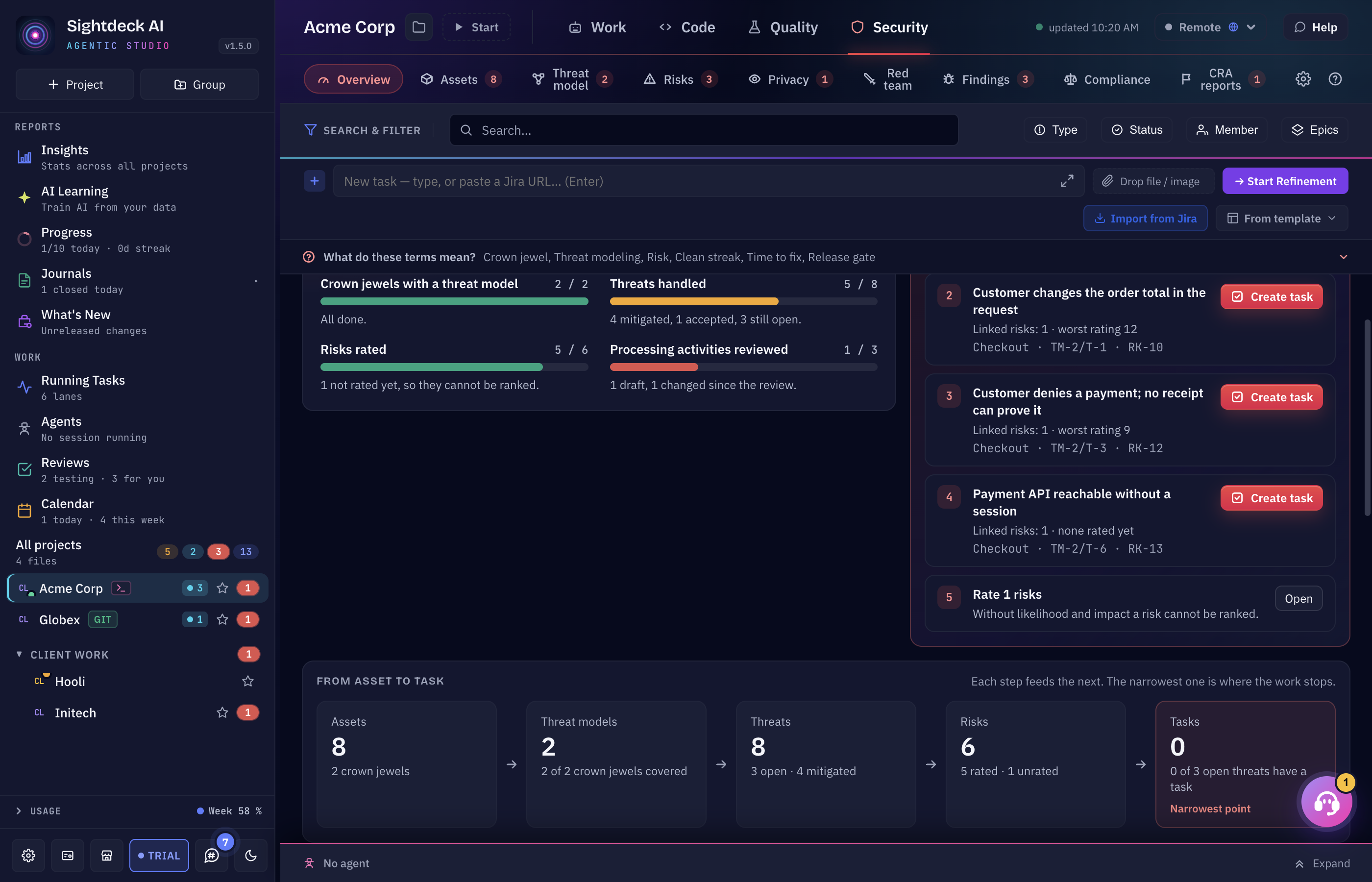
The Overview
- Verdict. Action needed or No action needed, with what is still open: urgent findings, open threats, risks without a rating. Bars show how many crown jewels have a threat model, how many threats are handled, how many risks are rated and how many processing activities are reviewed.
- Next best step. Up to five steps, worst risks first. A group of findings with one shared cause comes first, because one fix closes all of them. Each step has its button, such as Fix with AI or Create task.
- Biggest rated risks and Crown jewels and their protection: which crown jewels have a threat model and how many threats on them are still open.
- Privacy records: how many processing activities are reviewed, changed or still a draft.
- Open findings with a trend, the clean streak and the time to fix. As long as nothing was tested, it says so: zero findings does not mean the project is safe.
- Release gate: a short checklist to be green before you ship. No open critical finding, no high finding with a known exploit, an SBOM exported in the last 30 days, no leaked secret open, threat models up to date.
- Security wins this week: fixed findings, mitigated threats and red team results. Click the heart to say thanks.
Not sure what a term means? What do these terms mean? explains words such as STRIDE, trust boundary, SBOM or EPSS right where they appear.
Review first: the AI suggests, you decide
The AI can discover assets, derive threat models, suggest risk ratings and write privacy records. All of it waits in a review first. Nothing goes into your list until you accept it.
- Assets the AI discovers wait under To review. Keep moves one into the inventory, Drop throws it away.
- Threats, risks and processing activities show up in a box above the list: Found by the AI. Nothing goes into your list until you accept it. Accept or Discard each one, or use Accept all and Discard all.
- You can edit a suggestion before you accept it. What you accept is yours from then on.
- A discarded suggestion is not offered again.
- When a threat model is derived again, the AI never overwrites your threats. New threats are marked New, a status change is marked Change, and a threat it no longer finds is marked Remove. You decide each one.
Responsibilities and environments
The gear next to the tabs opens Security settings with two parts.
- Responsibilities: people and teams who can own assets, components and risks, each with an optional role such as Security lead. Team members from Project settings → Team are always offered as owners too.
- Environments: where the assets run. Each one has a name, a type (Local / dev, Test / CI, Staging, Production or Other), a base URL and a description. One environment is the Benchmark: the environment security is measured against. Threat models, the red team and the check of your measures work on it.
Every owner field in Security suggests names in three groups: Team, Responsibilities and Used before. Type a name that is not there yet and pick it: it is added to Responsibilities, so it is offered everywhere from then on. Removing someone from Responsibilities does not change existing owners; the name is just no longer offered.
Example: the Acme shop
The Acme Corp shop runs a web shop (AS-1 Acme Shop Web), a payment API (AS-4 Payment API) and a customer database (AS-7 Customer database).
- Discover assets with AI suggests all three. You keep them and click the crown next to
AS-4Payment API: it is the crown jewel. - The Overview now says 1 without a threat model. You create
TM-2Checkout around the Payment API and accept the threats the AI found. - Derive from threat models on the Risks tab turns the open threats into risks. One of them is
RK-12Receipt forgery. You rate it, name the owner and decide to reduce it. Create task hands it to Mint, an agent. - A teammate starts red team run
RT-7against staging. A token replay gets through and becomes a finding that points atpayment.ts:47. - Fix with AI creates the fix task. After the fix, the next run shows the attack blocked, and the win appears under Security wins this week.
Free tier
Without a license, Security holds up to 3 assets and 1 threat model per project, and has no red team runs. A license unlocks unlimited assets and threat models, and red team runs. Existing items stay editable either way.
Related
- Assets: the inventory, protection needs and environments.
- Threat models: data flows, trust zones and threats.
- Risks: rate, own and decide.
- Privacy: records of processing activities.
- Red team and findings: attack your app safely.
- Compliance and CRA reports: controls, evidence and reporting deadlines.
- Tutorial: security for existing software: the whole chain on a real project.