
What you get
- New run: pick the environment, the lanes and what to focus on. The Benchmark is preselected.
- Fixed rules of engagement that every run keeps to.
- A live view while the run attacks, and a result with what was blocked and what got through.
- A comparison with the previous run: what holds now, what is new, what is still open.
- Findings from red team runs, scanners, the AI and people, ranked by priority.
A red team run never starts on its own. Someone starts it with New run.
Rules of engagement
Every run keeps to the same rules:
- Only the target you name, never any other host.
- Nothing destructive, at most 5 requests per second.
- Test accounts and seed data only.
- Every hit needs a reproducible proof.
The rules are shown before your first run and behind the Rules of engagement button later on.
Start a run
Click New run. The form explains each field:
- Environment: preselected is the Benchmark, the environment security is measured against. Its base URL becomes the target, and what the assets are in that environment goes into the task. Environments are set up in the Security settings.
- Target: the running app the agents attack.
- Lanes: the lines of attack, each worked by its own agent. Recon, Authentication and Injection are ticked by default.
- Recon maps what is exposed: routes, endpoints, versions, and files or headers that give something away.
- Authentication attacks the login: weak passwords, brute force without a lockout, sessions and tokens, the password reset.
- Injection sends crafted input into forms, parameters and headers: SQL, scripts (XSS), shell commands, templates.
- Access control checks who may see and do what, such as another user's data by changing an ID.
- Configuration looks for setup mistakes: missing security headers, open debug pages, an exposed
.envor backup, CORS, TLS.
- Focus: optional. Tell the agents in plain words where to dig deepest, for example the checkout and the admin area. Empty means the whole app, along the lanes you picked.
Plan and start creates the run and its task, and starts the task. The agent attacks the target as soon as its task runs. If the task is not running yet, the run shows as planned with a button to start it.
A run may go against Production. Sightdeck asks first: the agents send real attack requests where real users and real data are. There they only read and probe, never write, keep to 5 requests per second, and stop as soon as the app slows down.
Watch and read the result
- While it runs, the run is marked live and shows what it is trying right now, with blocked and hit counts. Stop run ends it.
- A finished run says how many attacks were blocked, how many got through, and how long it took. Each lane shows its attempts on a track.
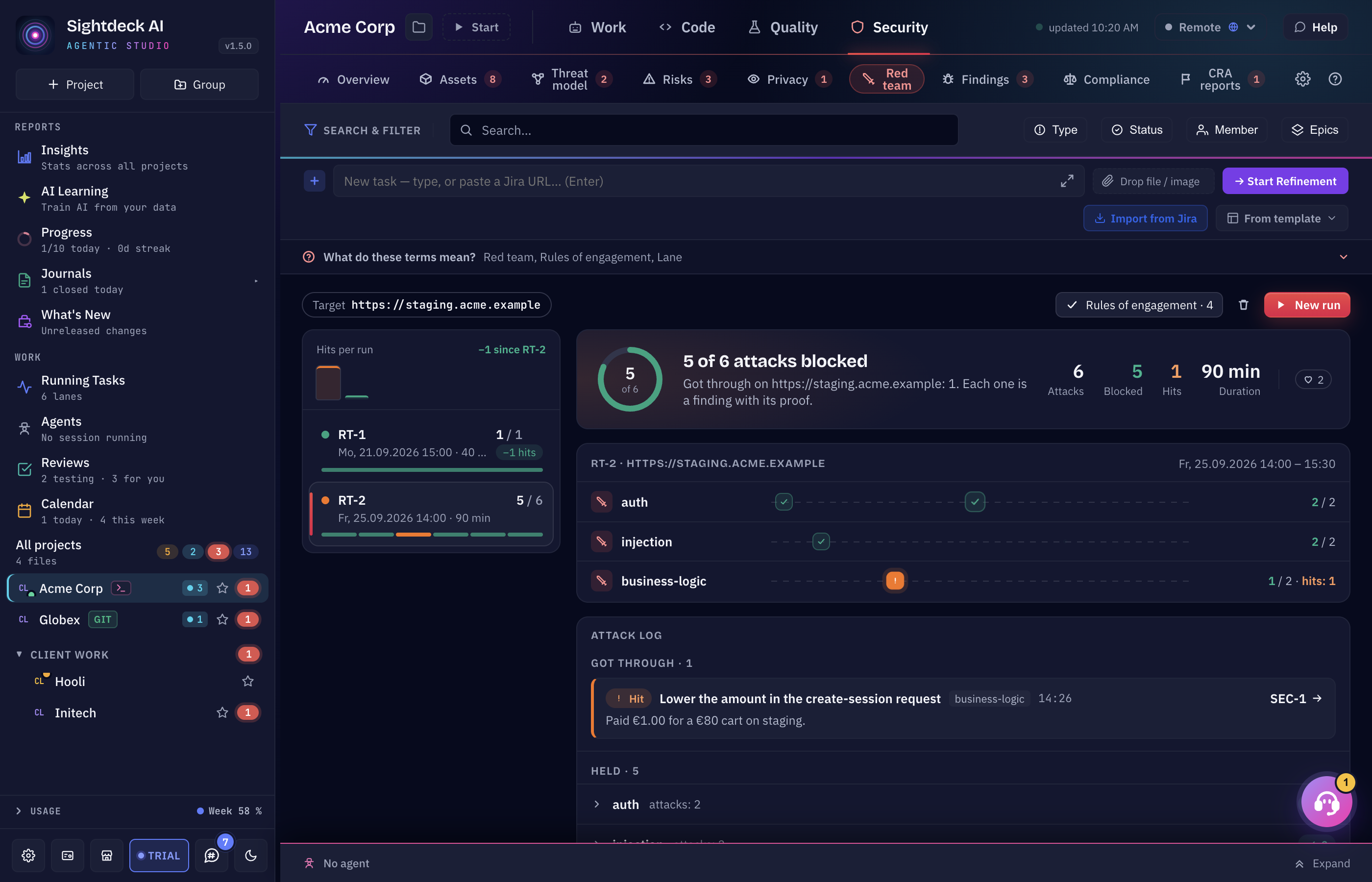
The Red team tab: runs on the left, one run's result and attack log on the right. - The Attack log puts what got through on top as cards, each linked to its finding. What held is folded per lane and technique.
- Since the previous run: which attacks hold now, which got through for the first time, which are still open.
- The list of runs on the left shows Hits per run. Fewer is better.
Findings
A finding is one concrete security problem: what it is, where it is and how bad it is. It comes from a scanner, a red team run, a penetration test, the AI or a person.
- Import SARIF reads the results of any scanner that writes SARIF, such as Semgrep, CodeQL, Trivy or gitleaks. New finding adds one by hand. Agents add theirs from the command line.
- Sources on the left sort the findings by where they came from, and Smart filters show, for example, what is not checked yet or past its fix deadline.
- Each finding gets a priority from P1 to P4 and a fix deadline. Severity, active exploitation, the chance of exploitation, reachability and the protection needs of the asset add up to points. Priority & deadlines lets you tune them.
- Check with AI reads the code and tells you whether an attacker can reach the problem, what they could do, and how to fix it. A button above the list, such as Check 12 with AI, does the same for every finding not checked yet.
- Fix with AI creates a fix task and starts it. Create task creates it without starting. Every fix gets a regression test case in Quality, so the hole stays closed.
- You can also Accept the risk or Mark as false positive. Both ask for a reason. An accepted risk can get a date to Review again on, because it should not stay accepted forever.
Example: RT-7 against staging
- A teammate clicks New run. Staging is preselected as the Benchmark. They add Access control to the lanes, write checkout and payment as the focus, and click Plan and start.
- Run
RT-7blocks most attacks, but a token replay in the Authentication lane gets through. It becomes a finding with its proof, pointing atpayment.ts:47onAS-4Payment API. - Because the Payment API has very high protection needs and is reachable from the internet, the finding lands at the top of the list. Fix with AI creates the task, and Mint, an agent, fixes it. The fix gets a regression test case.
- The teammate starts the next run. Since RT-7 now says the token replay holds.
Related
- Assets: environments and what the red team gets.
- Risks: link findings to the risks they belong to.
- CRA reports: when an exploited vulnerability has to be reported.
- Quality: the regression test cases behind every fix.
- Code view: open the file a finding points at.