
Open the settings
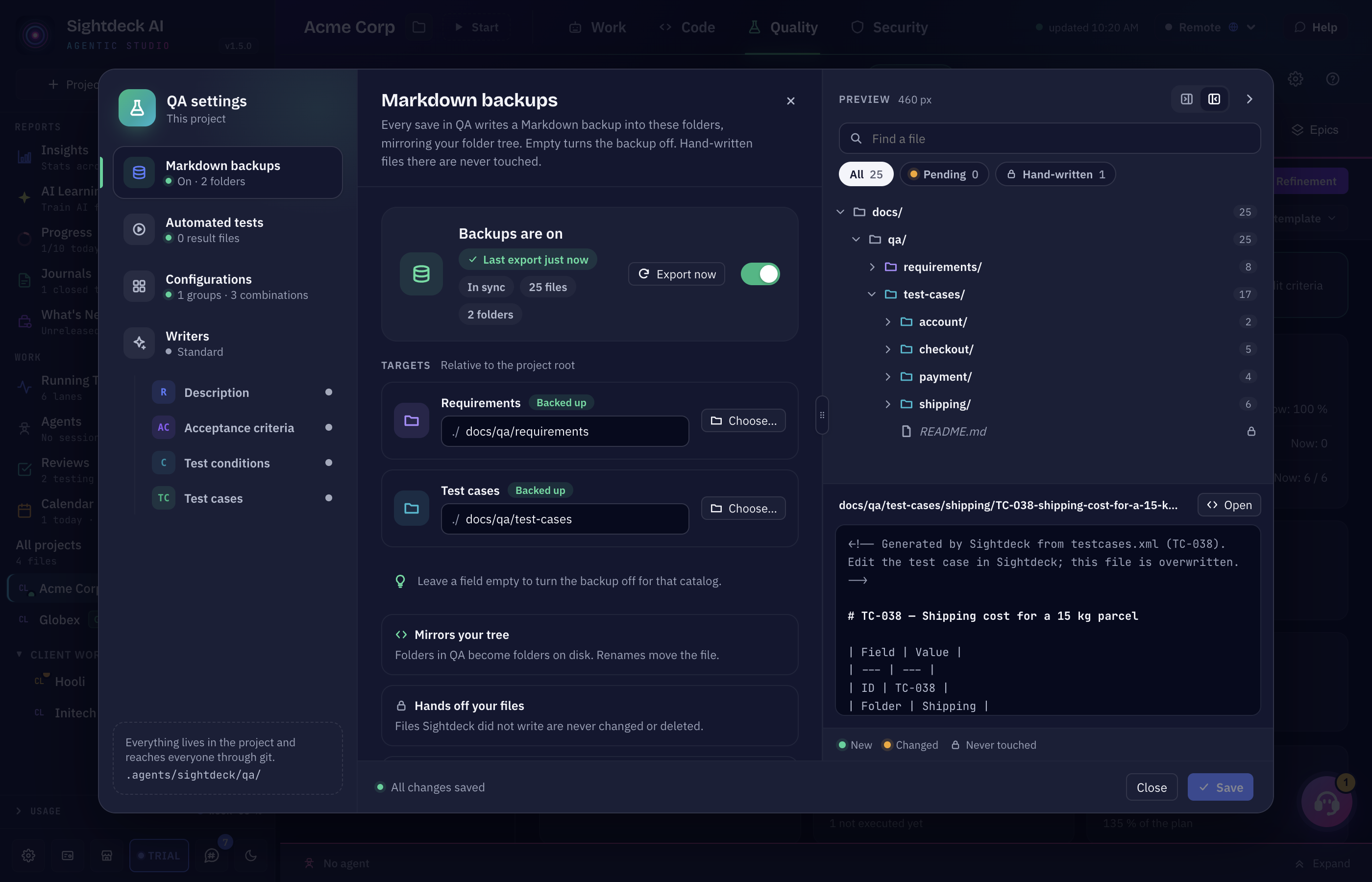
In the Quality workspace, click the gear for QA settings. The left side lists four parts, each with a short status: Markdown backups, Automated tests, Configurations and Writers. At the bottom it reminds you where it all lives: .agents/sightdeck/qa/.
Markdown backups
Requirements and test cases are stored as XML. If you want them readable next to your docs, in reviews or for agents that read Markdown, turn on the backups. Every save in Quality then writes a Markdown copy into the repository.
- Targets: one folder for the requirements and one for the test cases, relative to the project root, for example
docs/requirementsanddocs/test-cases. Leave a field empty to turn the backup off for that catalog. - Mirrors your tree: folders in Quality become folders on disk. Renaming moves the file.
- Hands off your files: files Sightdeck did not write are never changed or deleted. In the preview they are marked Hand-written. Generated files are overwritten on the next save.
- On every save: the copies stay in sync on their own. Export now only catches up after the backup was off.
The preview shows the files that will be written, filtered by All, Pending or Hand-written, and the Markdown of the file you pick. When backups are off, nothing is written and existing files stay.
Automated tests
- Run all tests: the command for the whole suite, for example
npx playwright test. Start it with Run automated tests in the Quality header. - Run single test: the command for one test file, with
{file}as the placeholder for its path. Used by Run test in a test case and in the Code view. - Dry run: try the command once. The last run shows below with passed, failed, skipped and its duration.
- Result files: where your tool writes its reports. Set up import detects Cypress and Playwright and finds existing files.
Disabled tests: test files whose linked test cases are all disabled are left out of the runs. Sightdeck keeps that list up to date in the background (Sync now forces it). For it to take effect, your test tool has to read the list: for Cypress, Playwright, Vitest and Jest configs found in the project, Sightdeck shows the lines to add and whether the config already reads it. A file that still automates an active test case stays in.
The step-by-step guide is on Automated test results.
Configurations
Groups with their options, for example Browser: Chrome, Firefox, Safari. A test execution picks one option per group, and the reports show results per configuration. Use example (Browser, OS, Device) fills in a start. The settings count the combinations and how many of them were already tested. Renaming an option leaves older executions as they ran.
Writers
Writers decide how the AI words things in this project. There are four, each used by one AI action:
- Description: used by Optimize with AI on a requirement description.
- Acceptance criteria: used by Create with AI for criteria.
- Test conditions: used by Create with AI for test conditions.
- Test cases: used by Suggest with AI.
Each writer starts as the Sightdeck standard, which follows the project language and Sightdeck updates. Turn on Own rules to copy it into the project and change it. From then on the rules belong to the project and Sightdeck updates do not change them; Reset to standard brings the standard back.
- Write one rule per line. Rules at the top matter more than rules at the bottom.
- Building blocks add proven rules with one click, sorted by form, language and coverage. Save your own rule as a block to reuse it.
- How the AI writes shows a sample with your rules. Write an example refreshes it after you change them.
Example: the Acme Corp team gives the acceptance criteria writer two rules: "Write criteria as Given / When / Then" and "Give limits with numbers and units". From then on, Create with AI on R-021 writes "Given a parcel of 10 kg, when the customer opens checkout, then shipping is €4.99".
Where it is stored
Requirements, test cases and runs are in .agents/sightdeck/qa/ as requirements.xml, testcases.xml and testruns.xml; the writers are in profiles.json in the same folder. Commit them like any other file so your team shares the same catalog and settings.
Related
- Automated test results: run and import step by step.
- Requirements: where the writers are used.
- Git client: commit the QA files.
- Quality overview.