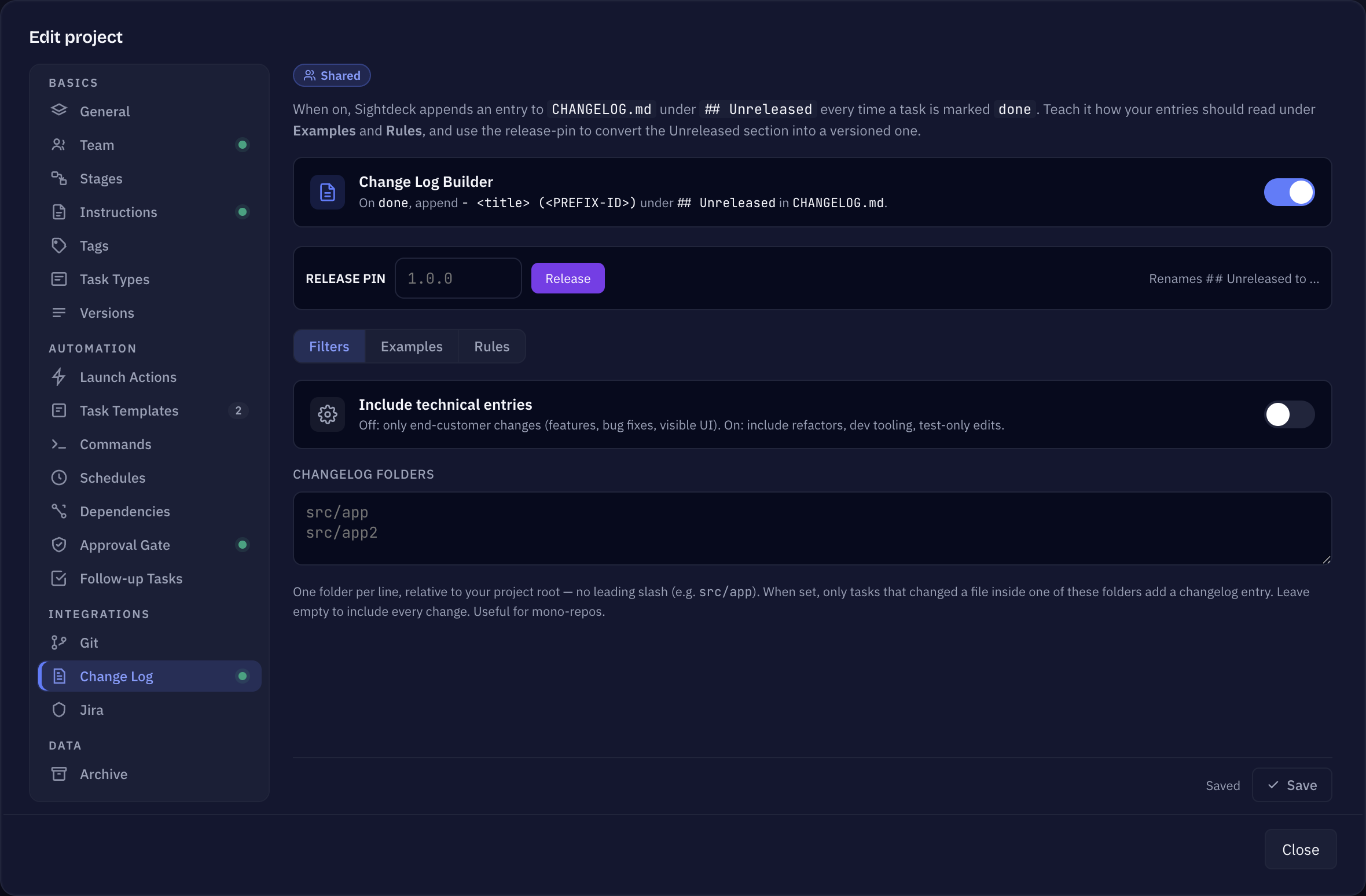
What you get
- An entry in
CHANGELOG.mdunder## Unreleasedevery time a task is marked done — no separate writing session before a release. - Entries sorted into Added, Changed and Fixed by the ticket type, so the file stays readable without you grouping anything by hand.
- Examples and Rules that teach the builder how your changelog is written, so the entries sound like your project and not like a commit message.
- A release pin that turns the collected
## Unreleasedsection into a versioned one when you ship. - A Changelog line on every task's Overview tab, with a Copy button — for the release notes, the newsletter or the customer mail you write somewhere else.
Turning it on
- Open Edit project → Change Log.
- Switch on Change Log Builder.
- Click Save.
From then on, closing a task appends its entry to the CHANGELOG.md in your project root — the file is created if it does not exist yet. Nothing is rewritten: the builder only ever adds to the ## Unreleased section, so your existing history stays untouched.
What lands in the file — and what does not
The ticket type decides the section an entry goes into:
- Feature → Added
- Change → Changed
- Bug → Fixed
- Research and tasks that were never classified get no entry — there is nothing a reader of your release notes would notice.
Two filters on the Filters tab narrow it down further:
- Include technical entries — off by default. A task marked as internal (a refactor, dev tooling, a test-only change) then stays out of the file, and only the changes an end customer would notice are written. Switch it on when the changelog is for your own team and should list everything.
- Changelog folders — one folder per line, relative to your project root. When the list is filled, only a task that touched a file inside one of those folders writes an entry. Leave it empty to include every change. This is the setting for a mono-repo where one folder is the product and the others are not.
Two more cases are left out on purpose: the subtasks of an Epic, because the Epic itself already carries the readable entry, and a fix to a feature that has not shipped yet. Nobody outside your repository has seen that feature, so nobody has seen the bug — the fix is folded into the feature's entry instead of turning ## Unreleased into a defect list.
Teaching it your wording
A changelog has a house style: how long an entry is, whether it starts with a verb, whether it names the screen, whether ticket numbers appear. Instead of describing that style, you show it.
Examples
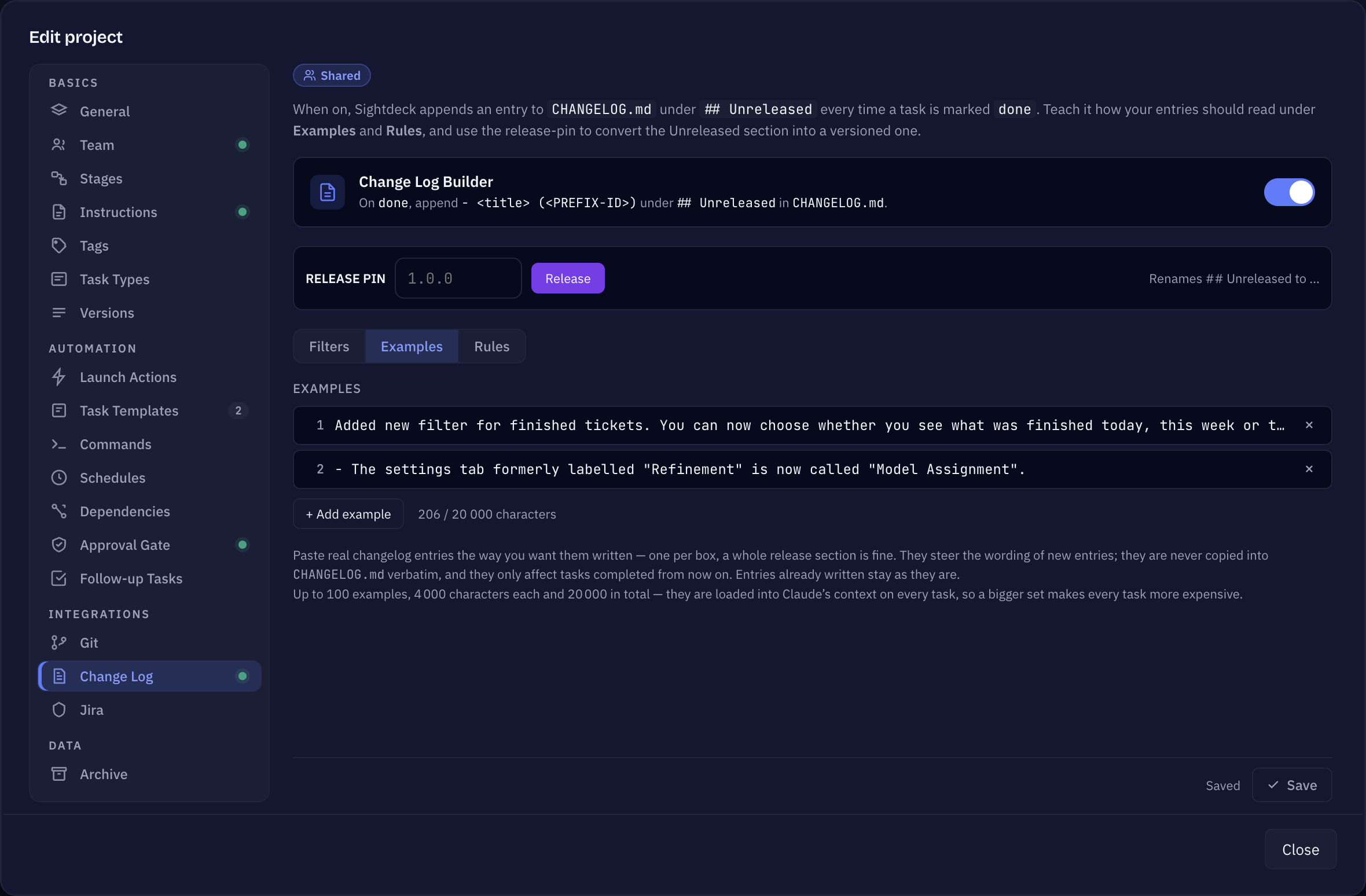
On the Examples tab, paste real entries the way you want them written — one per box, and a whole release section is fine as one example. The builder copies the shape: length, tense, vocabulary, how much context an entry carries. It never copies the words into your file.
Up to 100 examples, 4 000 characters each and 20 000 in total. They are handed to the agent on every task, so a large set makes every task a little more expensive — the running total is shown next to the Add button.
Rules
The Rules tab is free text, one rule per line, for everything an example cannot show: something that must always appear, something that must never appear, a word to avoid. Click one of the templates above the field to add it as a line:
- Never mention internal names
- Keep it under 120 characters
- Name the screen the change is on
- No ticket numbers in the text
- Say what the user can now do
- Write in past tense
- No abbreviations
A template that is already in your list is greyed out. Rules and examples both apply to tasks finished from now on — entries that are already in the file stay exactly as they are.
Pinning a release
When you ship, type the version into the Release pin field — 1.4.0 — and click Release. The ## Unreleased heading becomes ## [1.4.0] - <today>, and a fresh, empty ## Unreleased section is inserted right above it, so the next finished task lands in the new bucket. A version that is already in the file is refused rather than pinned twice.
That pin is also the moment a folded-in fix stops being folded: a later fix to that feature writes its own entry again, because the feature is out in the world now.
The Changelog line on a task
Independently of the file, every task that ships something a user would notice carries a plain one-sentence Changelog line on its Overview tab — a box with the sentence and a Copy button.
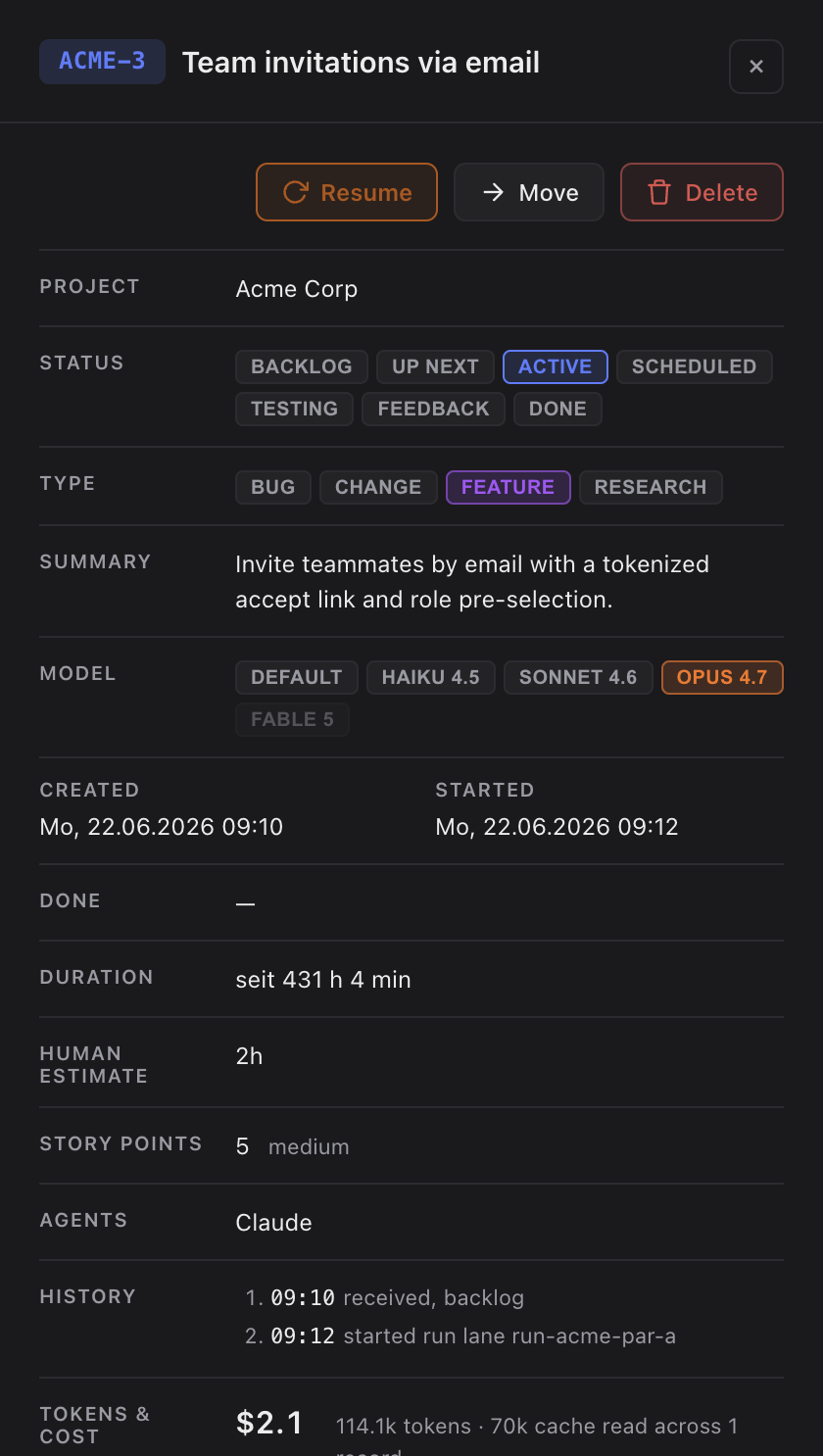
The line is written as the task closes, after the work is done, so it describes what actually shipped rather than the up-front intention. Research tasks and purely internal work get no line. For an Epic the line is combined automatically from its subtasks' lines when the Epic closes, so a feature that was broken down still ends up as one readable sentence.
The two hints on that line
When an Epic's line was assembled from its subtasks, a muted hint reads "Auto-combined from N subtask line(s) — check before pasting into release notes." If no subtask had a line when the Epic closed, the row says "Nothing to combine — no subtask had a changelog line when this Epic was closed." instead of showing an empty box.
If a task was reworked or its scope changed after the line was first written, the row shows a "May be outdated" hint. The agent refreshes the sentence before the task closes again, so it always ends up describing the shipped result — nothing for you to do.
When you need a report instead of a release
The builder answers "what goes into the next version". For "what happened this week", use Journals — it reads the same fields and turns a day, a week or a month of finished work into a report you can hand to your team or a customer.
The What's New entry in the sidebar is a different thing again: it shows the release notes of Sightdeck AI itself, not your project's CHANGELOG.md.
The two screens behind this