
What you get
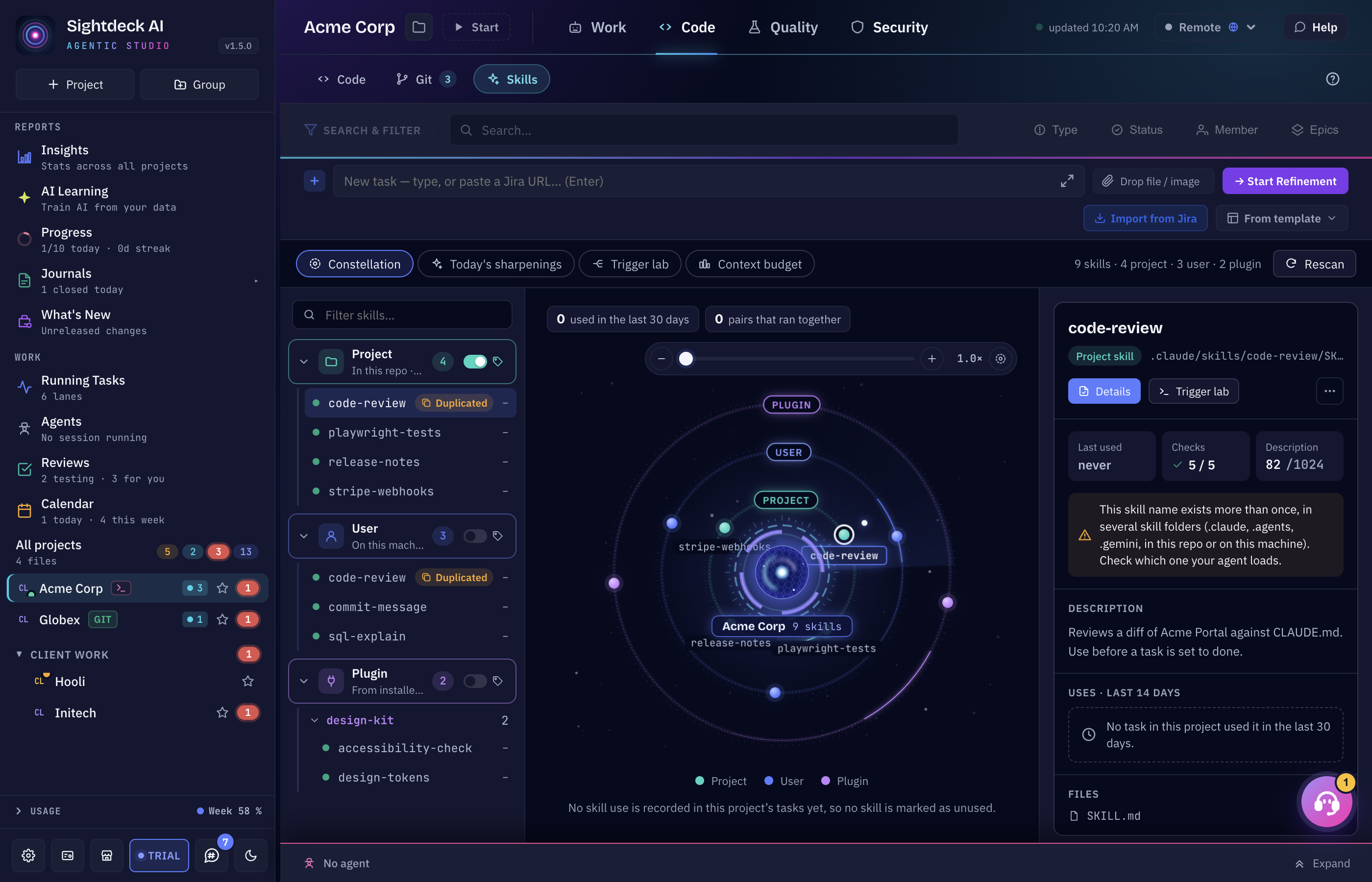
- One list of all skills: project skills, user skills and plugin skills.
- A Duplicated mark when the same skill name exists more than once.
- Four views: Constellation, Today's sharpenings, Trigger lab and Context budget.
- A skill editor with Optimize with AI.
- A star on skill folders in the Code tree.
Open the Skills view
Pick a project and click Skills in the view switcher, next to Code and Git. The header counts the skills by kind. Rescan reads the folders again, for example after you added a skill outside Sightdeck.
Where the skills come from
Different agents read skills from different folders. Sightdeck reads all of them, so you see what each agent of the project can load.
- Project: the skills in this repository, in
.claude/skills,.agents/skillsand.gemini/skills. - User: the skills on this computer that every project can use, in your user folders for
.claude,.agentsand.gemini. A user skill installed for several agent profiles is one entry with several installations. - Plugin: the skills of the Claude Code plugins that are switched on for this project, grouped by plugin.
Filter the list by name, or by agent to see only what one agent can load.
Duplicated skills
If the same skill name exists in more than one folder, for example as a project skill and as a user skill, or in both .claude and .agents, the skill gets a Duplicated mark. Which copy your agent loads is then hard to tell. Hover the mark to see where the copies are, then remove or rename the one you do not want.
A symlink does not count as a second copy: two folders that point to the same skill are one skill. Plugin skills are called with their plugin name in front, so they never clash with a plain name.
A skill's details and actions
Click a skill in the list. The details on the right show its description, the checks it passes or fails, how often it was used, the last tasks that used it, and which skills often run with it.
Right-click a skill for its actions: Open in Code, Details (the editor), Optimize with AI, Rename, Duplicate and Delete skill. Rename, duplicate, edit and delete are for project skills only. User and plugin skills live outside the project.
Delete skill asks first: the skill folder is deleted from disk with everything in it, and the agents of this project can no longer use it. There is no undo.
The four views
The tabs at the top look at all your skills from different angles.
Constellation
How your skills hang together. Every skill is a point on a map. A line joins two skills that ran together in one task, and skills that run on almost every task stand out. The numbers above the map tell you how many skills were used in the last 30 days, how many were never used in this project, and how many pairs ran together. Zoom in to read the names.
Today's sharpenings
The weakest project skills, one quick fix each, picked from what your sessions did. You see the health of your project skills and how it changed this week. A sharpening names the problem, for example that a description does not say when to use the skill, or that real requests are not covered by it. Forge it has AI make that one change; Not now skips it.
Trigger lab
Which skill would pick up this prompt? Type what you would say to an agent. Every skill's description is checked against it, and you see which skills it reaches. If two skills both claim the prompt, the lab warns you: which one runs is chance, so sharpen one of the two descriptions. This is a quick hint from the descriptions; the agent decides by meaning.
Context budget
What your skills cost every session. Every agent session starts by reading the name and description of every skill it can see, whether it uses one or not. The budget shows how many characters and tokens that is, which skills take the largest share, and which were never used in this project. Each skill gets a verdict, such as No action needed or Needs action: description over the limit. Clean up proposes changes, like switching off an unused plugin for this project or deleting an unused project skill. Nothing changes until you apply it.
Edit a skill and Optimize with AI
Open a project skill with Details. The editor shows the skill's Name, its Description with a meter for the length limit, and the Body, as source, split or preview. Your changes are saved straight into the project, so they show up in the Git view.
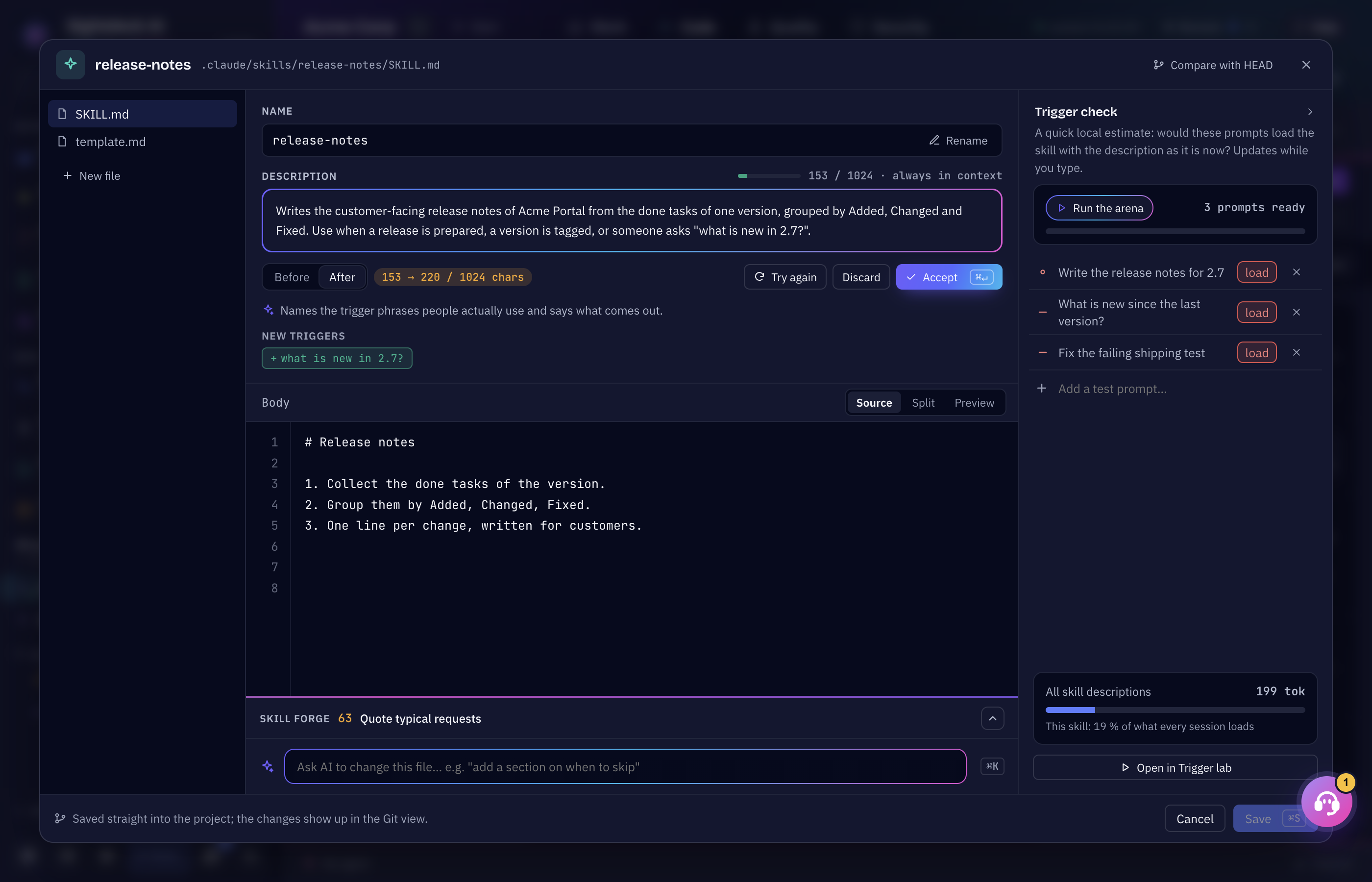
- Optimize with AI rewrites the description so the right prompts load this skill. You see Before and After, the new triggers and what is no longer named, and then Accept or Discard. Nothing is written before you accept. For a user skill installed in several places, the new description goes to all of them. Plugin skills belong to their plugin and are not edited here.
- The field Ask AI to change this file… takes a free request, for example add a section on when to skip.
- The Trigger check on the side keeps test prompts and tells you, while you type, whether each one would load the skill or skip it.
- Compare with HEAD shows what you changed since the last commit.
Skills in the Code tree
In the Code view, a folder that holds a skill and its SKILL.md carry a small star, so you spot skills while you browse. Open a SKILL.md there and you see whether it is a project, user or plugin skill, its checks, a trigger test and how often it was used.
Example: cleaning up the skills of acme-shop
Acme Corp's acme-shop has grown many skills. Mint keeps picking the wrong one for checkout work.
- Open Skills. The list shows
checkout-flowtwice, under Project and under User, both with a Duplicated mark. You open both and see that the user copy is an old version, so you keep the project skill. - Switch to Trigger lab and type add a gift wrap step to the checkout. Both
checkout-flowandcart-rulesclaim it. - Right-click
checkout-flow, pick Optimize with AI, compare Before and After, and click Accept. In the lab, the prompt now reaches onlycheckout-flow. - Open Context budget. The project skill
old-banner-checkwas never used in this project. Right-click it in the list, pick Delete skill and confirm.
Related
- Code view and Code Review: the star on skill folders, and the
SKILL.mdpreview. - Git client: commit the skills you changed.
- Agent setup check: whether your agents are set up well.