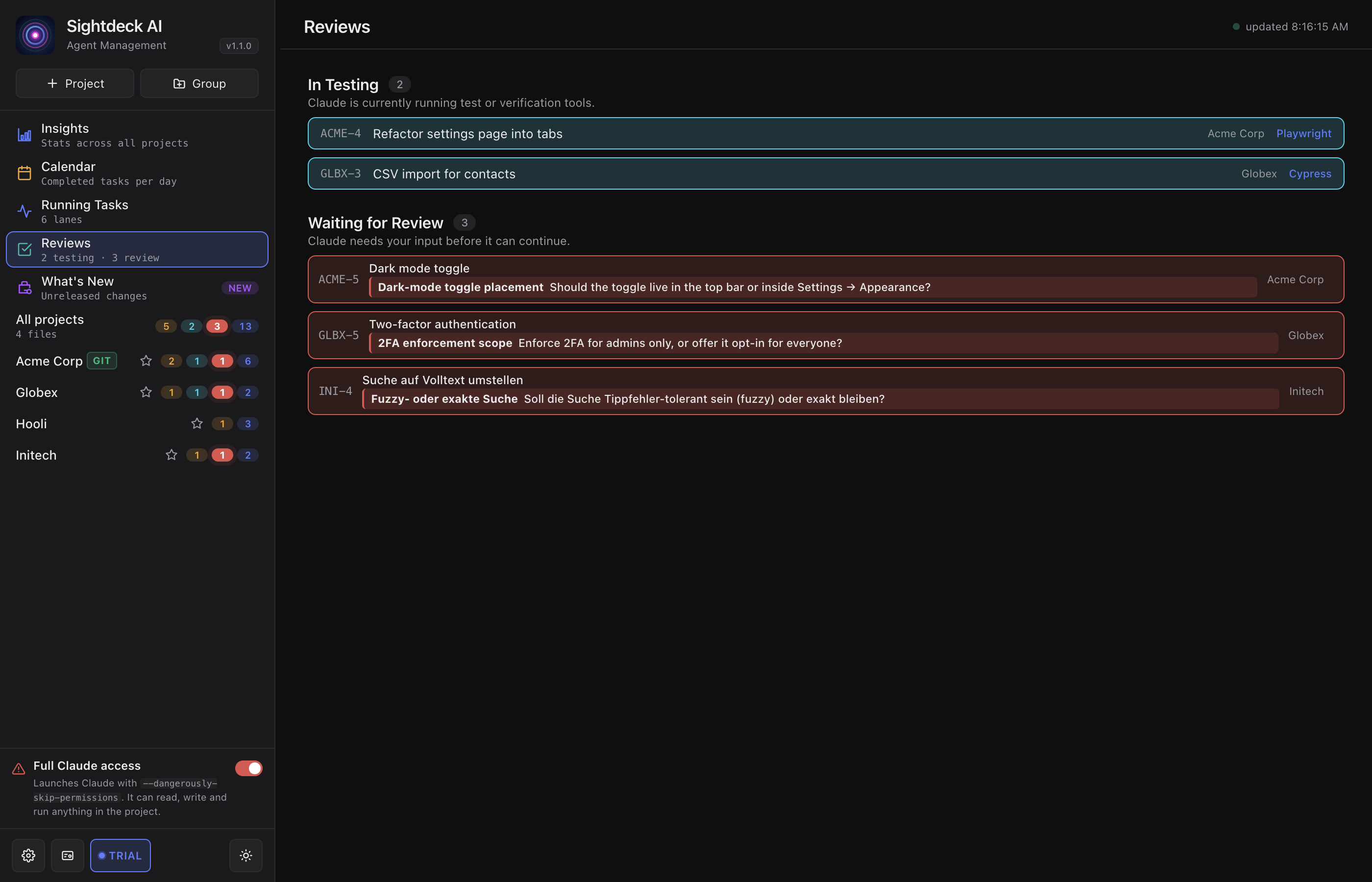
What it gathers
- Tasks in Needs You — questions the agent asked.
- Answers to research questions you have not marked as read yet, with a jump straight into the full answer.
- Tasks in In Testing — verifications you can watch live.
Always across every project, no matter which one is selected on the board. Tasks that are simply finished are not collected here — the board and the Insights view are the place for those.
How this compares to the Needs You column, Running Tasks and the phone page: see Which view should I check?
What you get
- One place for your agent rounds — no hopping between projects.
- Answered questions stay visible long enough to revisit what was decided.
- Testing runs surface here, so you can check on a verification without leaving your current project.
How you use it
- In the left sidebar, click Reviews (top group, with the teal bubble).
- The view groups items by what they need: questions to answer, answered questions, testing runs, tasks ready for review.
- Click an item to jump to that task in its project, with its details open.
The questions you answer here come from the Needs You flow — Reviews is the cross-project roll-up of the same signals.
Turn an answer into a task
When an answered question is worth acting on, each answered card offers Convert to Task. It opens a Convert to task? dialog that names the entry and gives you an optional Extra instructions field — anything the agent should keep in mind while writing the task, like "only touch the launcher" or "keep it to a single file". Leave it empty to let the agent reformulate the answer on its own.
Click Create task (or press Cmd/Ctrl+Enter) and the new task lands in that project's backlog and runs through the normal refinement pass. Converting also marks the answer as read. Cancel, Escape or a click outside aborts — no task is created and the card stays unread.