
What you get
- Bulk creation of Sightdeck tasks from the open Jira tickets assigned to you — no ticket-by-ticket pasting.
- A preview of every open assigned ticket, pre-checked, so you only uncheck what you don't want.
- An assignee filter that starts on your own tickets — clear it to pull in everyone's, or type a name to see one teammate's instead.
- The wizard remembers the connection and project you picked last time and preselects them, so a repeat import is one click into the preview.
- Safe re-runs: tickets you already imported are refreshed, new ones created — never duplicated.
- Every imported task keeps its Jira reference and shows a live status pill, so you see when something moves in Jira.
How you use it
- Add a Jira connection in Settings → Integrations (host, email and API token).
- Open a project and click Import from Jira in the quick-add bar — it appears only once an enabled connection exists.
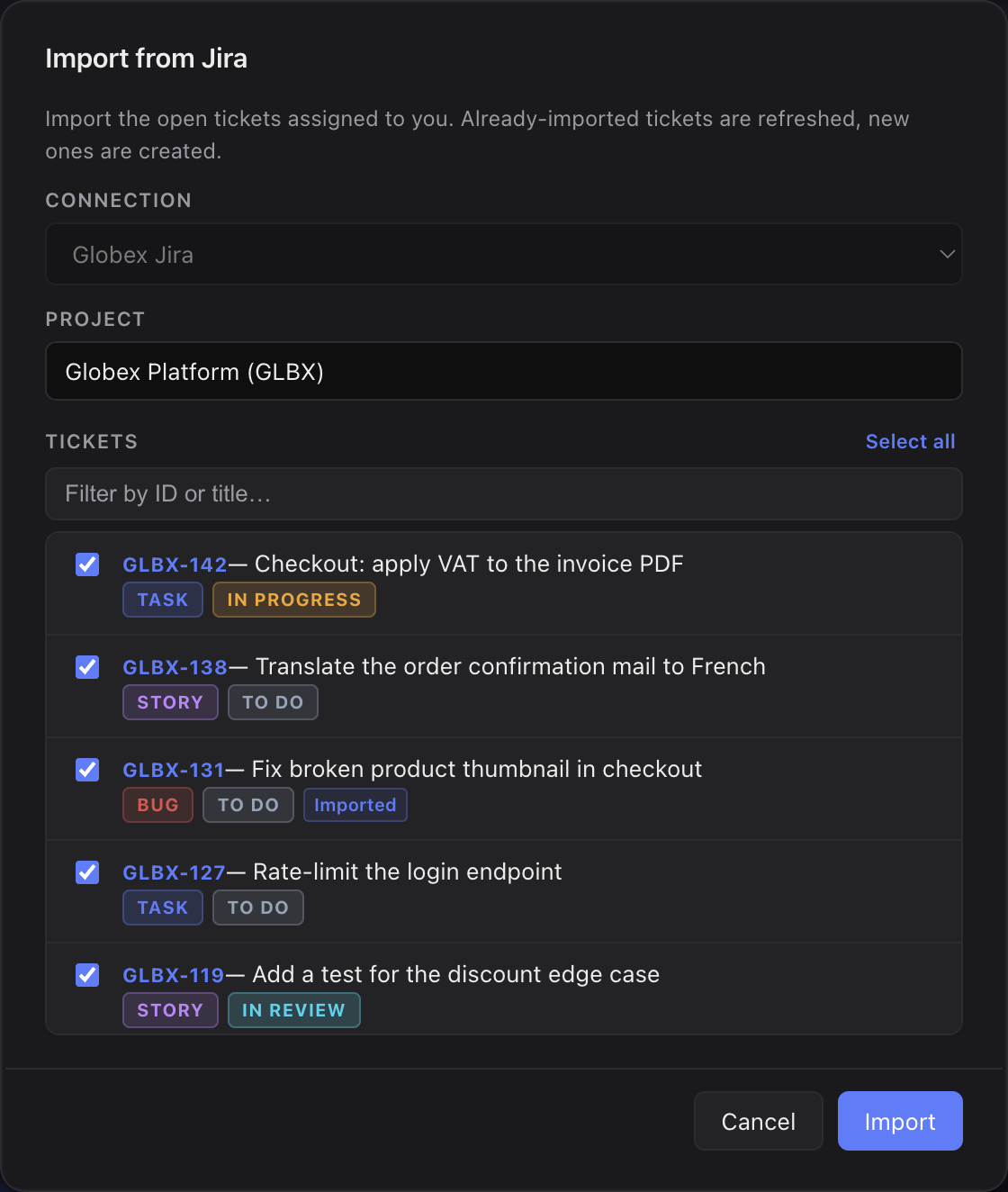
- Pick the connection and the project — preselected to whatever you picked last time. Sightdeck AI loads your open, unresolved tickets and pre-checks them all.
- Narrow the batch with Filter by status: a checkbox list of the selected Jira project's own statuses sits above the preview — only checked statuses are imported, with the Done-family statuses left out by default. The Assignee filter next to it starts on you; clear it to see everyone's open tickets, or enter someone else's name to see theirs. Then filter by ID or title, use Select all to toggle the visible set — it always matches what is actually checked, so a manual uncheck flips the button back to Select all rather than staying stuck on Deselect all — and uncheck anything you want to leave behind. Each row shows the ticket's type in its own column, next to its status, and tickets already in Sightdeck carry an Imported badge.
- Hit Import. The summary tells you how many tasks were created and how many were updated.
Behind the scenes the wizard matches on the Jira key: already-imported tickets are refreshed in place (skip + update), new ones are created and routed through the normal auto-refinement. Run it as often as you like — the backlog stays clean.
Import vs. single-ticket link
The wizard is for pulling many Jira tickets in at once. To attach a single external reference to one task instead, paste the ticket URL or drop a screenshot into your agent session — see Jira integration. Bulk import brings in many tickets at once; a single ticket links one at a time. Issues from GitHub have an import of their own, see GitHub import.
¿Te ha servido esta página?
Gracias — anotado.