
What you get
- Eleven kinds of templates in one place, sorted by category, with a Featured page to start from.
- Ratings and reviews from people who actually used an entry.
- A dry run for workflows and stage setups: see what they would do before you install them.
- Updates that show what changed, and merge tasks that bring a new version into your projects without losing your own edits.
- A way to publish your own templates.
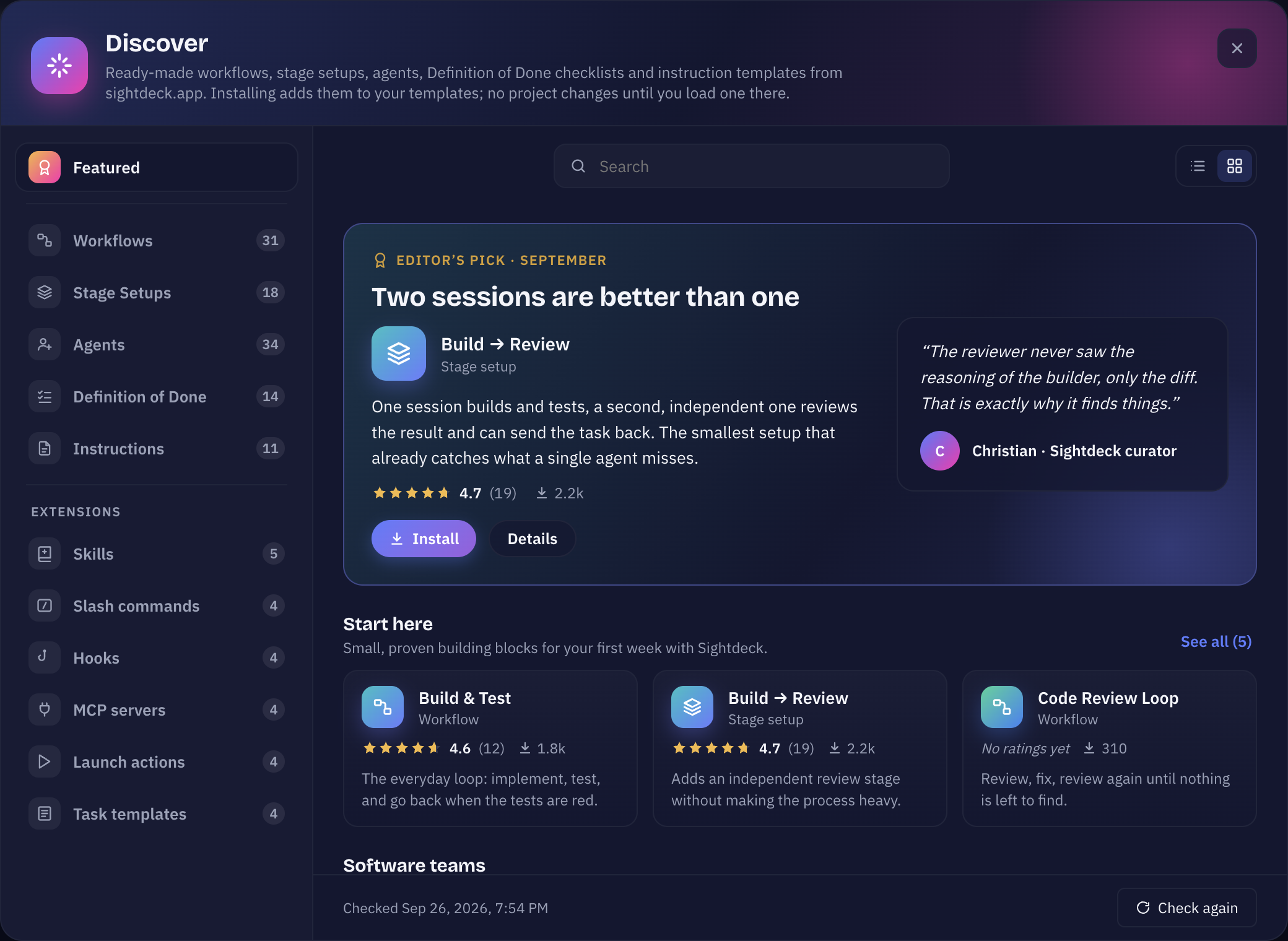
Open the Store
Click the Discover button in the header. The window opens on Featured. The template lists in Settings (for example Settings → Templates → Workflows) also have a "Discover …" link that opens the Store on the matching kind.
If sightdeck.app cannot be reached, the Store shows the last list it saved and says so.
What you find there
The kinds are listed on the left:
- Workflows — the steps of a stage, with their conditions and arrows. See Stages and Workflows.
- Stage Setups — a whole set of stages with their workflows.
- Agents — roles with their instructions and tools.
- Definition of Done — checklists for an agent or for the whole team.
- Instructions — templates for CLAUDE.md, AGENTS.md or GEMINI.md.
And under Extensions:
- Skills and Slash commands — installed into a project's
.claude/folder, or for all your projects. - Hooks — commands that run when the agent reaches a certain event, merged into a project's
.claude/settings.json. - MCP servers — merged into a project's
.mcp.json. - Launch actions and Task templates — added to a project's own lists, next to the ones you made yourself.
Browse and choose
- Featured shows editor's and staff picks and what is New & rising this month.
- Categories narrow a list to a field: Software, Testing, Security, Design, Product, Data, Content, Marketing, Support, Operations, Research, Legal, Education, People and Other.
- Search, Sort (Most installed, Newest, Top rated) and 4+ only for entries rated four stars and up. Switch between Gallery and List.
Click an entry to open its page: what it contains (for a workflow its steps and a preview of the diagram, for a stage setup its stages and which one may send back), who made it, how often it was installed, and in which of your projects it is already used.
Ratings and reviews
Each entry shows its stars and Ratings & reviews. Ratings come only from people who worked with an entry: you can rate it once you have installed it and used it in a project. Sending a rating again replaces your earlier one.
Comments are open to anyone with a license, whether they used the entry or not, and they are public. The Store keeps an identifier derived from your license with each comment — never your license key and never your e-mail address. You can report a comment as spam, off-topic or abuse; the author is never told. Rating and commenting need a Sightdeck license.
Dry run before installing
A workflow or stage setup that comes with a sample task has a Dry run section on its page.
- Click Dry run. Sightdeck shows the model it will use — the cheapest model of Claude Code when you have a Claude provider, otherwise of Codex — and an estimated cost. Codex runs it in its read-only sandbox and reports no cost.
- Click Start dry run. The stages run one after another on the sample task, in a throwaway project.
- Watch each stage say what it would do. The run is read-only: the model may only read files, nothing is changed, and the folder is deleted afterwards.
At the end you see the tokens and the cost of the run. Cancel stops it at any time.
Install
Workflows, stage setups, agents, checklists and instruction templates are added to your templates (Settings → Templates). No project changes until you load one there — for example an agent in Team → Agents with "From template", or an instruction template with Load template, where you review the changes before anything is written. Something you already have in the same version is skipped.
Extensions go straight into a project. The install dialog asks where (a project, or for skills and slash commands all your projects) and lists What gets written — new, replaced, added to, or already there. Nothing changes before you click Install.
Hooks and MCP servers run programs on your computer, so they show the exact commands or the server address first and need you to tick that you have read them. Values an MCP server needs are asked for during install and written into the project's .mcp.json only, never sent anywhere.
Updates
When a new version of something you installed is out, you see it in three places: a count next to that kind in the Store, an Update pill on the template in Settings, and Update available on the entry's page. There:
- What changed shows the difference between your version and the new one, line by line.
- Update template replaces your copy with the new version — including changes you made to it. Projects that already use it stay as they are.
- Apply to projects opens Merge into projects: it lists your projects that have a copy of this template. Pick them and Sightdeck creates one task per project that merges the change into that project's own copy, keeping local edits. Nothing in a project changes until that task runs.
Publish your own
- Open the template under Settings → Templates.
- Click Publish to store. Add a note for the reviewer if you like: what it does, what you changed, how you use it.
- Click Publish. The template goes to the Sightdeck team for review. Once approved it appears in the Store with the name on your license as its author.
My submissions in the same dialog shows each submission as Pending, Approved or Rejected with the reason. A template you based on a Store entry is published as a remix, and the Store links back to the original. Publishing needs a Sightdeck license.