
What you get
- Three kinds of links on every task: Blocked by, Blocks and Relates To.
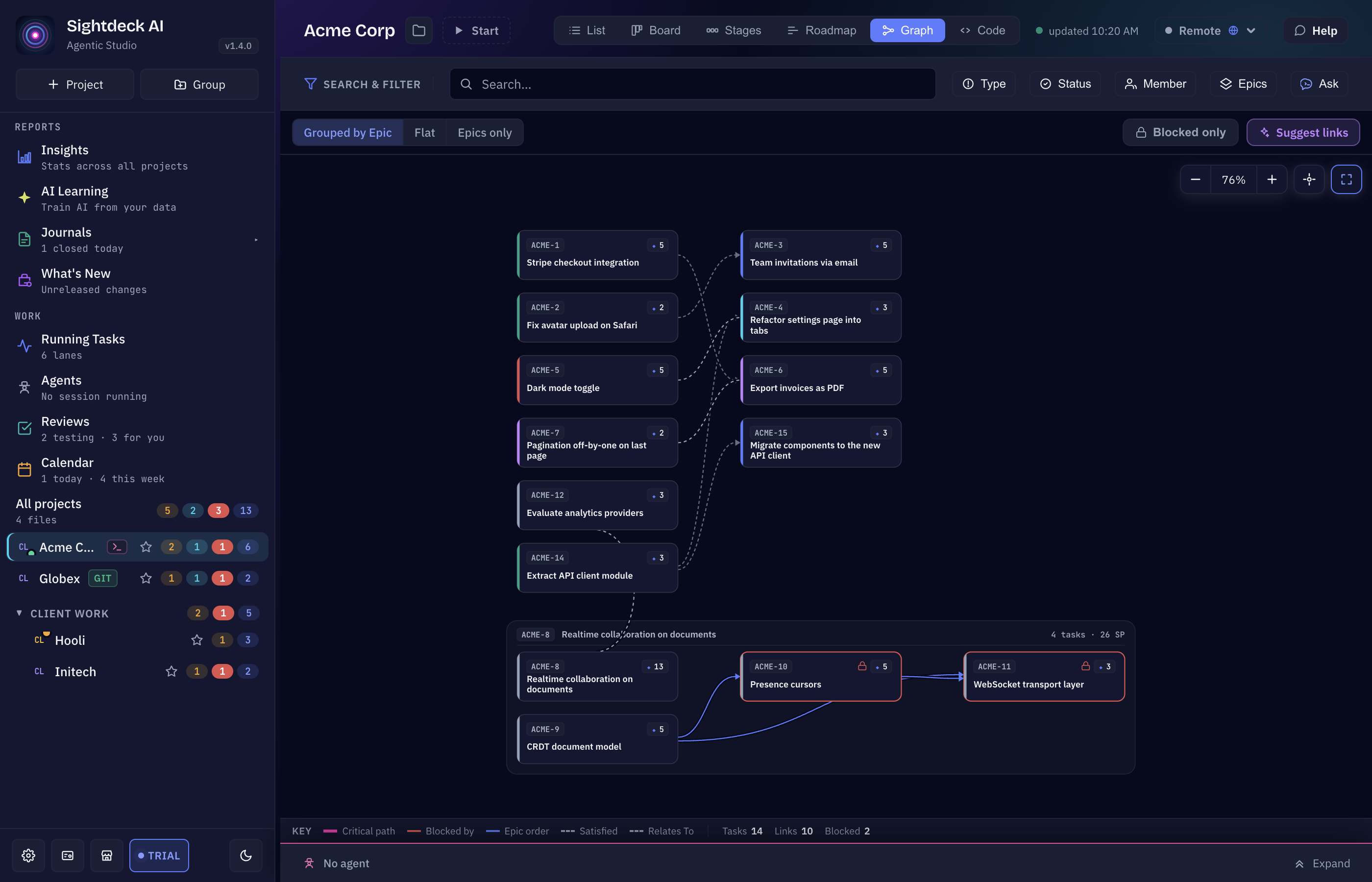
- A dependency Graph of the project, with grouping, a blocked-only filter, the critical path and zoom.
- AI suggestions for links that are missing, which you approve or dismiss.
- A per-project rule for what happens when you start a task whose predecessor is still open.
- A warning in Up Next when the queue is in the wrong order, and a button that fixes it.
Linking tasks
- Open a task and find Dependencies in its details.
- Press + Add link and choose the kind:
- Blocked by — this task waits for the one you pick.
- Blocks — the task you pick waits for this one.
- Relates To — just a link, no waiting either way.
- Search the task by number or title and pick it. A link that would close a cycle is refused.
Each link has its own remove button. Suggest in the same section asks the AI which dependencies this one ticket is missing.
The dependency graph
Switch the project to the Graph view. Only tasks with at least one link are drawn — the view is about relationships. Above the graph you see how many tasks and links it holds.
- Grouped by Epic, Epics only or Flat — how tasks are grouped; each group shows its tasks and Story Points.
- Blocked only — show just the tasks waiting on an open predecessor, plus the predecessors they wait on.
- Critical path — highlights the chain with the most Story Points from a first task to a last one: the sequence that decides how long the whole thing takes.
- Zoom in and out with the zoom controls. The search and filters of the filter bar narrow the graph too.
Let the AI suggest missing links
Press Suggest links in the graph. Sightdeck scans the project for dependencies that are missing and opens a review: suggested links appear as dashed lines, and each row says what it is based on (shared files, the same Epic, overlapping work). For each suggestion you can approve, dismiss, turn the arrow round, or switch between “blocked by” and “relates to”. Approve the confident ones takes all confident suggestions at once. Dismissed pairs are not suggested again.
In Edit project → Dependencies you can also let refinement do this on its own: Link dependencies while refining (off by default) writes the links it is sure about for the ticket just refined, marked Auto. Pick how confident it must be, and switch on Ask before writing if you want the proposal as a question instead.
Starting a task with an open predecessor
In Edit project → Dependencies, Starting a task with an open predecessor decides for the whole project:
- Block — Start stays disabled until the predecessors are done.
- Warn (default) — Start works, and a strip names what is still open.
- Off — no strip, nothing is prevented.
Links are always recorded and shown, whatever you pick.
Up Next in the right order
When a ticket in Up Next comes up before its predecessor, the column shows a strip such as “1 ticket comes up before its predecessor”. Press Fix the order and the queue is sorted so every predecessor runs before the task waiting on it. Tasks without a link keep their position.
With the rule set to Block, a queued task whose predecessor is still open does not start. In the Agents view its queue entry says why, for example “Waiting for SHOP-12”.