
What you get
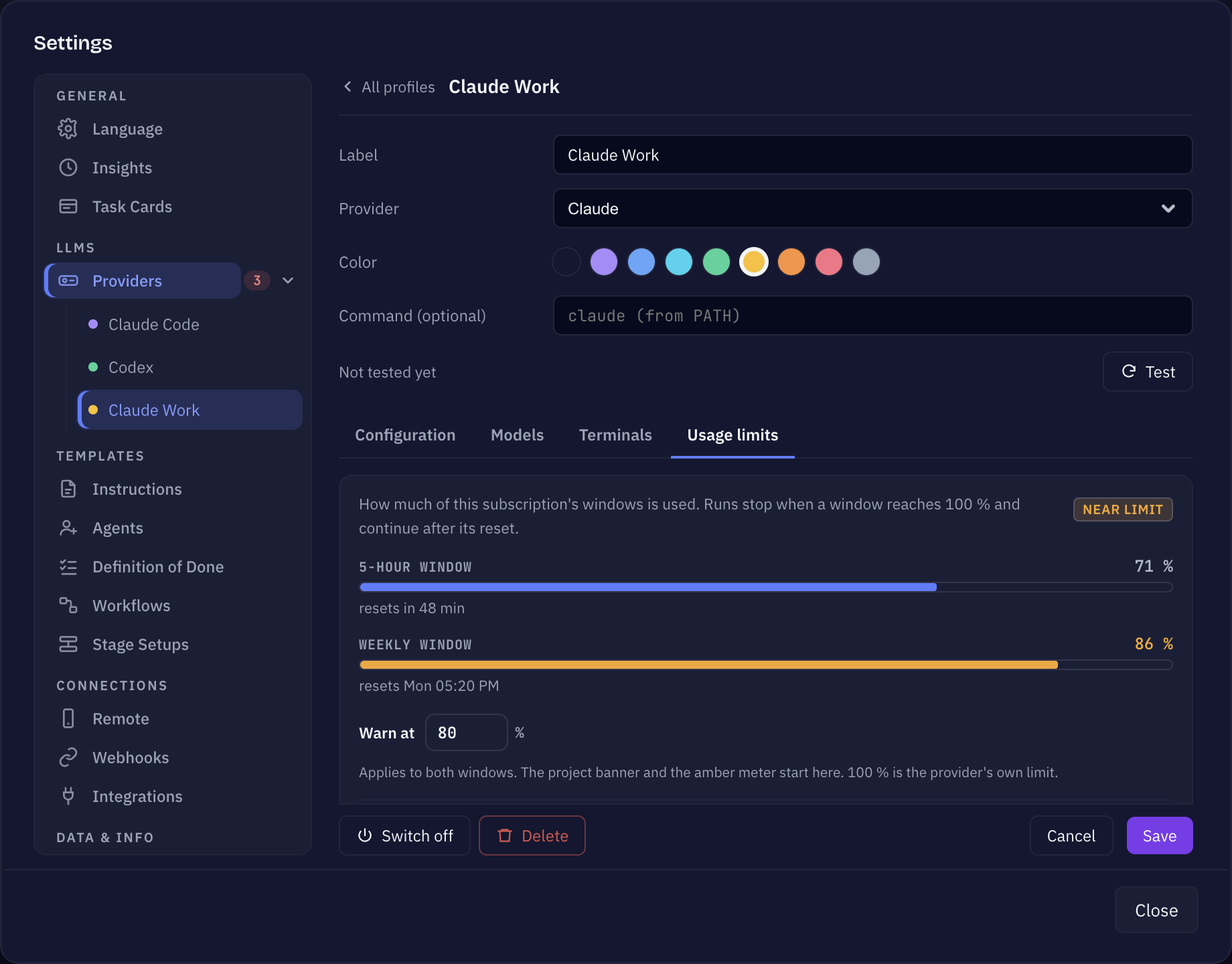
- A meter for the 5-hour window and the Weekly window on each Claude provider profile, with the time until it resets.
- A banner in the project when its provider is near or at a limit.
- A mark on the project’s provider in the sidebar, so you see it without opening the project.
- Auto-run switched off in the projects on that provider once the weekly limit is reached.
Which providers this covers
Only Claude Code reports these limits, so the meters appear on Claude provider profiles — including your own Claude profiles with a custom command or a second account. Codex and other providers show Usage not reported by this provider. The numbers come in with each run; until the first run there is no data, and only Pro and Max subscriptions report it at all.
Where the usage shows
- Settings → Providers, on a Claude profile, under Usage limits: how full each window is, resets in 2 h 10 min, and as of …, from the last run. A value older than a few hours is shown muted with “no run since” and raises no warning.
- The project banner, for example “Claude has used 84 % of its 5-hour limit. Resets 16:40. Long runs may stop before then.” Near the limit you can open Details or Dismiss it; once a limit is reached, the banner offers Change provider.
- The sidebar: the provider mark of every project on that provider changes colour, and its tooltip says the provider is near or at its usage limit.
When you get warned
On the profile, Warn at sets the threshold for both windows — 80 % by default, anything from 50 to 99 %. From there the meter turns amber and the project banner appears. 100 % is the provider’s own limit.
Reaching the weekly limit
When the weekly window is full, Sightdeck switches Auto-run off in every project that runs on that provider, and tells you so: “Weekly limit reached: Auto-run is now off in the projects on this provider.” The project banner adds that Auto-run is off until the reset. This way Up Next does not keep starting tasks that would stop right away.
It happens once per reached week. Auto-run is not switched back on by itself after the reset — turn it on again when you are ready. If you turn it back on earlier, for example after moving the project to another provider, it stays on.
The 5-hour limit does not touch Auto-run; it only warns.