
Before you start
This tutorial assumes you already have a project added and a provider set up in Settings → Providers with the Sightdeck skill installed — if not, run through Quick start first. Pick tasks that don't depend on each other; parallel runs work best when the tasks touch different areas.
Steps
- Drop your ideas into the backlog. Use the Quick-Add field to add each task as one sentence. Sightdeck AI refines each one — title, summary, Type, estimate, Story Points — in the background. See Backlog refinement for what the refinement fills in.
- Wait for the "Refining…" pills to clear. A task is ready to run once its pill is gone. Story Points and duration help you judge which ones are genuinely small — read Story points & duration if the numbers are new to you.
- Select the tasks and run them in parallel. Select the tasks you want to run together and choose Run in parallel: one session per task, side by side. Not sure they are independent? Run with Autopilot checks whether the tasks touch the same files and runs them in order if they do, in parallel otherwise. The full mechanics are in Bulk start.
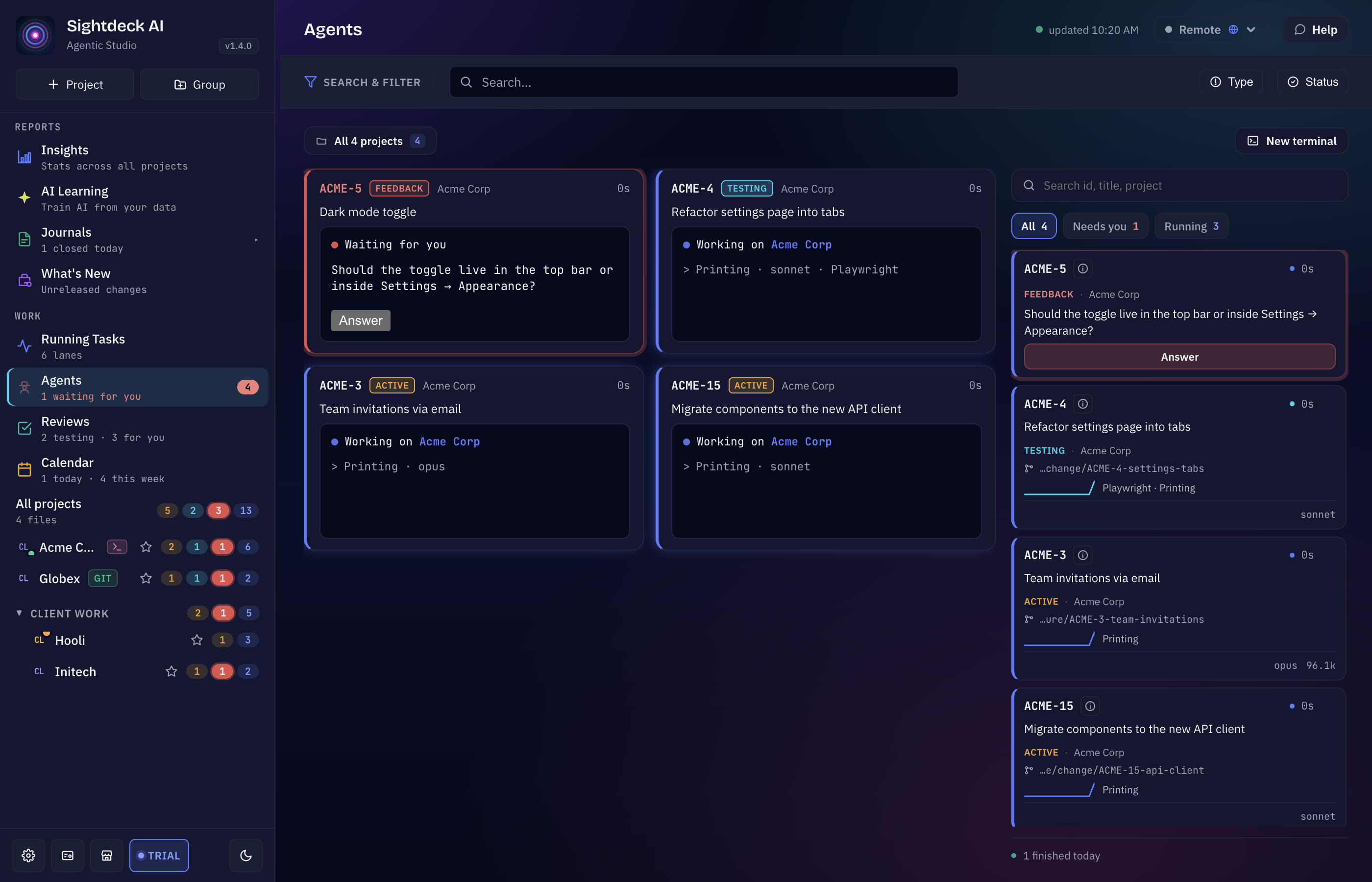
- Watch the sessions. The board shows every task with its live status pill, so you can tell at a glance which are working, which are testing and which have finished — see Running tasks. For the sessions themselves, open the Agents view: every running session with its task, status, branch, progress and changes, and you can open one full size.
- Answer anything that lands in Needs You. If a task needs a decision it moves to Feedback and shows up under Needs You with the question on the card. Answer it and the task resumes on its own — details in Needs You.
Prefer to queue instead of launch all at once?
If you'd rather Sightdeck AI start the tasks one at a time without you clicking each one, put them in Up Next and let the auto-scheduler work through the queue — see Up Next auto-scheduler. If some of them have to wait for others, Plan a feature with dependencies shows how to put that order in.
¿Te ha servido esta página?
Gracias — anotado.