
What it's for
- Standing instructions that should apply to every task in one project, without retyping them each time you start the agent.
- Personal working rules — a "custom prompt" describes how you work. A rule the whole team must follow belongs in the project's
CLAUDE.mdorAGENTS.mdinstead, which every teammate gets through git — see Instructions.
How you set it
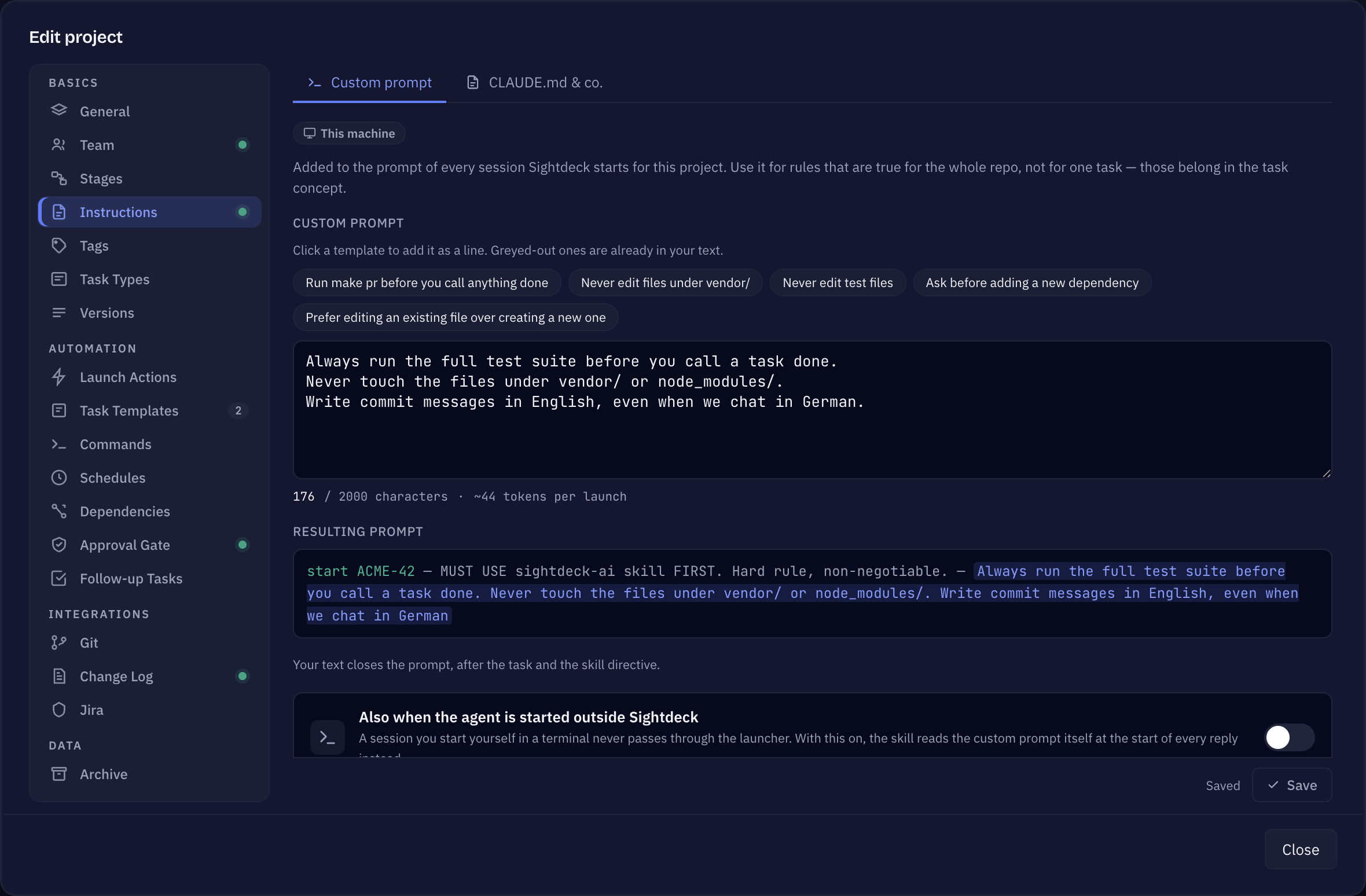
- Open Edit project → Instructions and pick Custom prompt at the top (next to CLAUDE.md & co.).
- Write your standing rules, one per line — or click a template chip to add it as a line.
- The pane shows the Resulting prompt live, and what the added text costs on every launch.
- Save.
Where it lands in the prompt
The order is fixed: the task itself first, then the skill's own directive, then your custom prompt — your standing rules close out what the agent reads. The Applies to row shows where it is sent: Start, Queue & auto-run, Epic, Serial runs and Rework. It is not sent on Plan or a Feedback answer, and Resume never sends it either — a resumed session reattaches to one that already received it when it first started.
A session you start yourself in a terminal never passes through Sightdeck. Switch on Also when the agent is started outside Sightdeck and the skill reads the custom prompt itself at the start of every reply instead.
Good to know
- It stays on your machine. The text is stored in the project's machine-local settings, the same file Sightdeck keeps out of git — a committed custom prompt would hand every teammate your personal rules, so it never leaves this computer.
- Different from a custom command. This is text appended to every prompt; a custom provider command points a project at a different agent installation or account. The two are independent and can both be set at once.
¿Te ha servido esta página?
Gracias — anotado.