
What it is
Tags are reusable labels you define once per project — a second way to group tasks on top of their status. Refinement assigns matching tags automatically while it refines a task, and you filter the task list by them.
What you get
- A second axis to slice your backlog besides status — useful when one project spans several surfaces (app + landing page + skill).
- Tag assignment happens automatically during Refinement, so the classification work doesn't sit on you.
- Filtering stays per scope: the active tag filter is remembered per project (and per "All projects" view).
How you use it
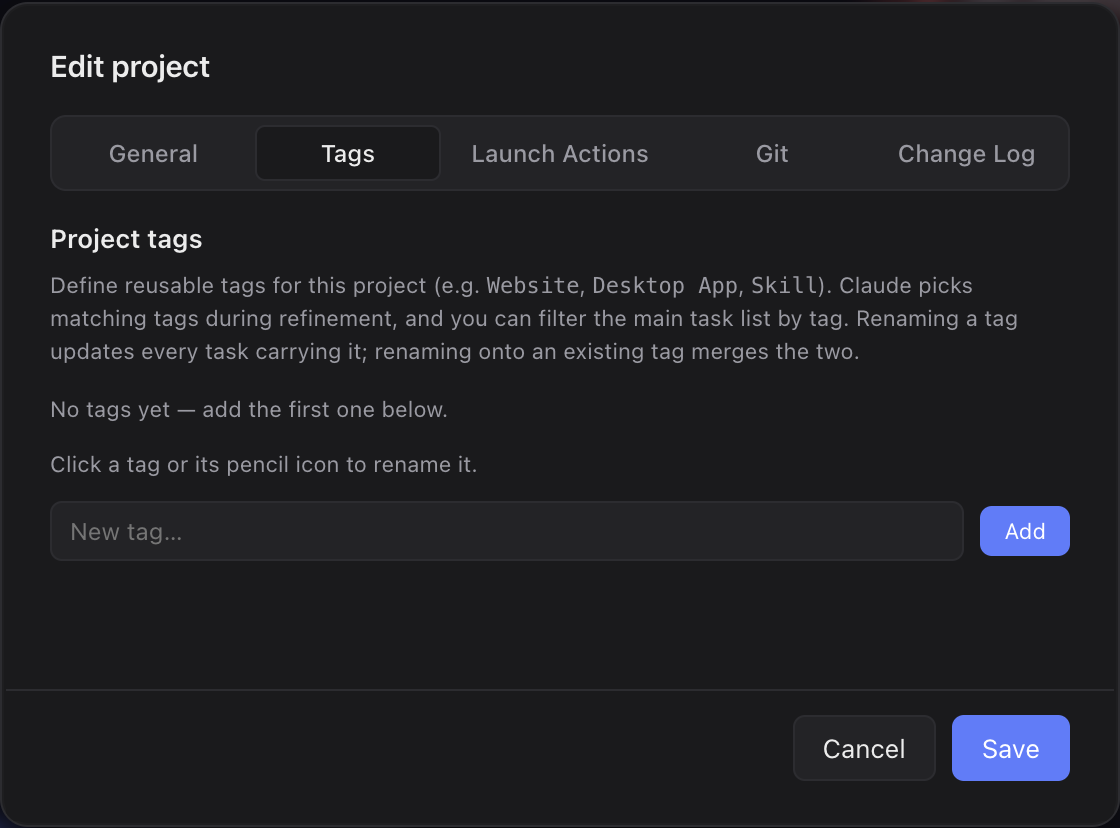
- Open the project's Edit modal and add your tags under Tags.
- Refine an existing or new task — refinement assigns matching tags based on title and summary.
- Use the Tags filter button above the task list to narrow down by tag. You can also edit a task's tags directly on the Overview tab of its details.
- Click a tag in the Tags list — or the pencil icon that appears when hovering a tag chip — to rename it inline (Enter saves, Escape cancels).
Tags also steer work: a step in a workflow can depend on a task's tags, and follow-up tasks can get tags of their own.
¿Te ha servido esta página?
Gracias — anotado.