
What you get
- No double bookkeeping — Sightdeck AI works with your tracker, not alongside it.
- Click the reference on a card to open the original ticket, no copy-paste.
- Drag a screenshot of a ticket into your agent session and that's enough: Sightdeck AI pulls the key, title and acceptance criteria out of it.
- For tech leads: all linked tickets visible together, without opening the tracker live.
How you use it
- When creating a task, mention the ticket ID (e.g.
AHSR-1234) in the title or in Quick-Add — Sightdeck AI detects it automatically. - Or drag a screenshot of the ticket into your agent session, and the agent creates the task with the reference attached.
- The ticket badge appears on the card. Click it to open the original.
- Edit the linked ID and URL in the task's details any time.
A linked task runs the same lifecycle as any other — and you can have it post back to your tools on completion with the done webhook.
Import everything assigned to you
Instead of linking tickets one by one, pull all the open Jira tickets assigned to you into a project at once. The full walkthrough lives on the Jira import wizard page.
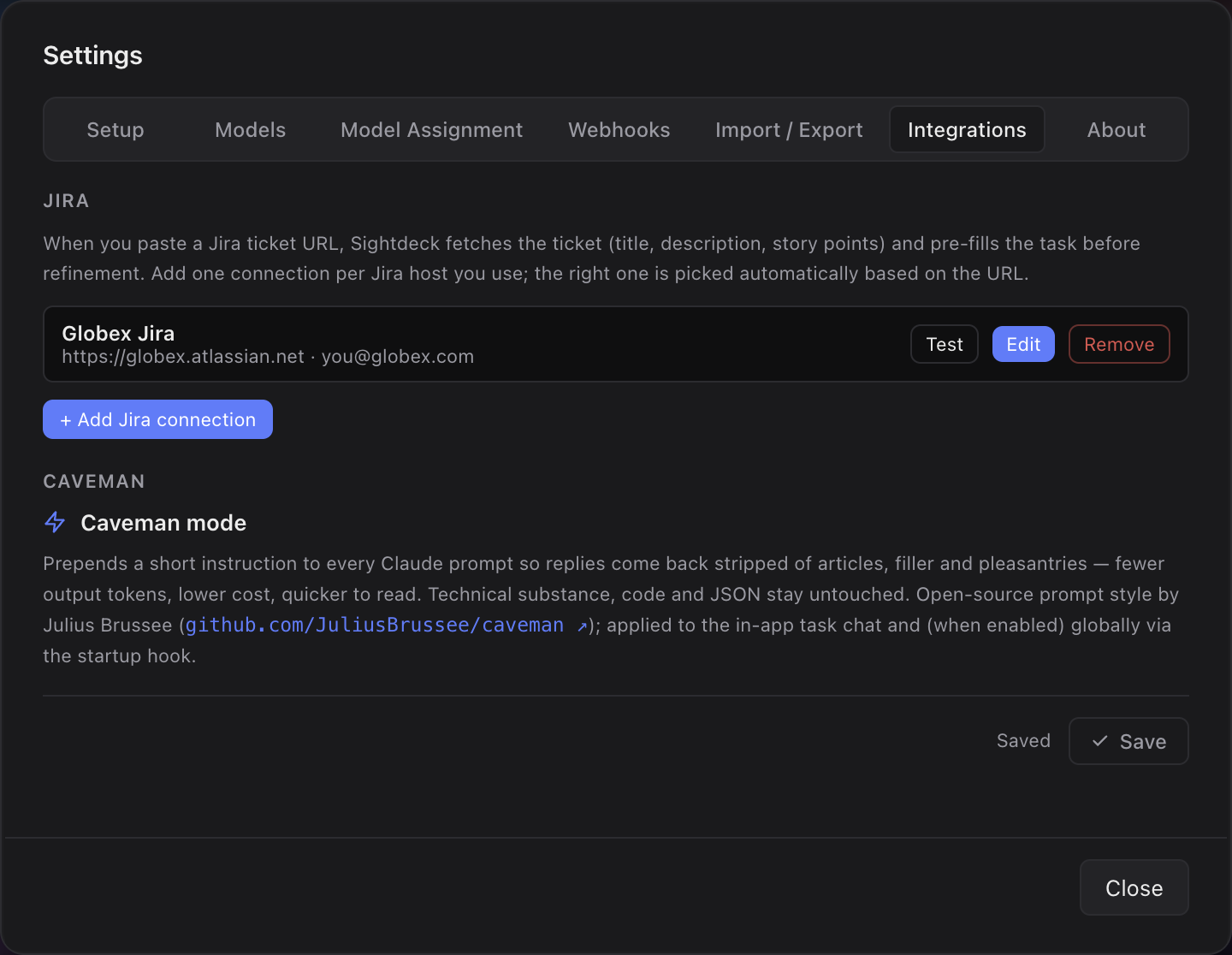
- Add a Jira connection in Settings → Integrations.
- Open a project and click Import from Jira in the quick-add bar — it appears once a connection exists.
- Pick the connection and the project. Sightdeck AI shows your open, unresolved tickets, all pre-selected.
- Uncheck any you don't want, then Import. You'll see how many tasks were created and updated.
Run it again whenever you like: tickets you already imported are refreshed rather than duplicated.
Bulk import pulls many Jira tickets in at once; a single ticket links one at a time — mention the ID or drop a screenshot as shown above.
Push the status back to Jira
Pulling tickets in is one direction. A project can also push its own status changes back out, so the Jira issue follows along without anyone dragging it there by hand. It is per project and off by default.
- Make sure a Jira connection exists in Settings → Integrations.
- Open Project Settings → Jira and switch the sync on.
- Map each Sightdeck status — backlog, up next, in progress, in testing, needs you, done — to the Jira status it should move the issue to. Each row is a dropdown filled with the statuses of your own Jira project; leave a row on Not synced and that status is simply never pushed.
From then on, a status change on a linked task fires the matching Jira transition. Syncing to a status the issue already sits in does nothing, so repeated changes are safe.
The most common failure is no matching transition: the Jira status you mapped to is not reachable from where the issue currently sits in its workflow. Check the mapping against the real workflow — or change the workflow.
If the dropdowns fall back to plain text fields, Sightdeck AI could not read your Jira statuses; the tab says why — usually no connection matching your ticket links, or credentials Jira refused. The mapping still saves, it just cannot be checked for you.
The ticket and your plan are two files
An imported ticket is written to its own mirror file next to the task's concept. That is what makes a re-import safe: the ticket file is replaced whole, the concept — the plan you or the agent built — is never touched.
The import brings the whole ticket, not just its title: comments, attachments, priority and linked tickets, with images and files downloaded, and the ticket's own type and labels carried over as the task's type and tags. Descriptions and comments arrive as readable text — headings, lists, tables, code blocks and images — instead of raw wiki markup. You read all of it in the Jira ticket window.
Staying in sync
- Starting a task re-fetches its ticket first, so a session always works from the current state — and the locally built plan survives that refresh. The subtasks of an Epic pick up the state of the parent ticket.
- A ticket that changed in Jira since the last sync says so directly on the ticket pill, with no extra lookup.